Company Rewards in Tyfoom

Company Rewards in Tyfoom


In this guide, we're going over company rewards in Tyfoom.

Go to app.tyfoom.com

1. Company Rewards

Company rewards let you create your own point-based incentive program to recognize and drive Employee Engagement.
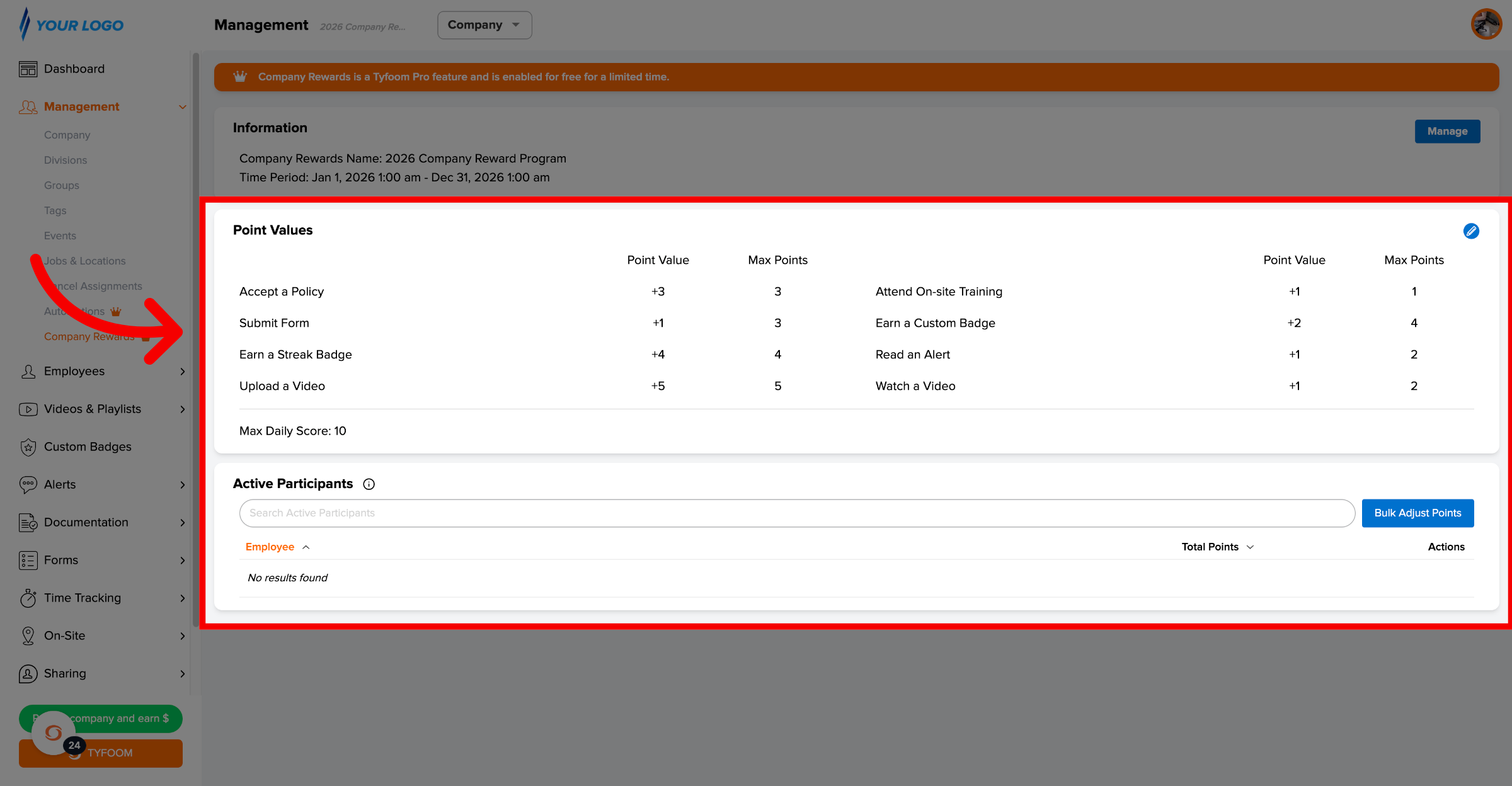
Company Rewards

2. Open Company Rewards

To get started, go to the management tab and then Company Rewards.
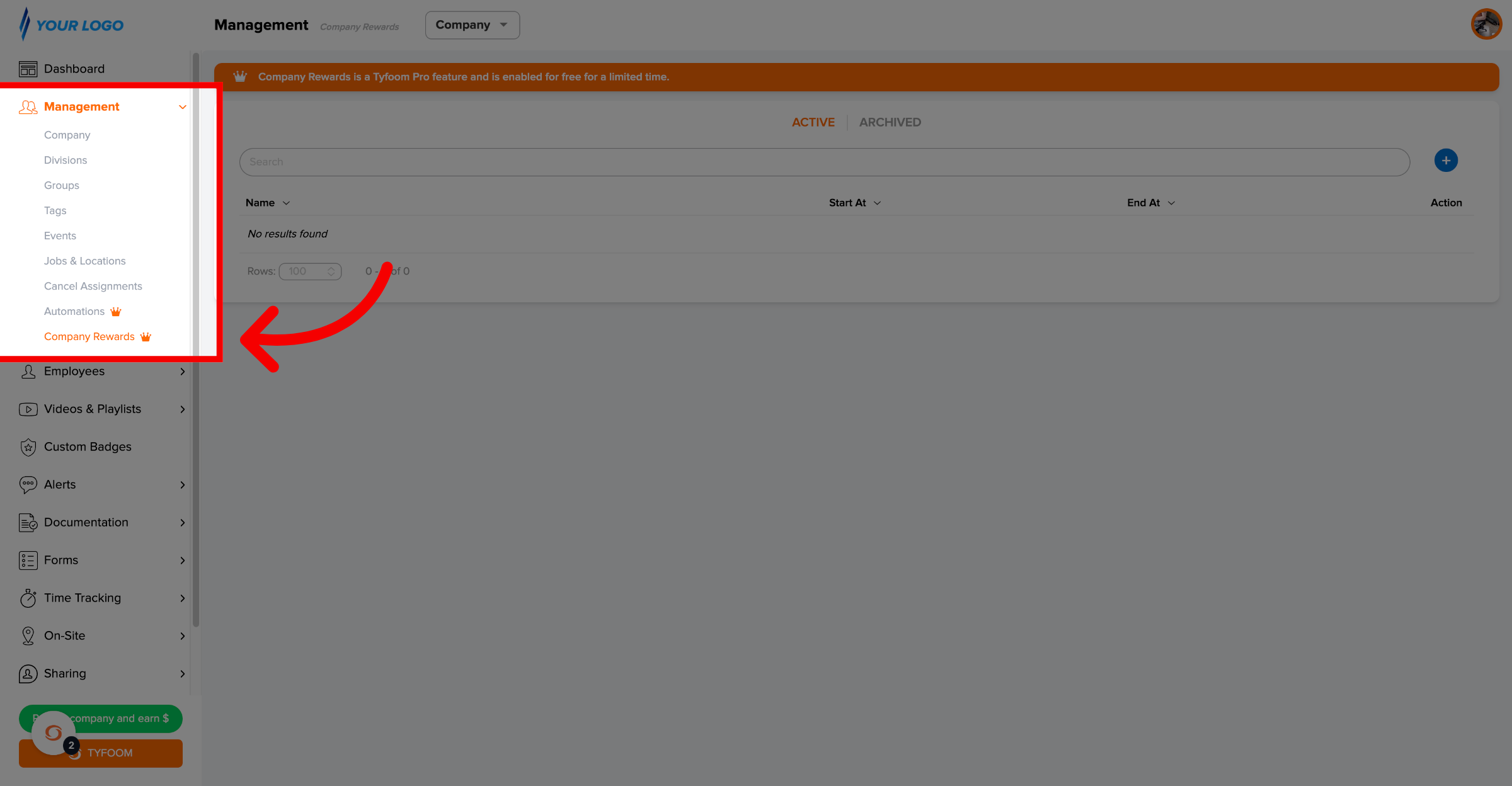
Open Company Rewards

3. Add New

In the top right, click the plus button to create a new one.
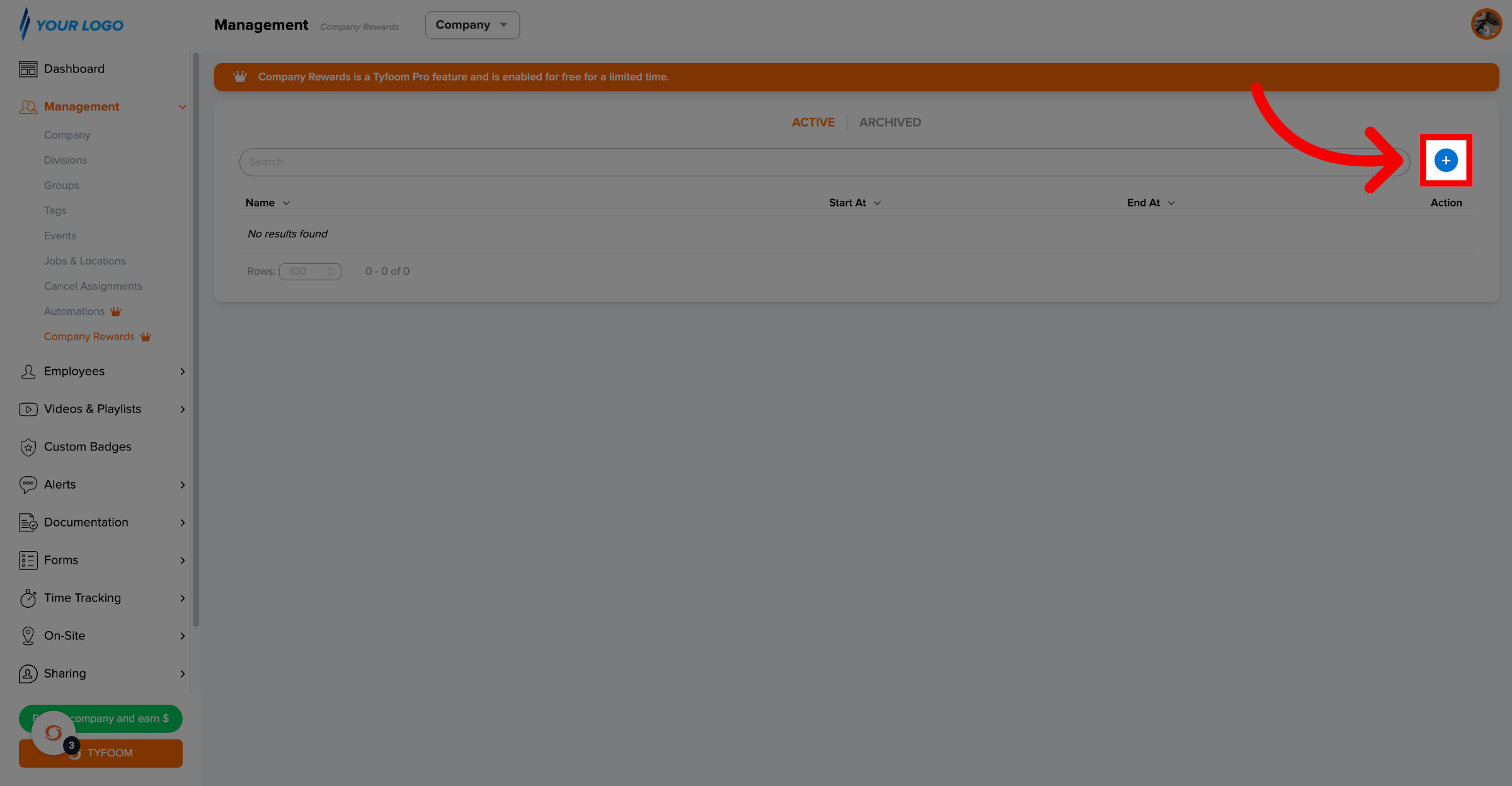
Add New

4. Name the Program

Now you're on the create page, give the program a name. This name will be seen by your employees on the mobile app.
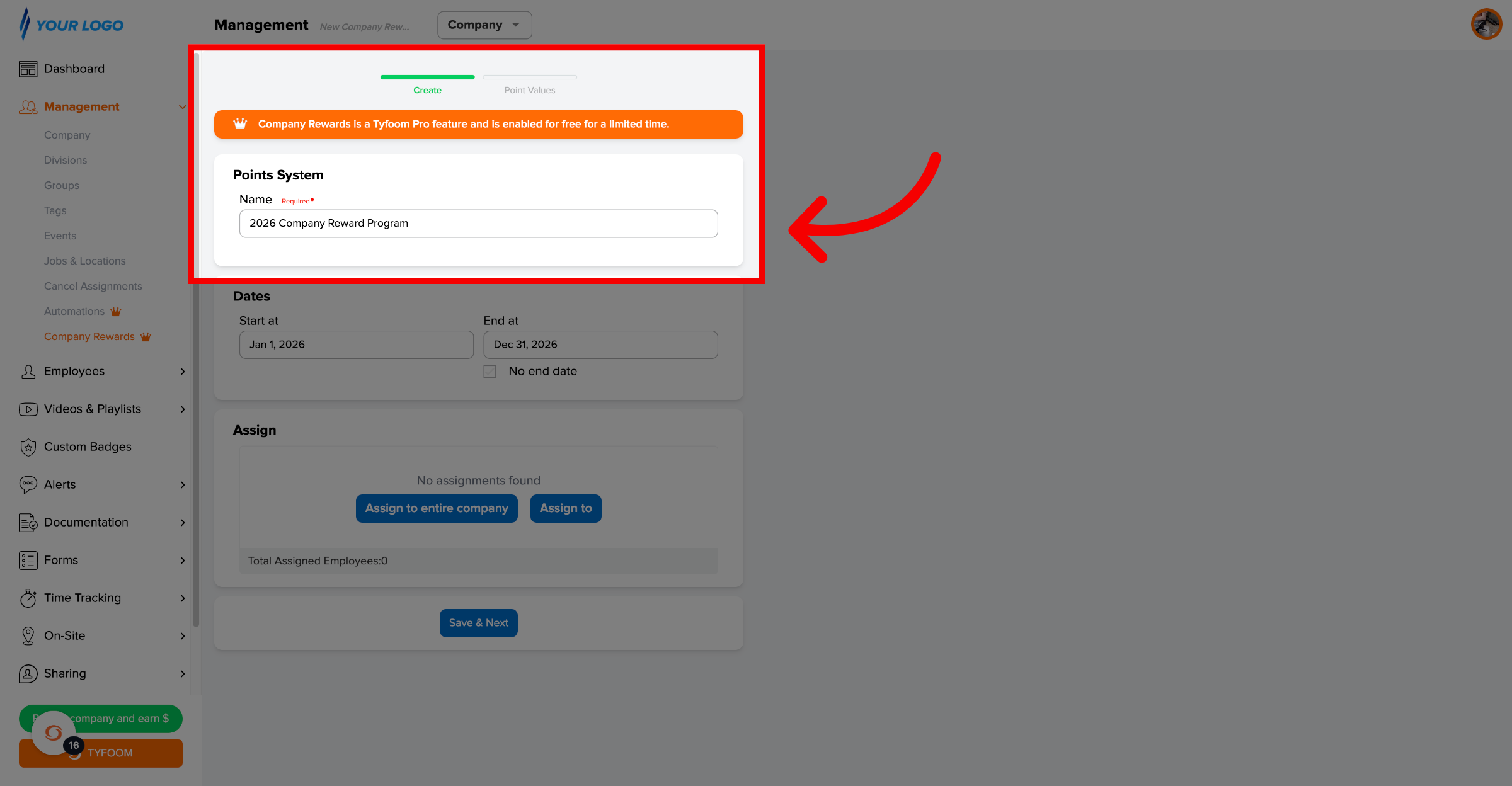
Name the Program

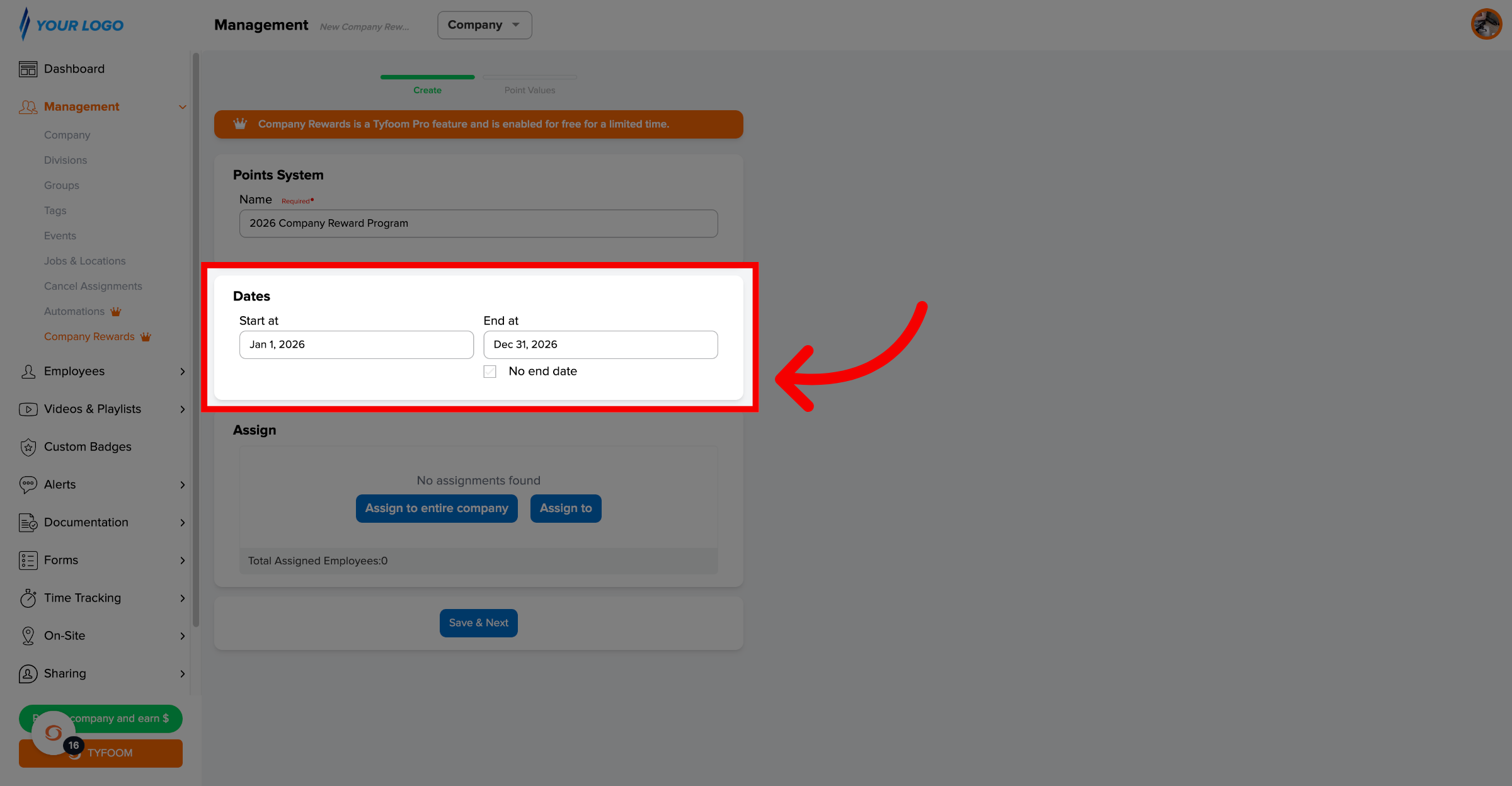
5. Set Program Dates

You can decide when the program starts and if it has an end date, if an end date is selected, then employees will stop earning points at that time.
Set Program Dates

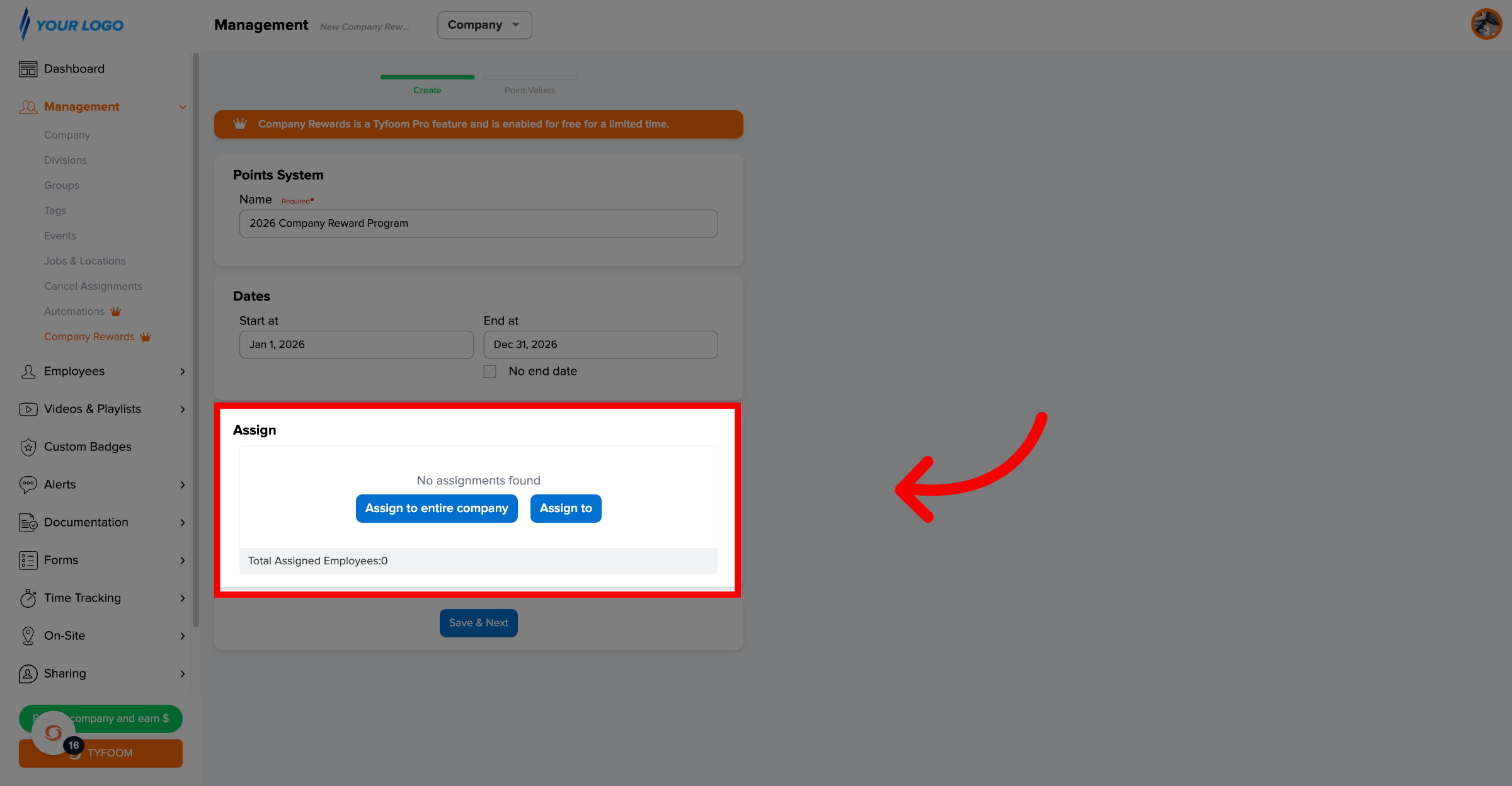
6. Select Employees

The assign section will determine who can earn points. This means you can create different programs for different parts of your company. Employees can have multiple programs assigned, but their points from each are kept separate.
Select Employees

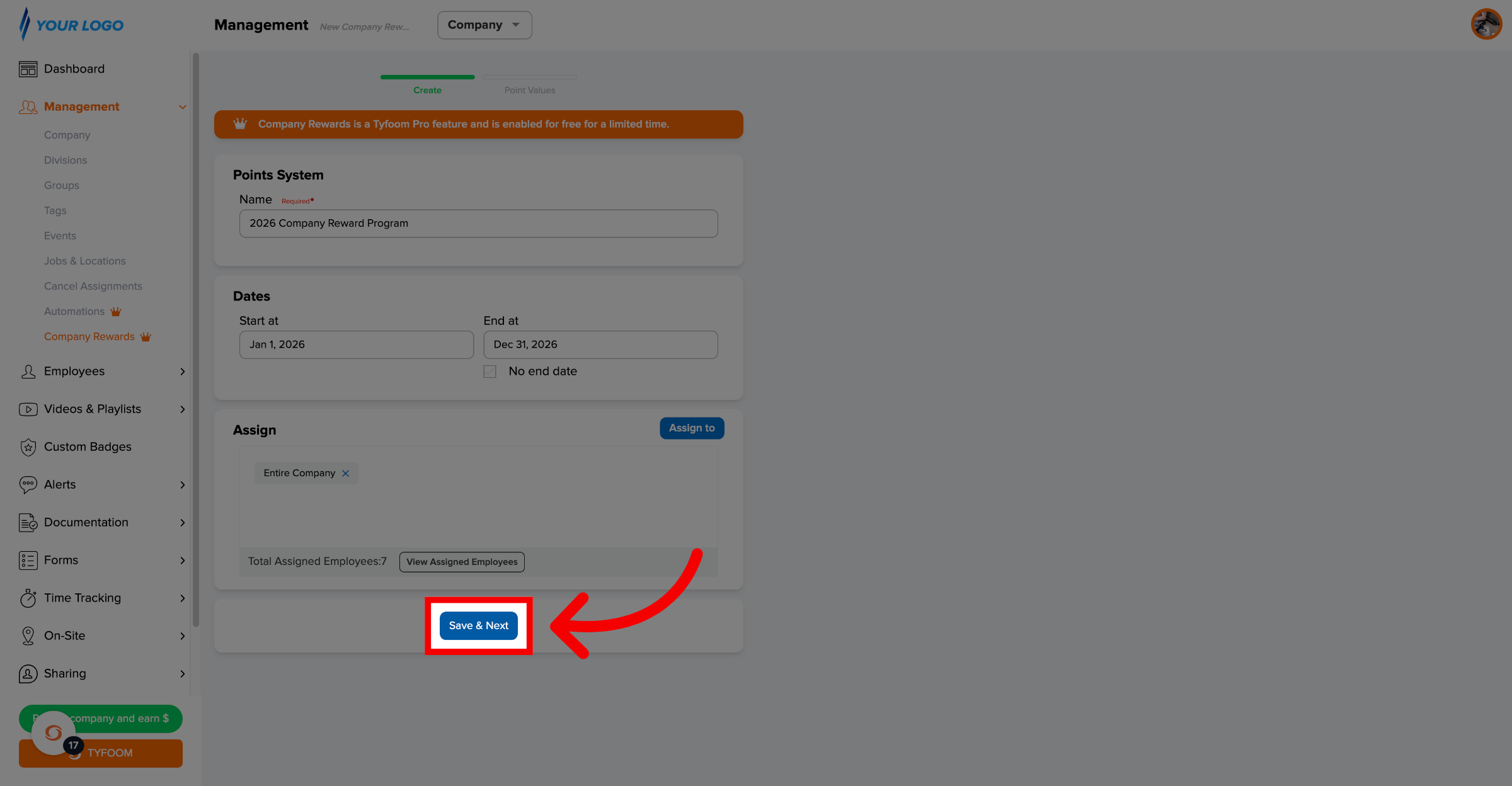
7. Save and Continue

Once you've added these details, click "Save & Next".
Save and Continue

8. Define Values

Define Values

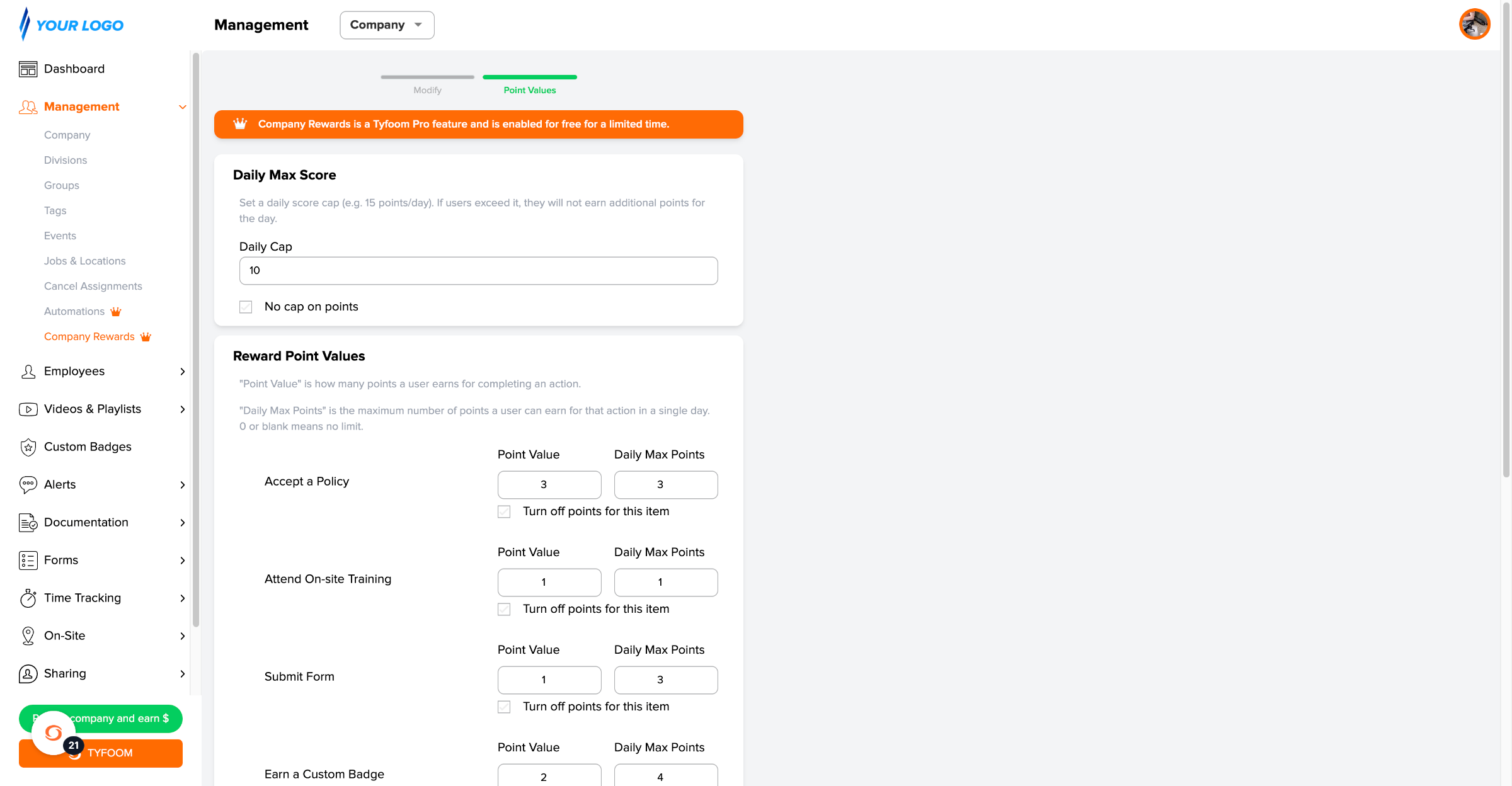
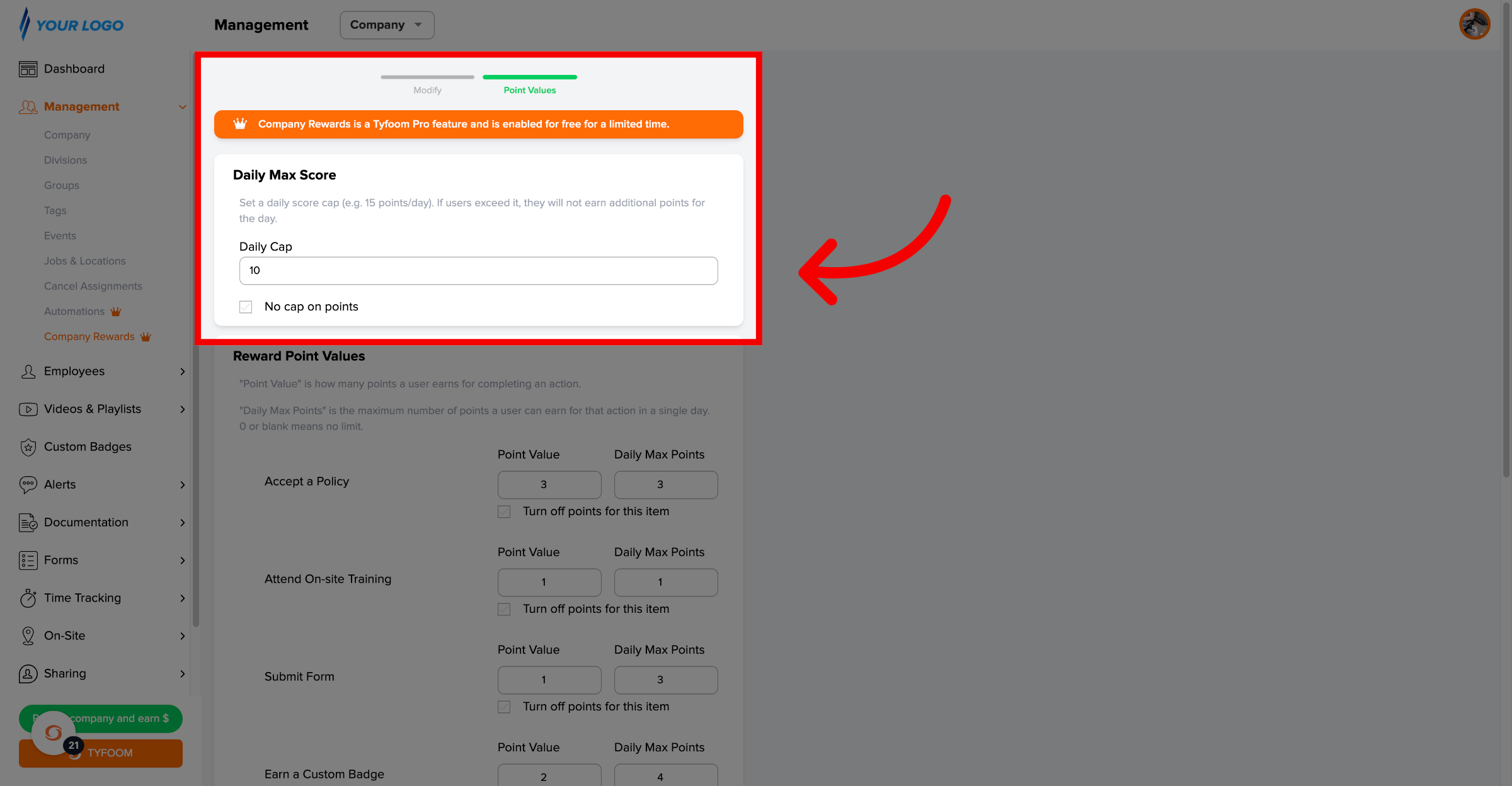
9. Set Daily Max Score

You can set a daily max score. This is a cap on total points a user can earn per day.
Set Daily Max Score

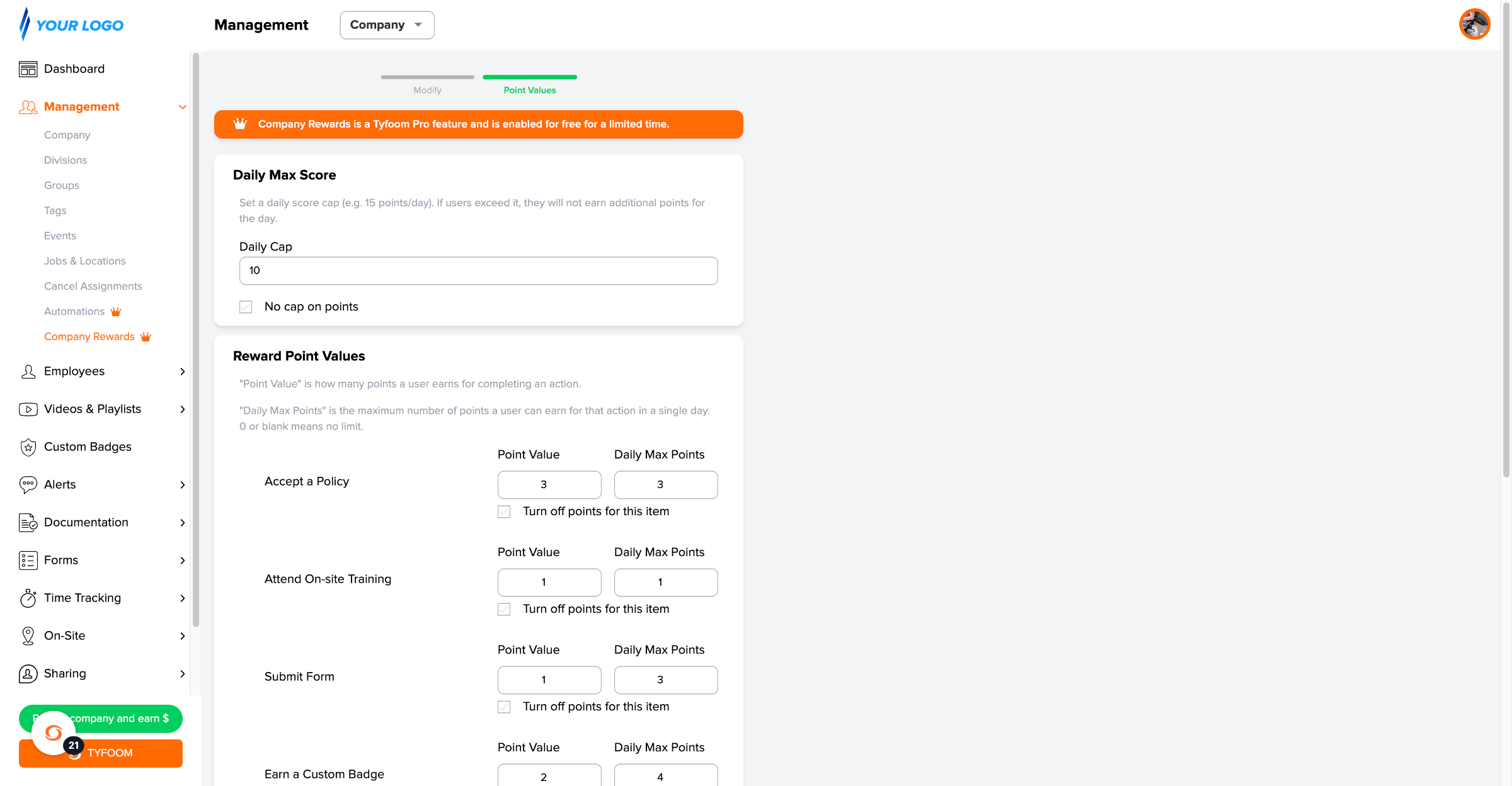
10. Assign Point Values

Assign Point values to each action.
Assign Point Values

11. Set Max Points per Action

You can set a daily max for how many points each action can earn.
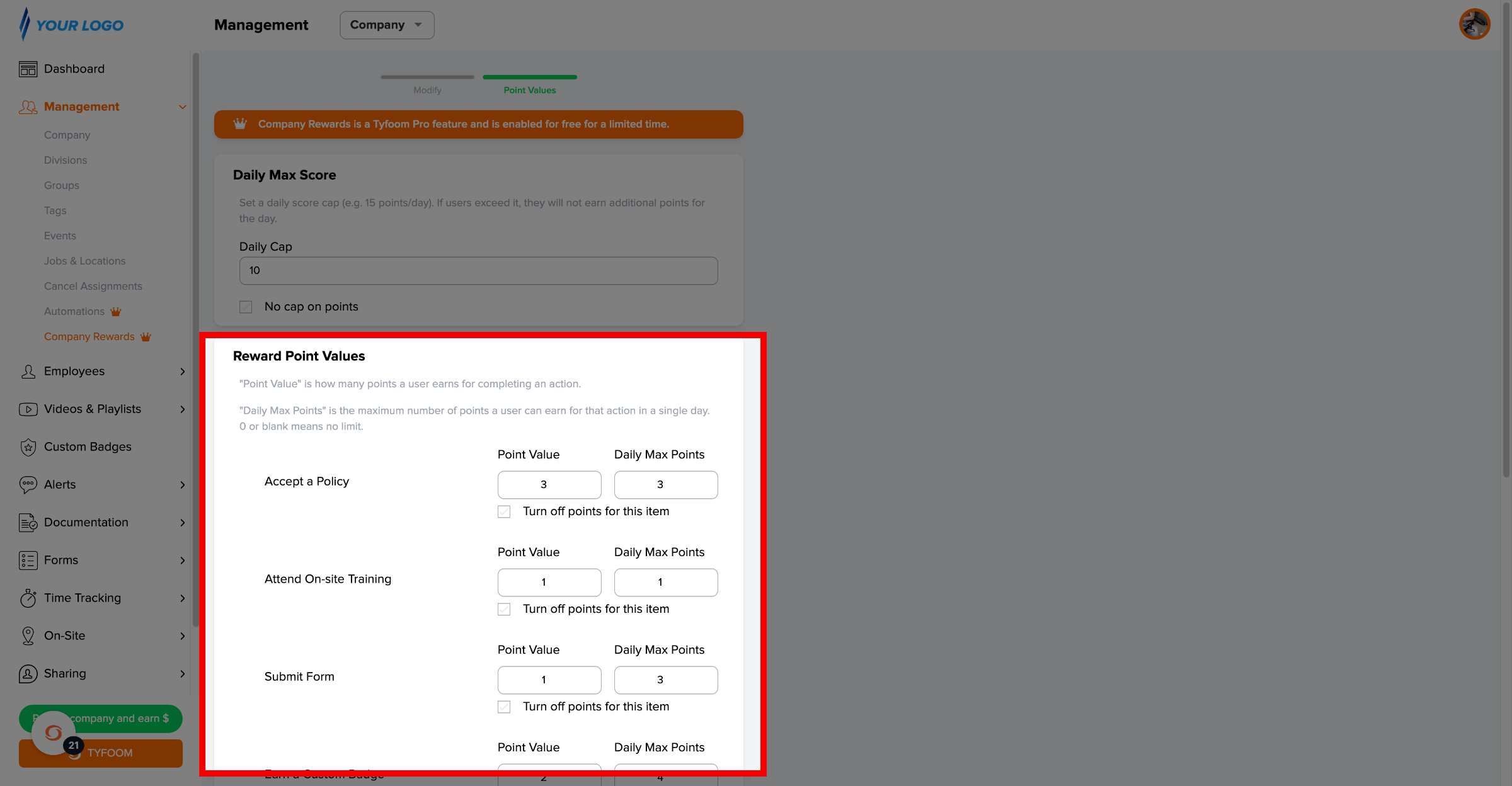
Set Max Points per Action

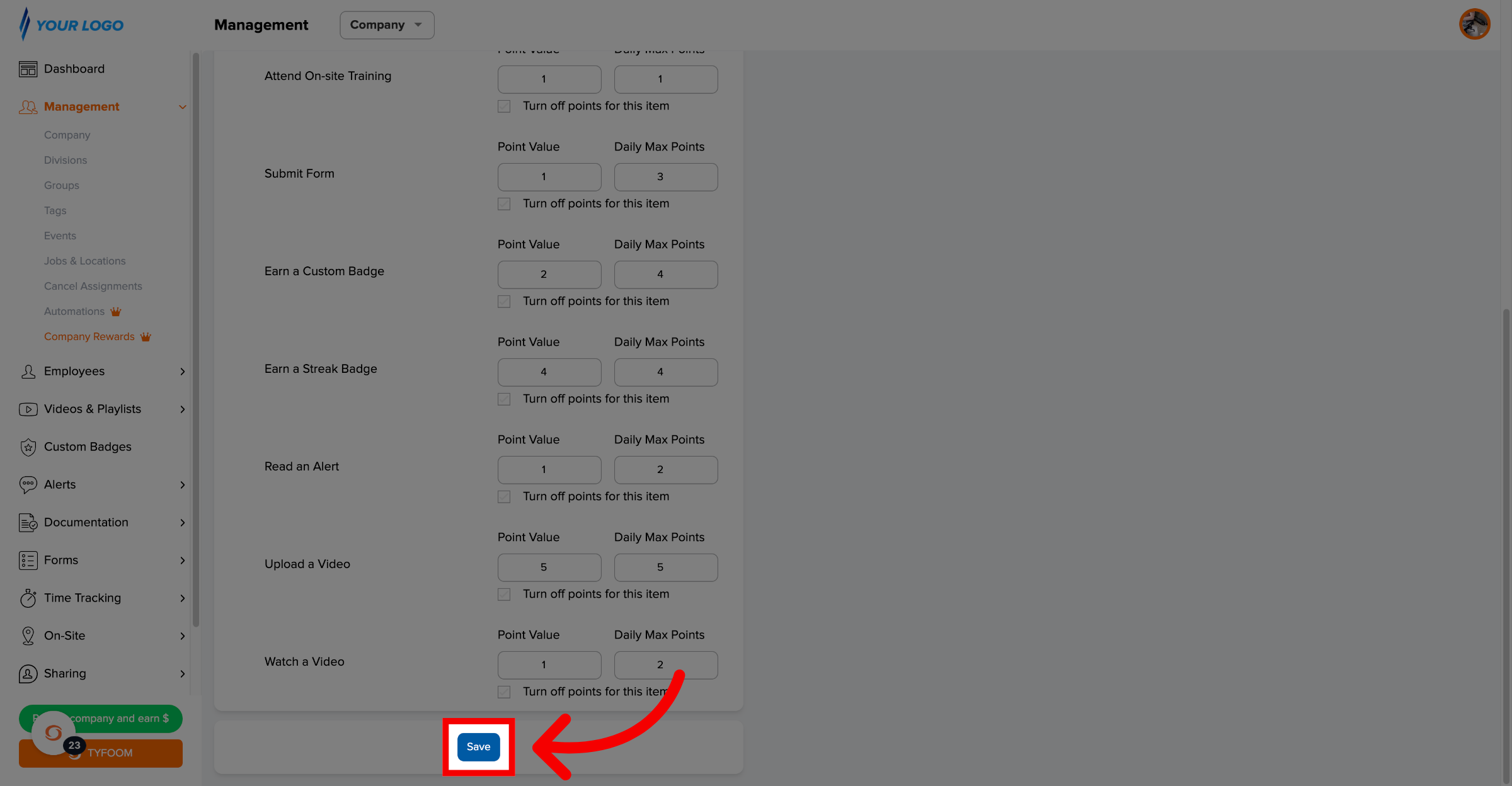
12. Save Rewards Program

Once you set all your point values, click save.
Save Rewards Program

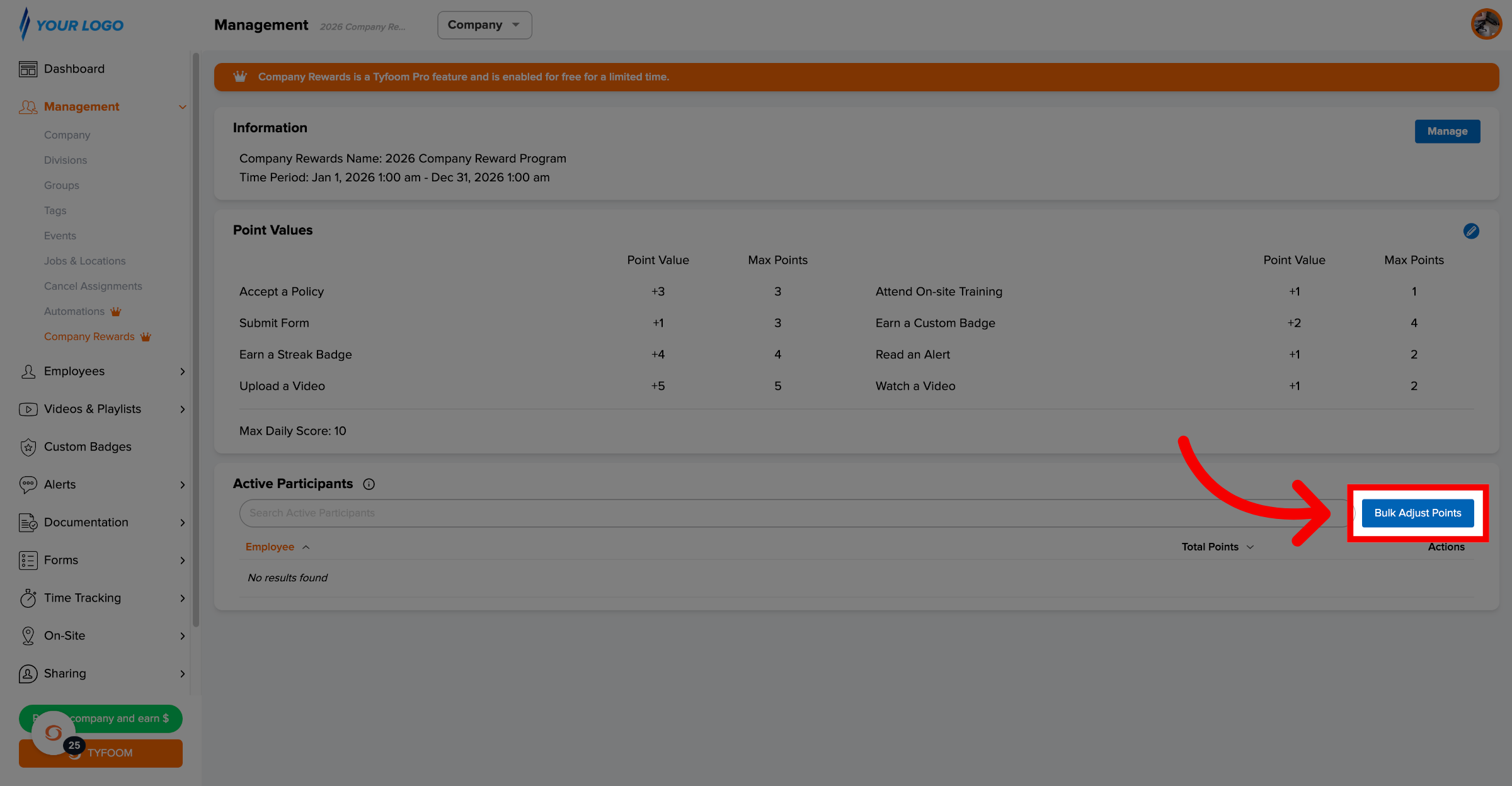
13. View Rewards Program Details

Now that it's created, you'll see a summary of the point values along with the list of how many points each employee has earned, if any.
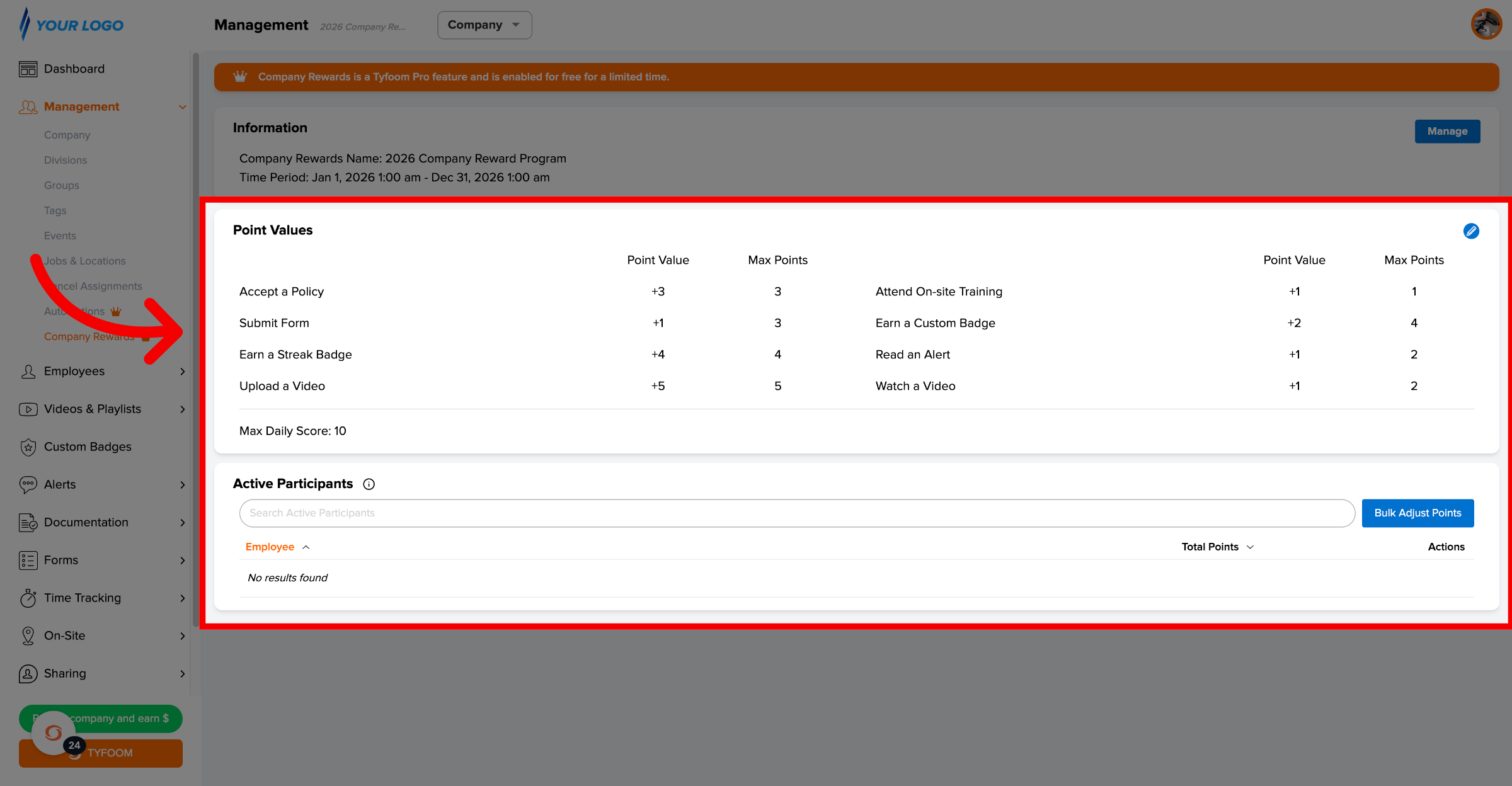
View Rewards Program Details

14. Manually Adjust Points

If needed, you can adjust any of your employees points.
Manually Adjust Points

15. Choose Adjustment Type

Select which type of adjustment is needed. You can add, reset or subtract points.
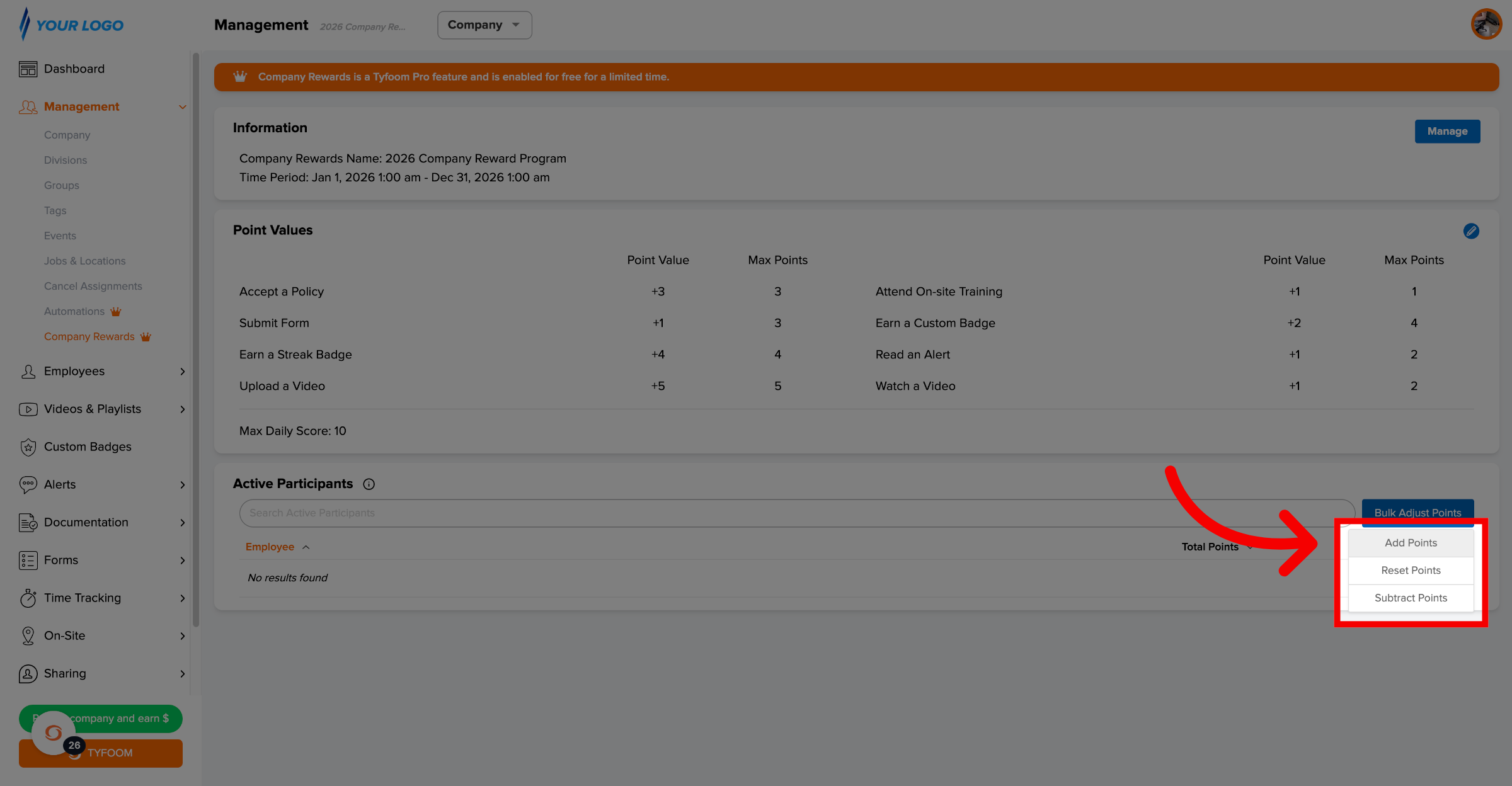
Choose Adjustment Type

16. Select Employees to Adjust

Select the employee(s) that need the adjustment.
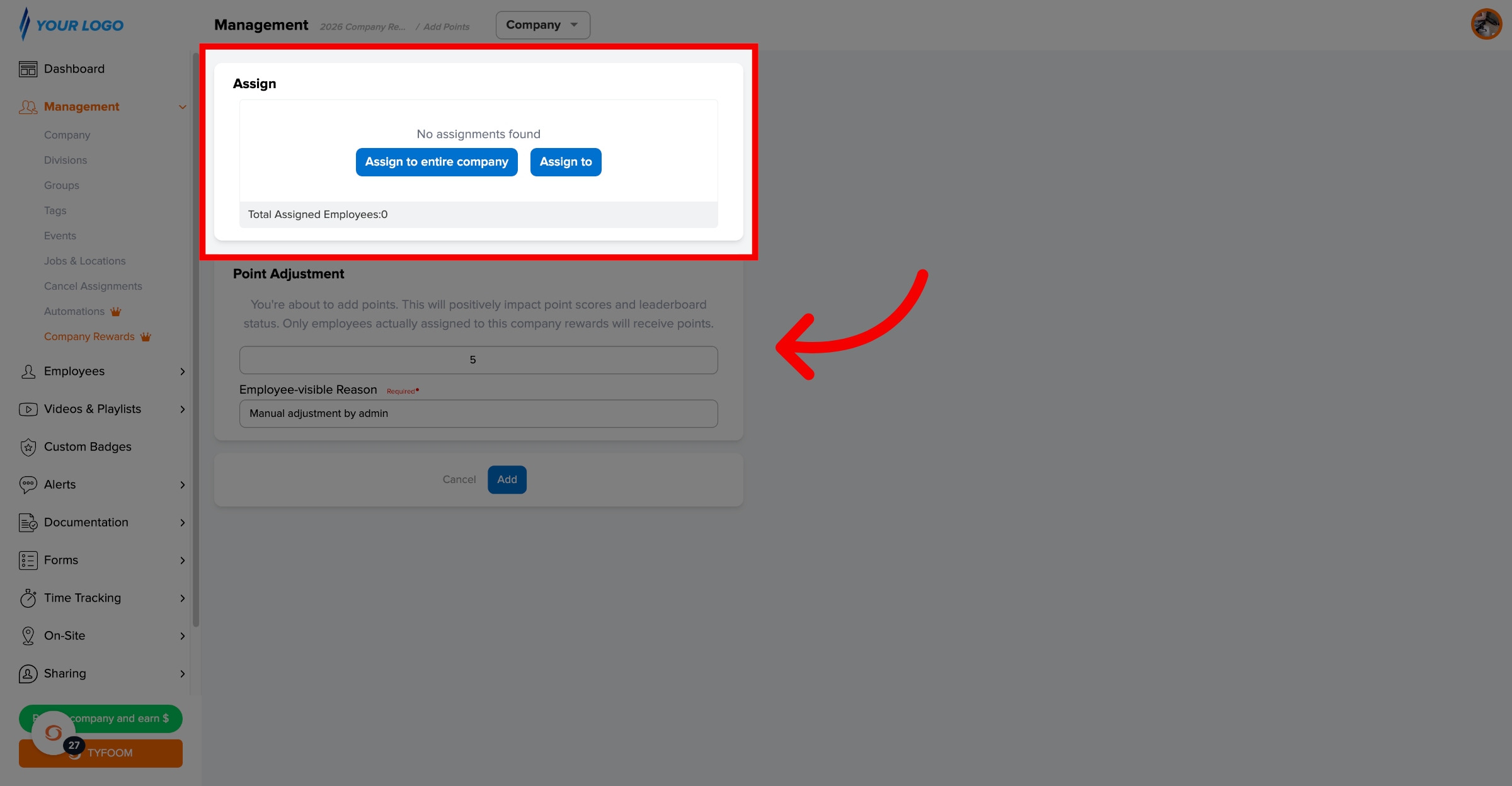
Select Employees to Adjust

17. Enter Amount and Reason

Enter the amount and the reason for the adjustment. By default the reason is "Manual adjustment by admin." This is recorded in the history of the user.
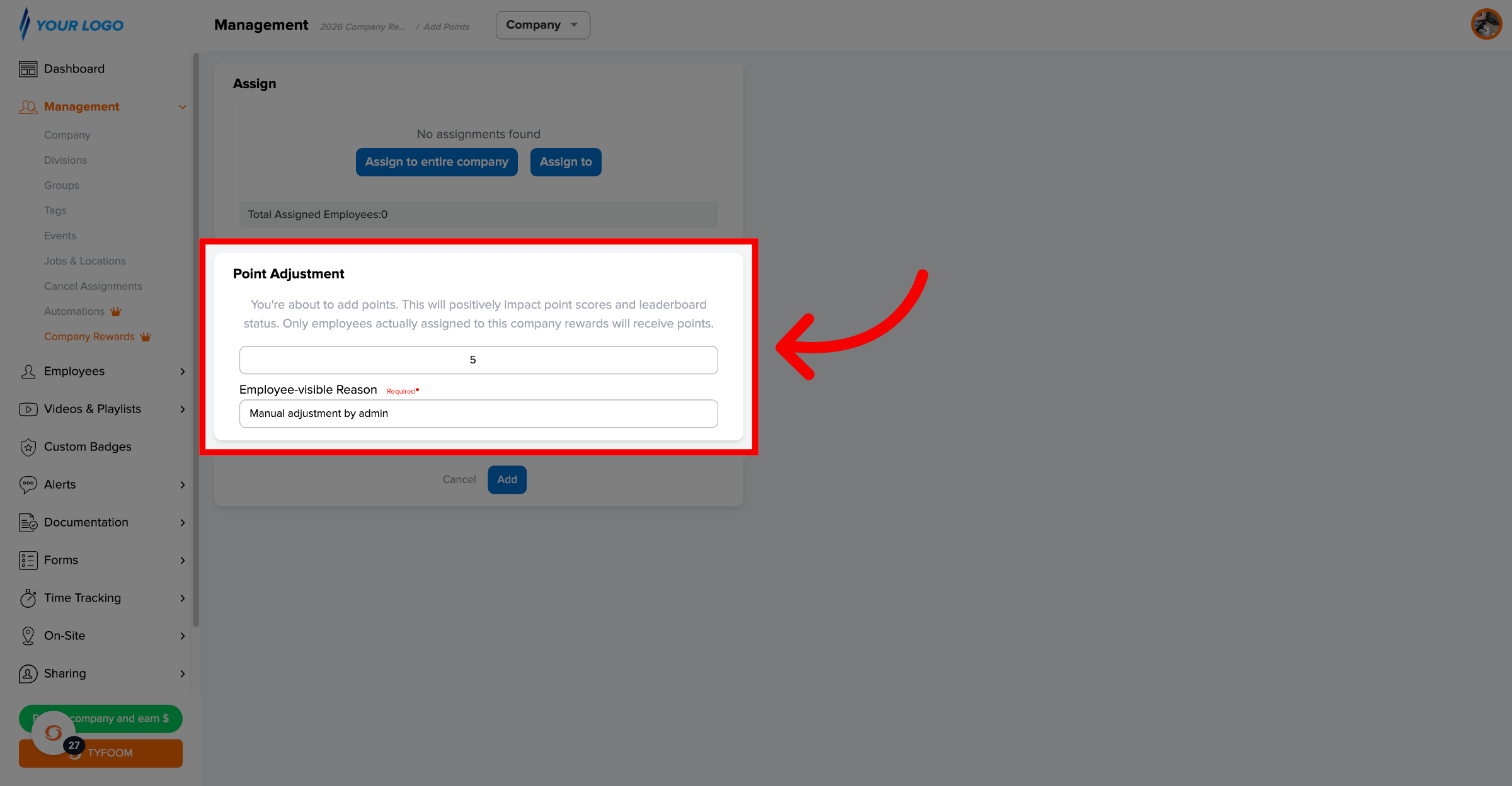
Enter Amount and Reason

18. Finalize Adding Points

Click save when you're ready.
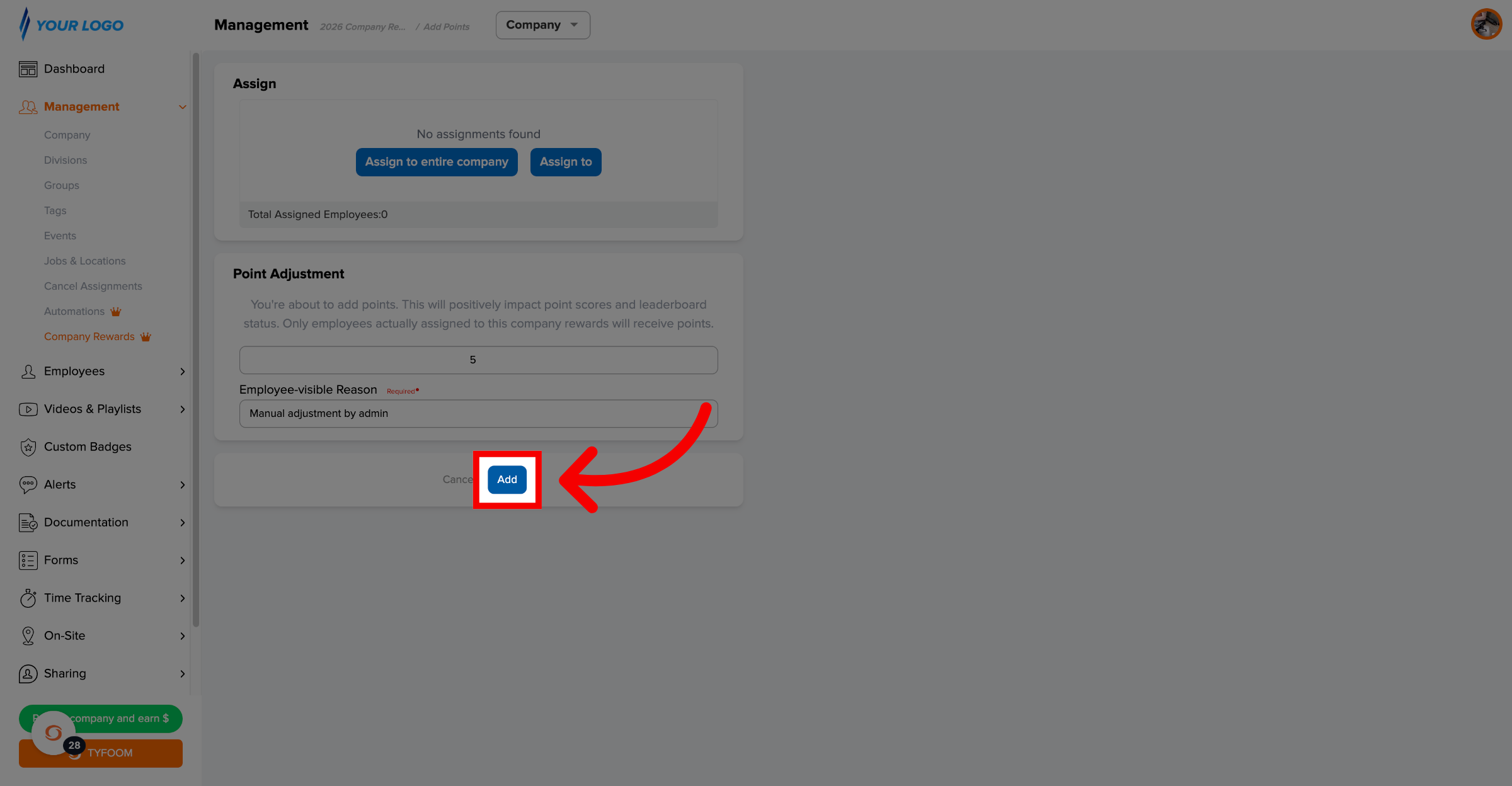
Finalize Adding Points

Please contact us with any questions at customercare@tyfoom.com


    • Related Articles

    • Company Documents Overview and How To

      A company document in Tyfoom is any document that you give access to your employees. It does not require that they sign or read it, gives them mobile access to it. Company Documents are found on the Management Tab, and then clicking "Documents" from ...
    • Tyfoom + Procore Integration

      Integration Overview This integration allows you to automatically upload form responses as PDF files to a Procore project. Adding Tyfoom to Procore In this guide, we’re going to go over how to add Tyfoom to your Procore account. Go to procore.com 1. ...
    • Using Alerts in Tyfoom

      Intro An alert in Tyfoom is a simple way to send communication to your employees while documenting that it’s taken place. Common examples of what companies send out through alerts include: Employee Spotlights Company News and Updates Safety Alerts ...
    • Tyfoom Microsoft OAuth Setup Guide

      Tyfoom supports OAuth2 and OpenID Connect. To enable Microsoft SSO for your organization, please complete the steps below and provide the required credentials. 1. Create an Azure App for Authentication Set up an Azure application that Tyfoom will use ...
    • How to Add a Company Admin

      How to add a comany admin into Tyfoom. Go to app.tyfoom.com 1. Log in at app.tyfoom.com Open Tyfoom. 2. Click "Settings" Click "Settings". 3. Click "Company Admins" Select "Company Admins". 4. Company Admin List Company admin list will appear. 5. ...