Incident Tracking - Reporting an Incident
Incident Tracking lets admins and employees track things like injuries, near misses, and more. In this guide, we'll walk you through initial setup, and then how to report an incident through the app.
1. Access Incidents Section
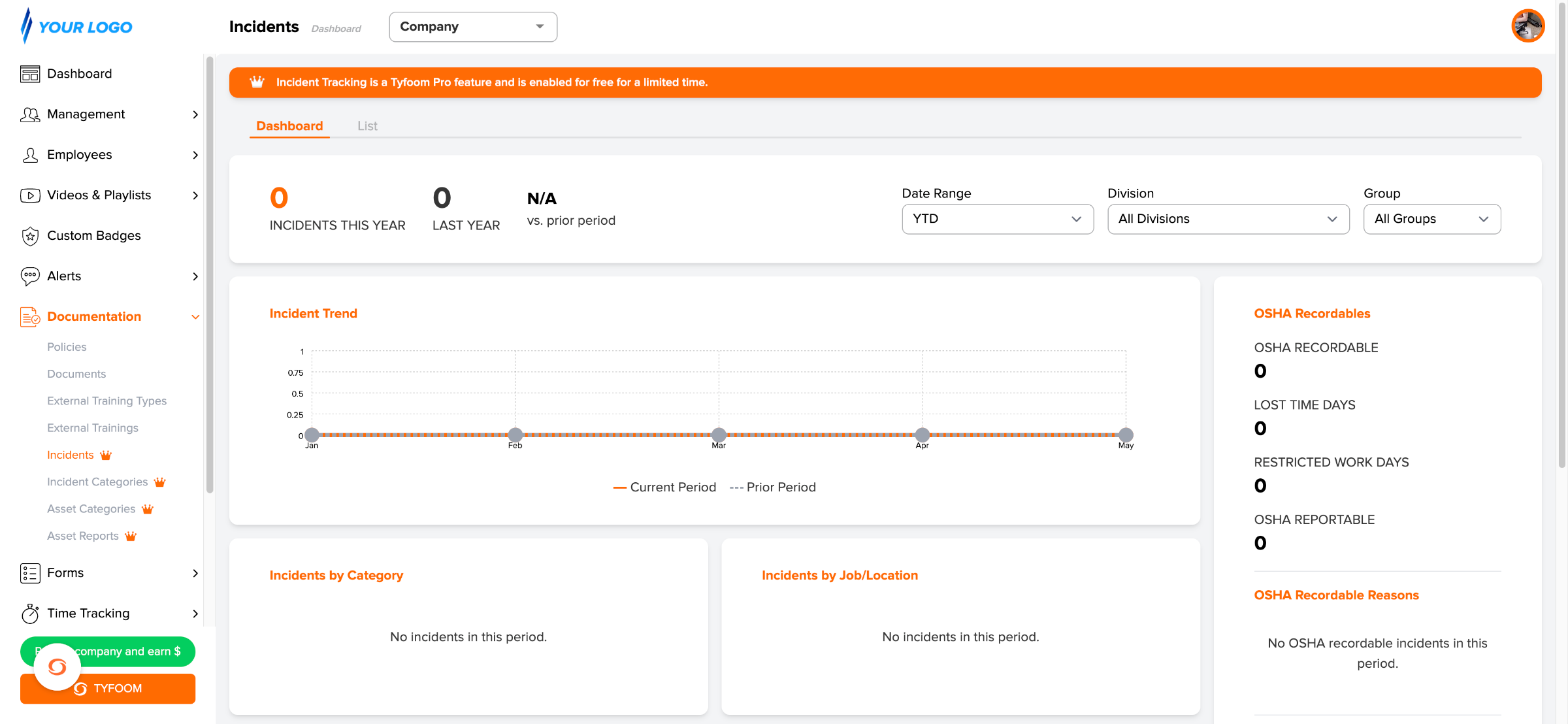
2. Open Incident Categories
The first thing you'll want to do before logging any incidents is make sure your incident categories are set up. Go ahead and click on Incident Categories in the left sidebar, under Documentation.
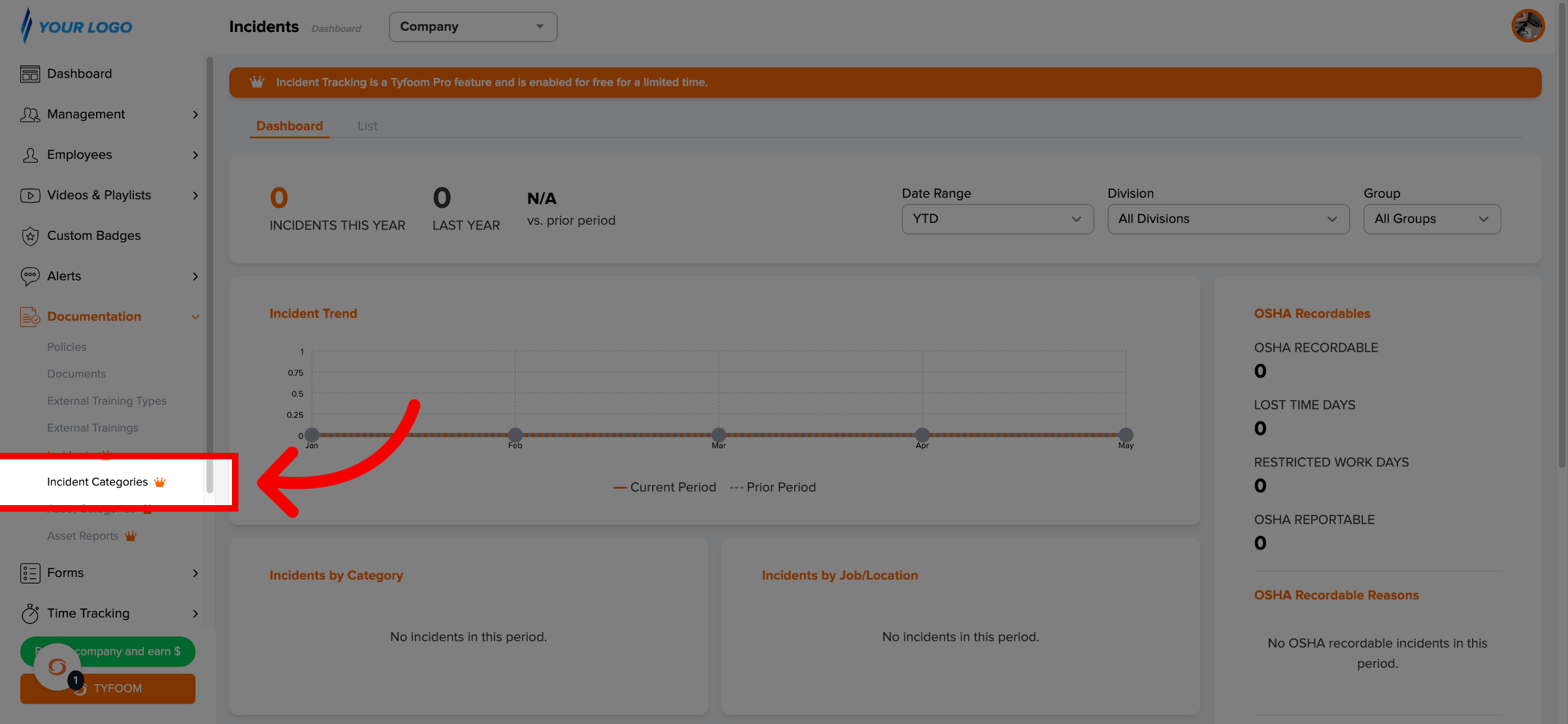
3. Add New Incident Category
Click the blue + ADD INCIDENT CATEGORY button in the top-right corner.
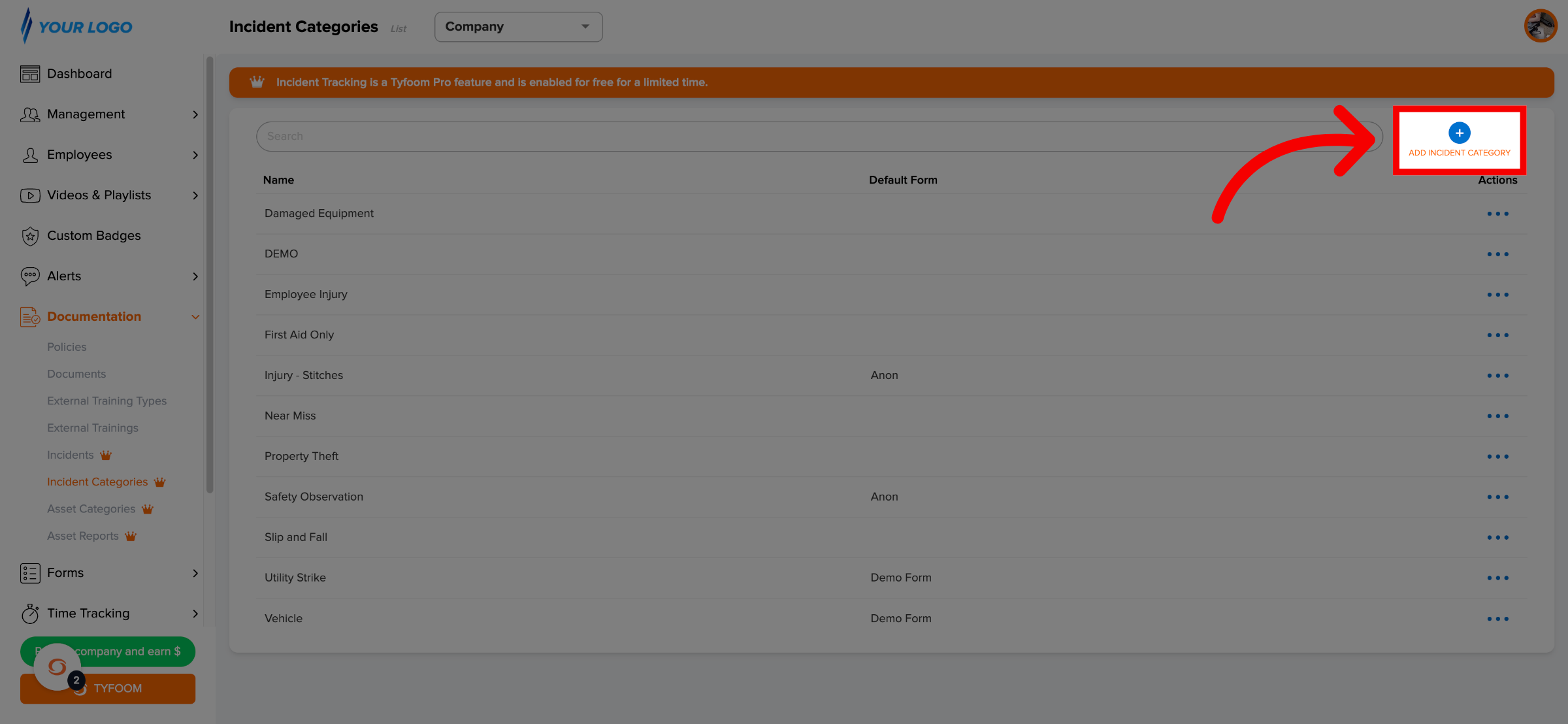
4. Create Incident Category
In the Incident Category Name field, enter a clear, descriptive name — for example, "Employee Injury," "Near Miss," "Damaged Equipment," or "Property Theft." Click Create Incident Category when ready. You'll be taken to the category's detail page.
5. Add a Default Form
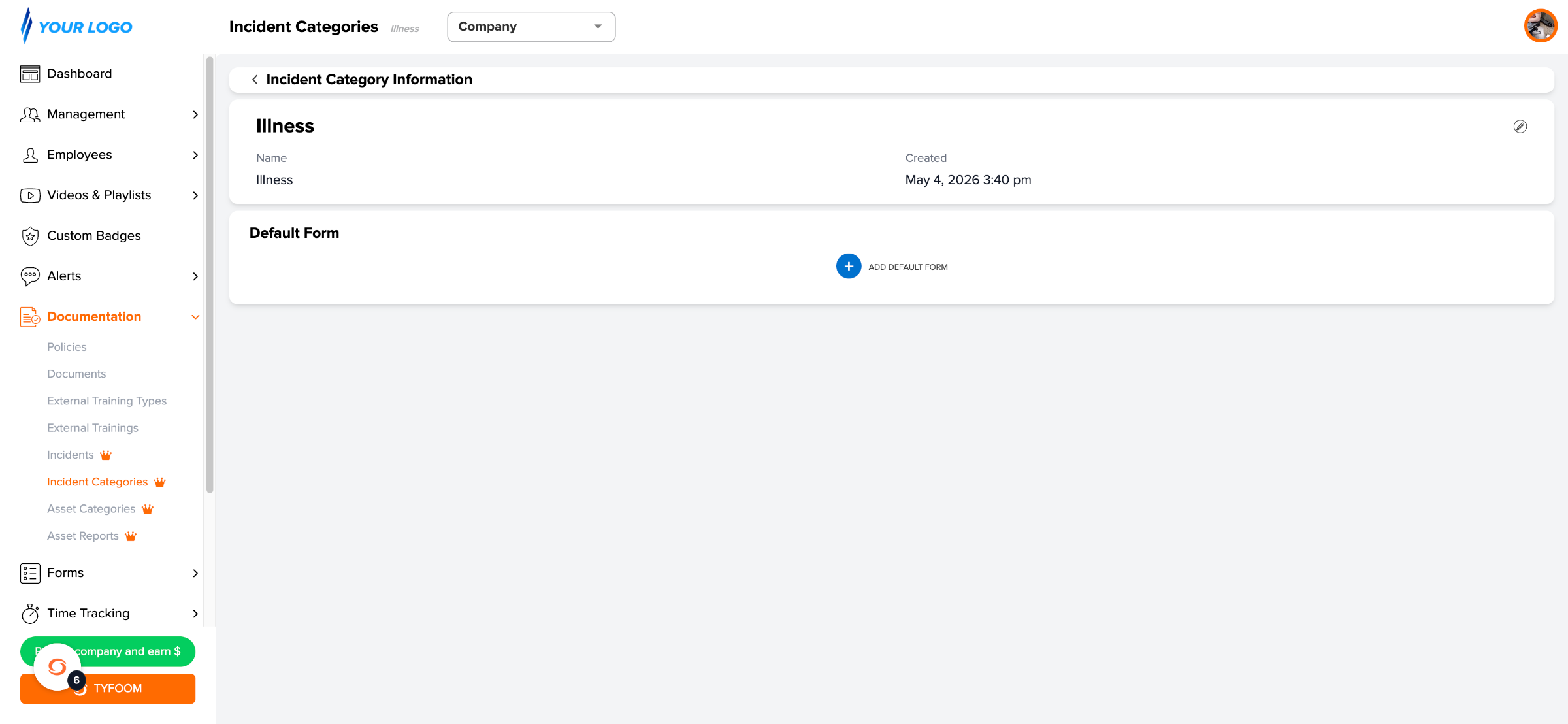
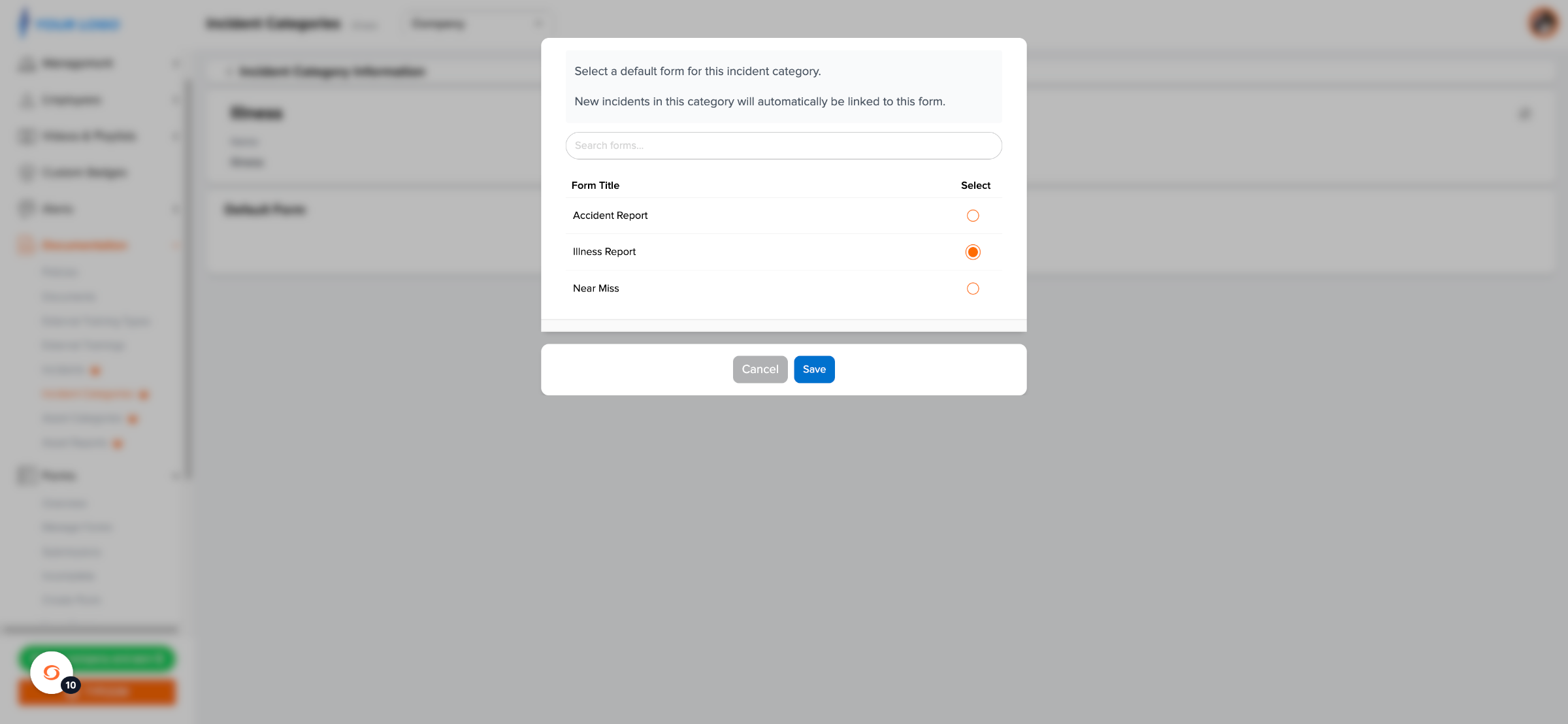
On the category detail page, click + ADD DEFAULT FORM in the Default Form section and select the form you want to attach.
6. Save Default Form
When an employee reports an incident of this category from the mobile app, that form will launch automatically at the end of the flow — no separate assignment needed.
7. Reporting an Incident User Experience
The mobile app is the recommended way to log incidents. It lets you complete the incident report and any associated form in a single uninterrupted flow.

8. Open the App
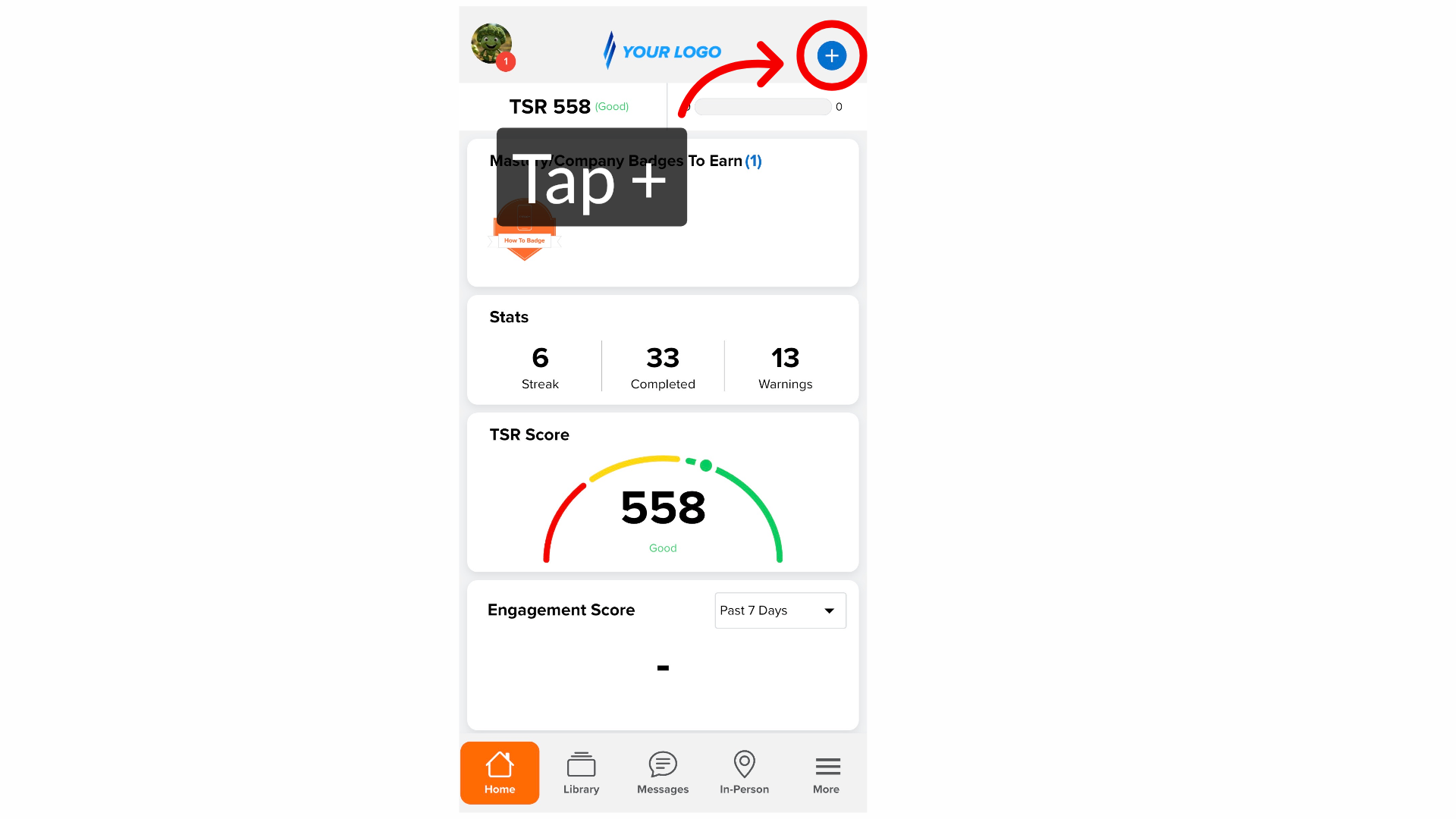
Open the Tyfoom app and tap the + button in the top-right corner of the home screen.
9. Report an Incident
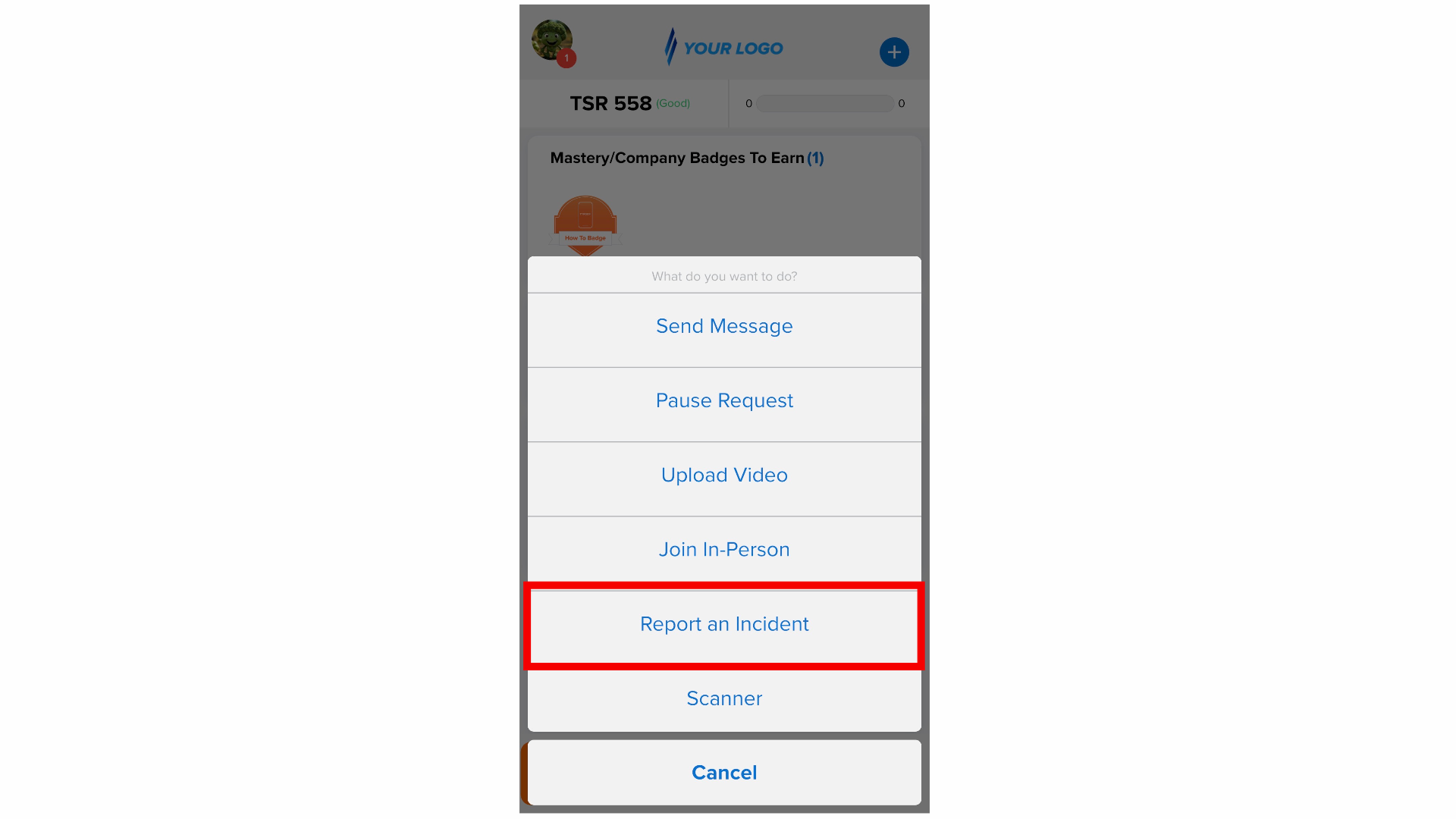
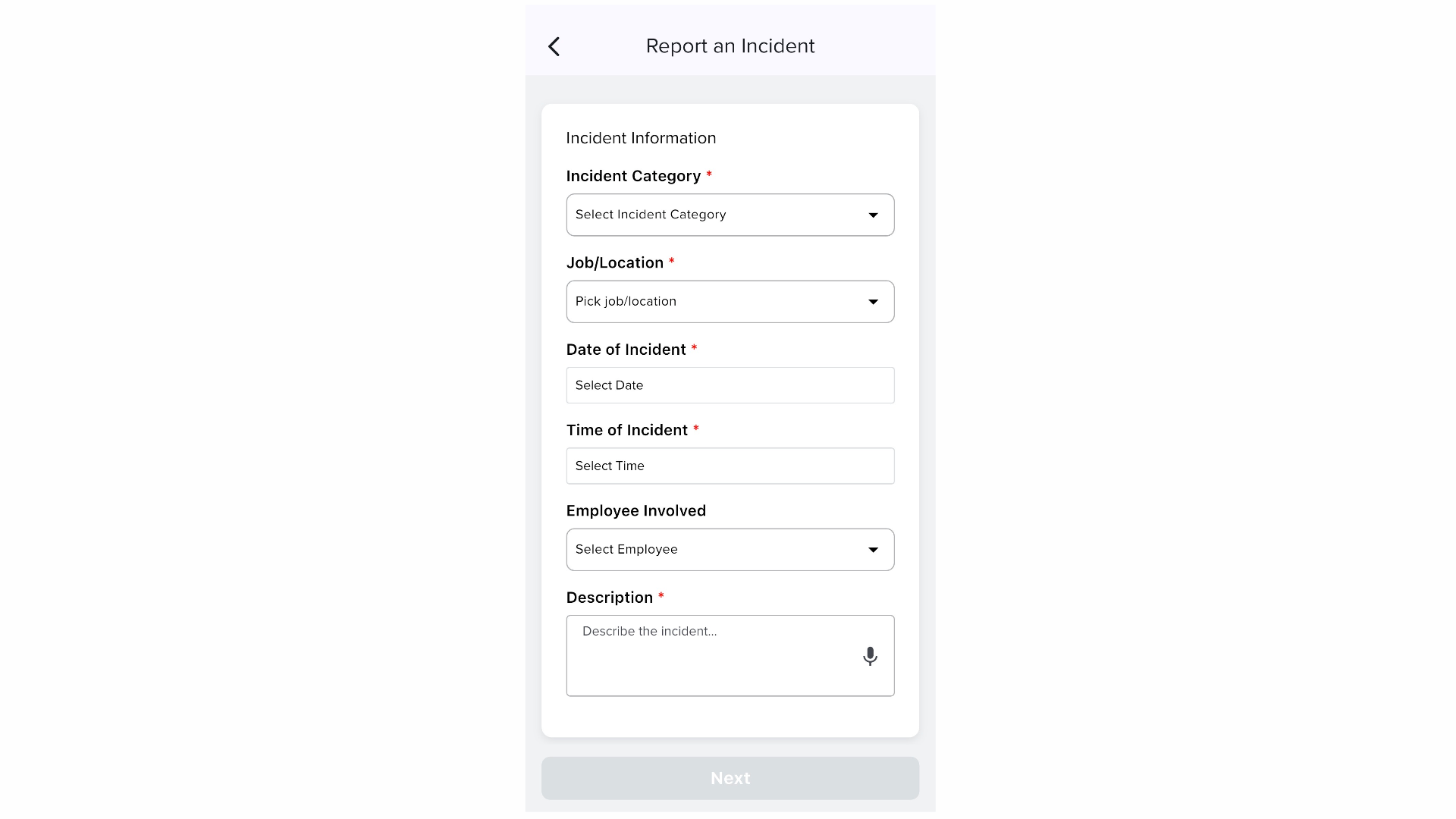
Tap Report an Incident. The "Report an Incident" screen opens with an Incident Information section at the top.
10. Fill In the Required Fields
Complete the required fields (marked with a red asterisk): Incident Category, Job/Location, Date of Incident, Time of Incident, and Description. Tap the microphone icon on the Description field to dictate instead of type. The Employee Involved field is optional but recommended.
11. Fill In Compliance Information (Admins Only)
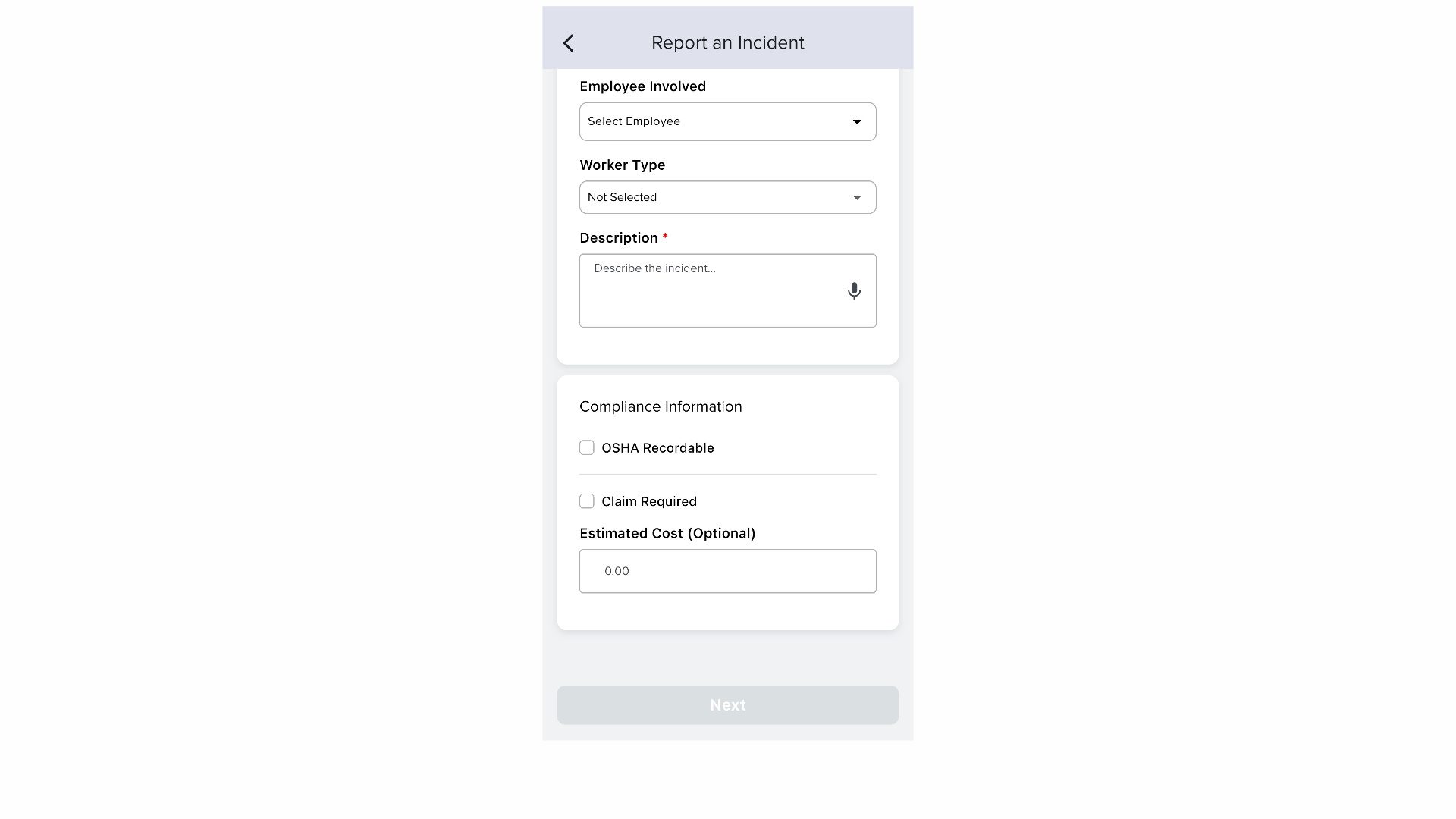
If you're an admin or division manager, scroll down to the Compliance Information section.
12. OSHA Recordable Details (Admins Only)
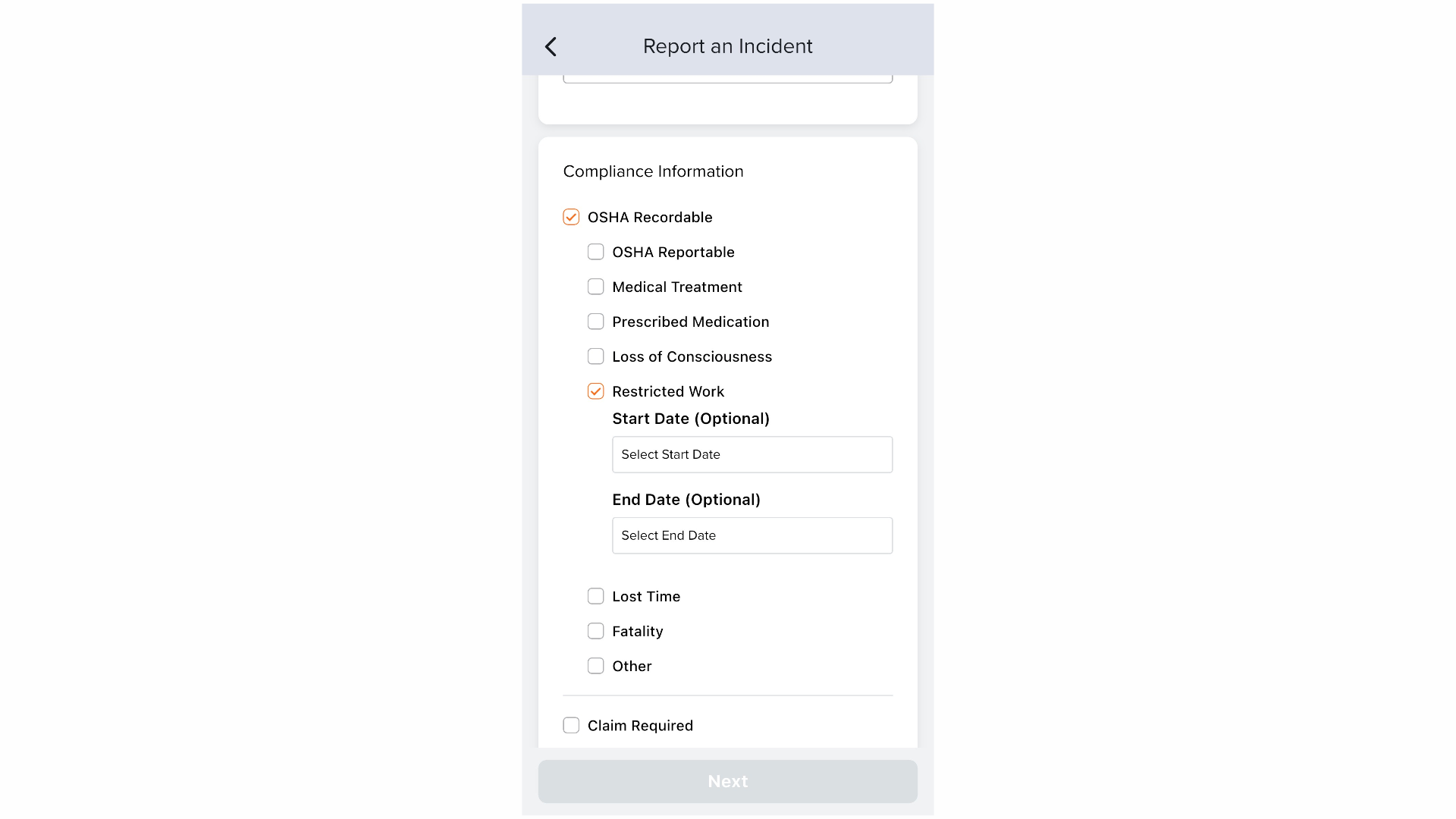
Check OSHA Recordable if the incident meets OSHA's definition of a recordable event — additional checkboxes will appear for the recordable reasons. Check Claim Required if a workers' comp or insurance claim needs to be filed.
13. Tap Next and Complete the Form
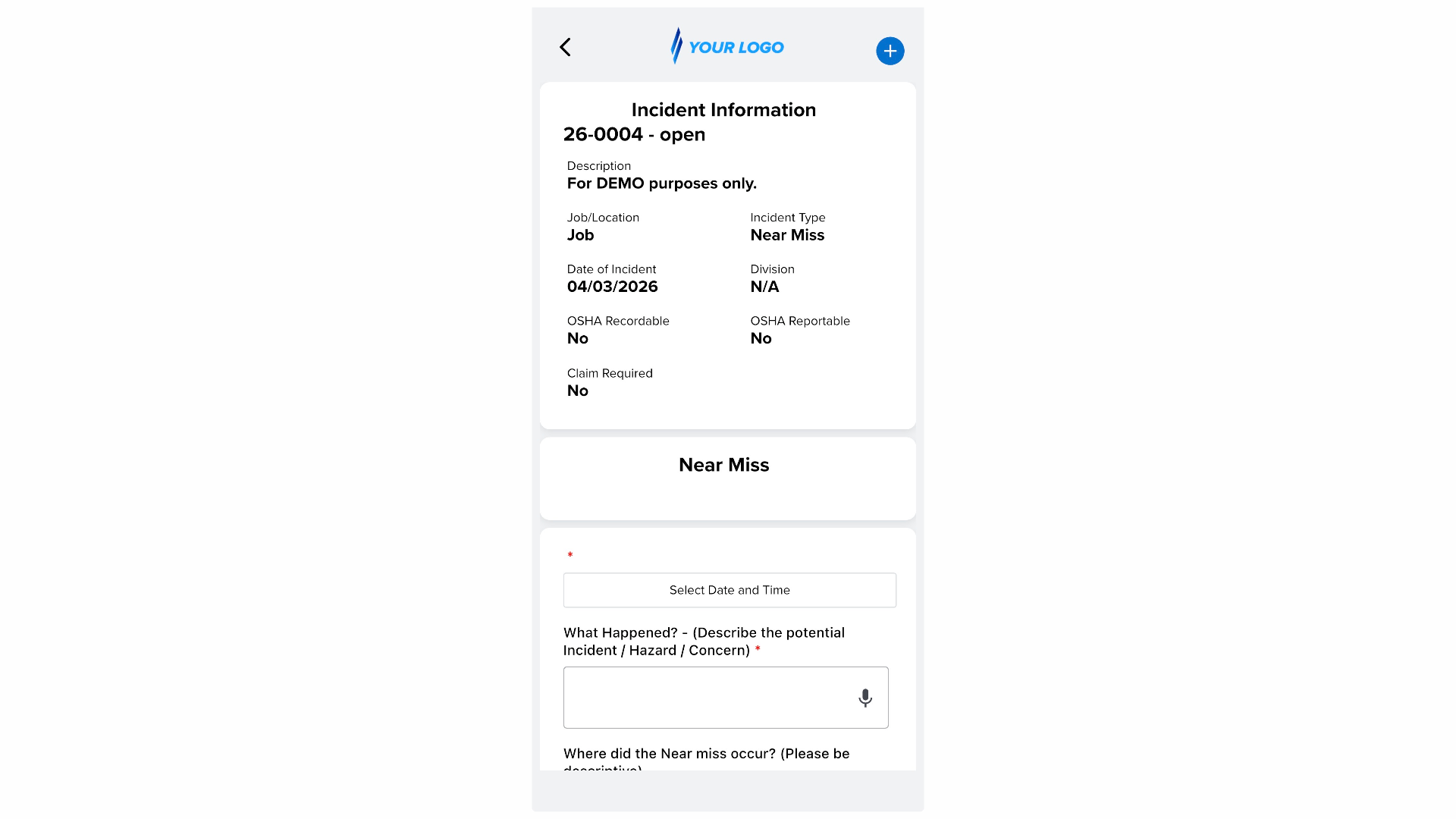
Tap Next — the button turns blue once all required fields are filled. A summary of your incident appears, followed immediately by the associated form (if your category has a Default Form). Complete and submit the form to finish the report in one session.
For additional details on incident tracking within Tyfoom, please see our other articles or contact us at customercare@tyfoom.com with any questions.