Manage Folders and Documents in Tyfoom
1. Documents and Folders
Folders and documents give you a place to organize reference materials — handbooks, SOPs, benefit guides — so employees can find what they need fast.
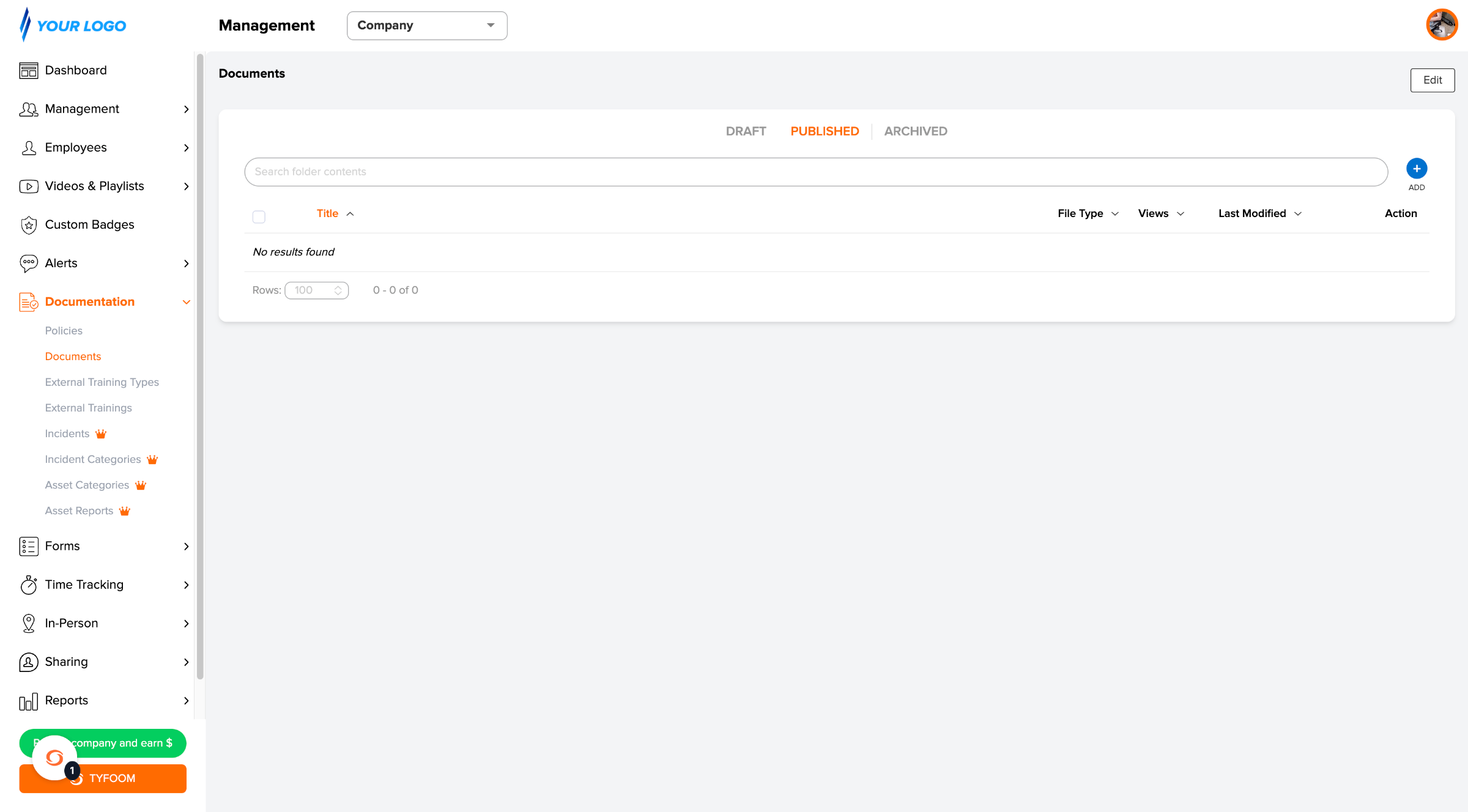
2. Go to Documentation > Documents
Open the Documentation section in the left sidebar and click Documents. This is the main folder of your document library.
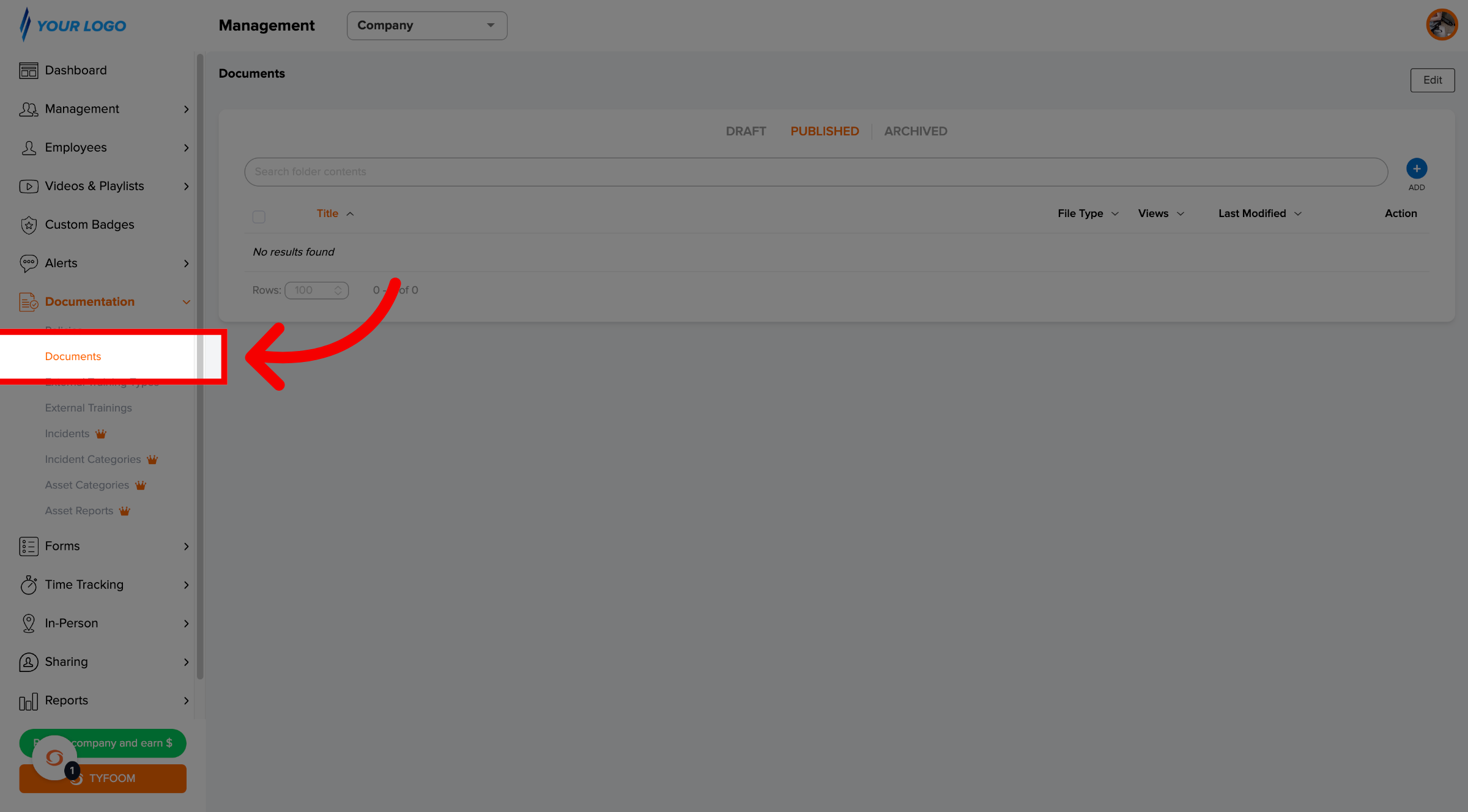
3. Get Familiar with the Layout
Across the top you'll see three tabs — DRAFT, PUBLISHED, and ARCHIVED — with PUBLISHED open by default. Below the tabs is a search bar and a blue ADD button on the right.
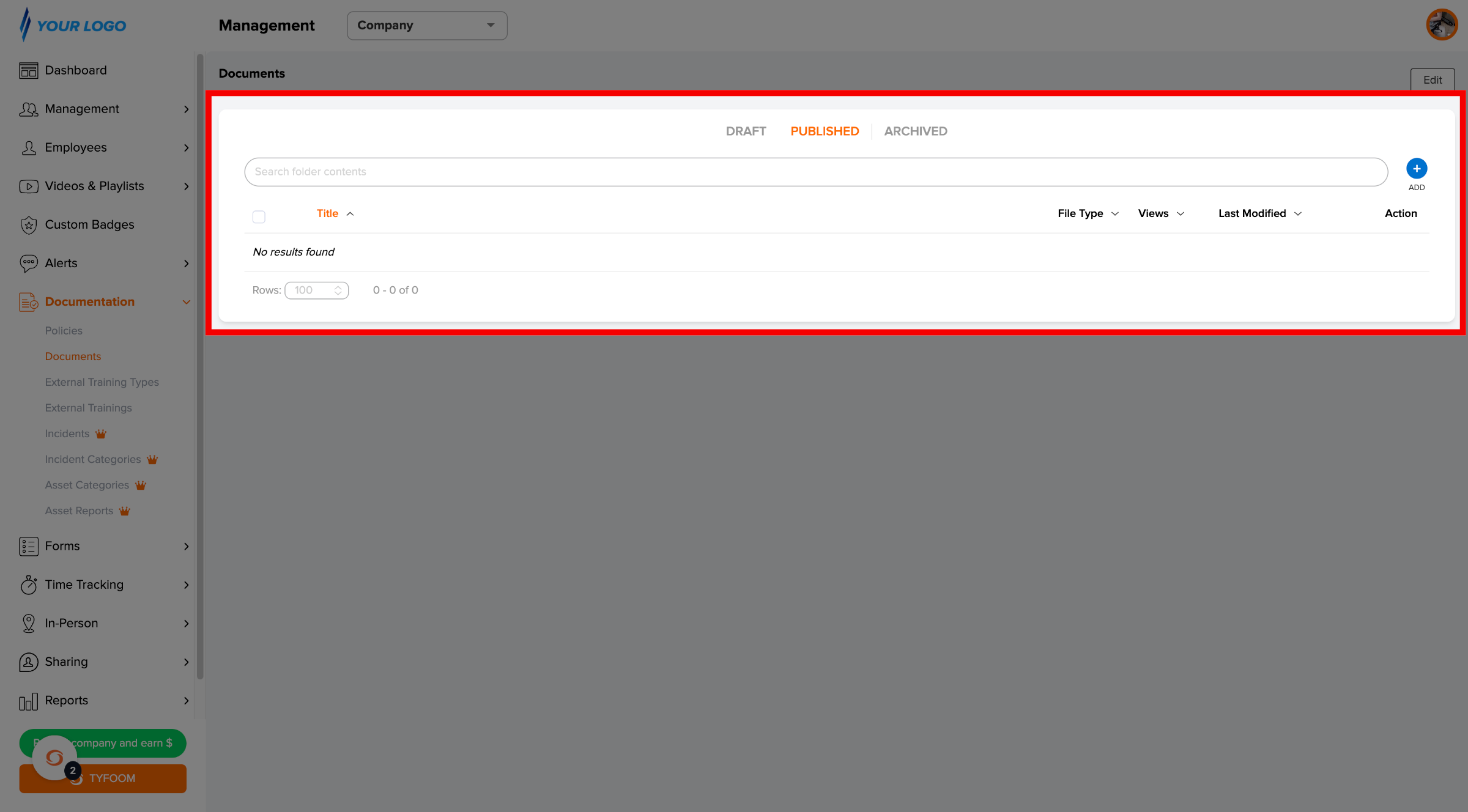
4. Add New Folder
Click + ADD — you'll see two options: Add Folder and Add Document. Select Add Folder to start.
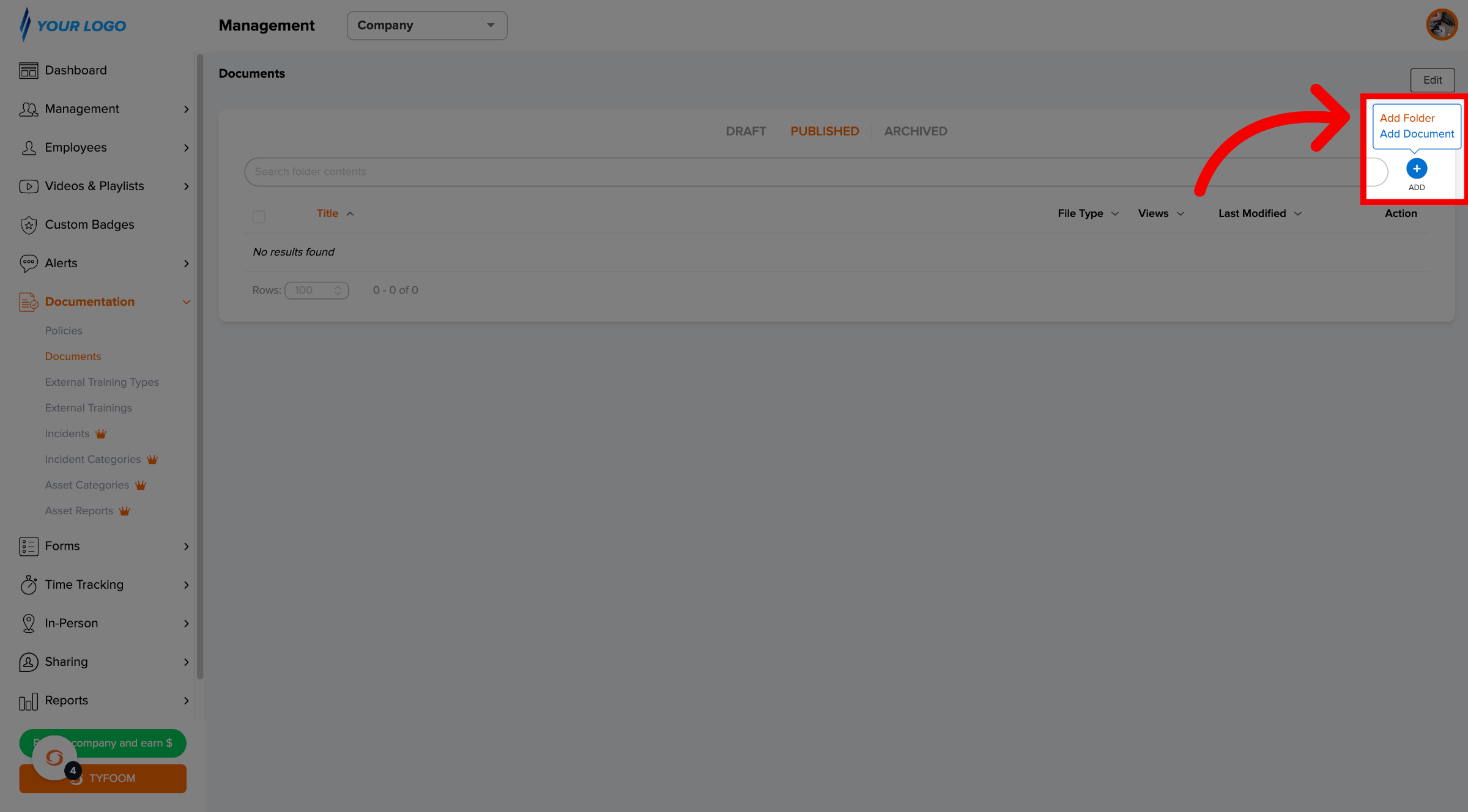
5. Name Folder
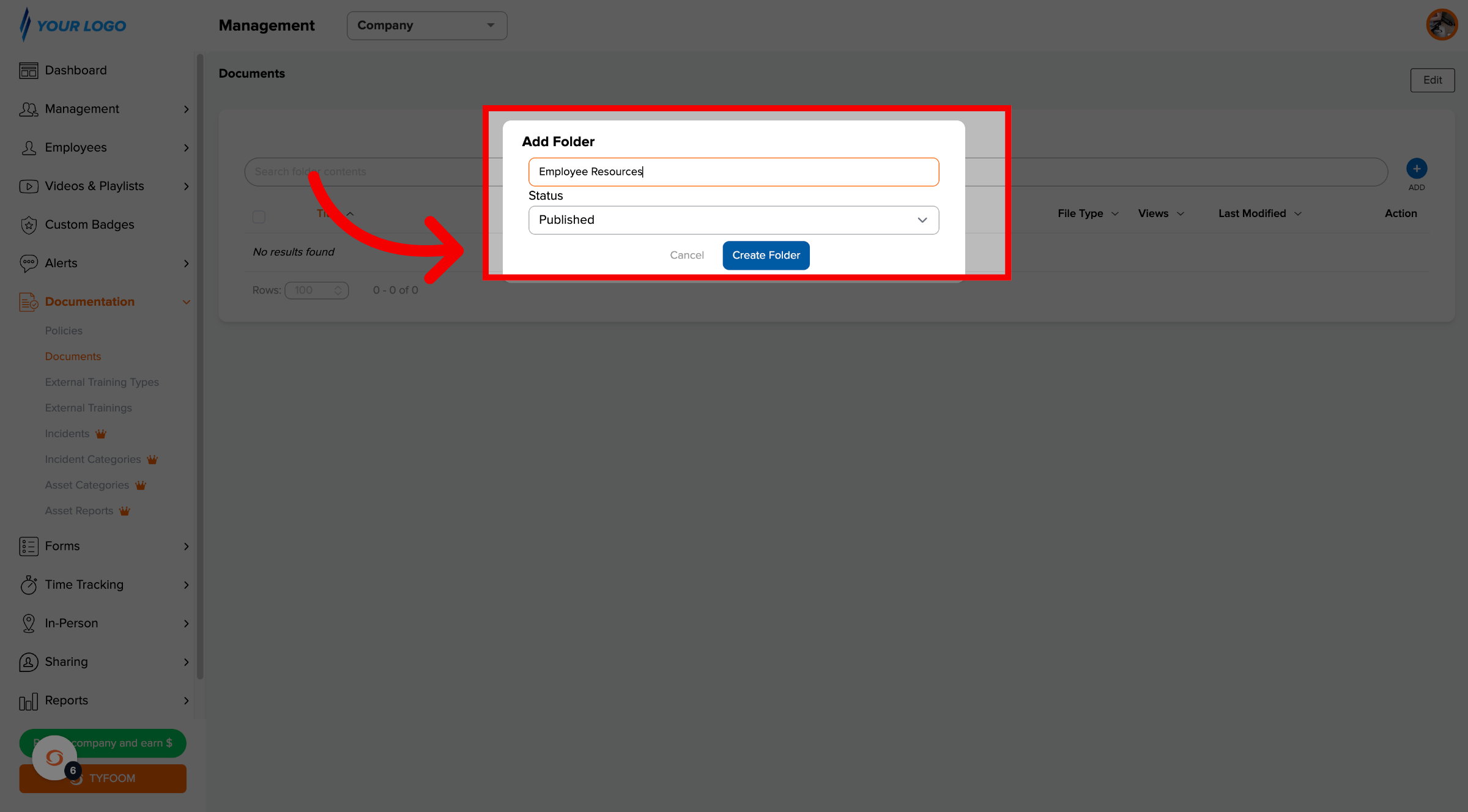
In the pop-up, give the folder a name, leave the status as Published, and click Create Folder.
6. Open Your Folder
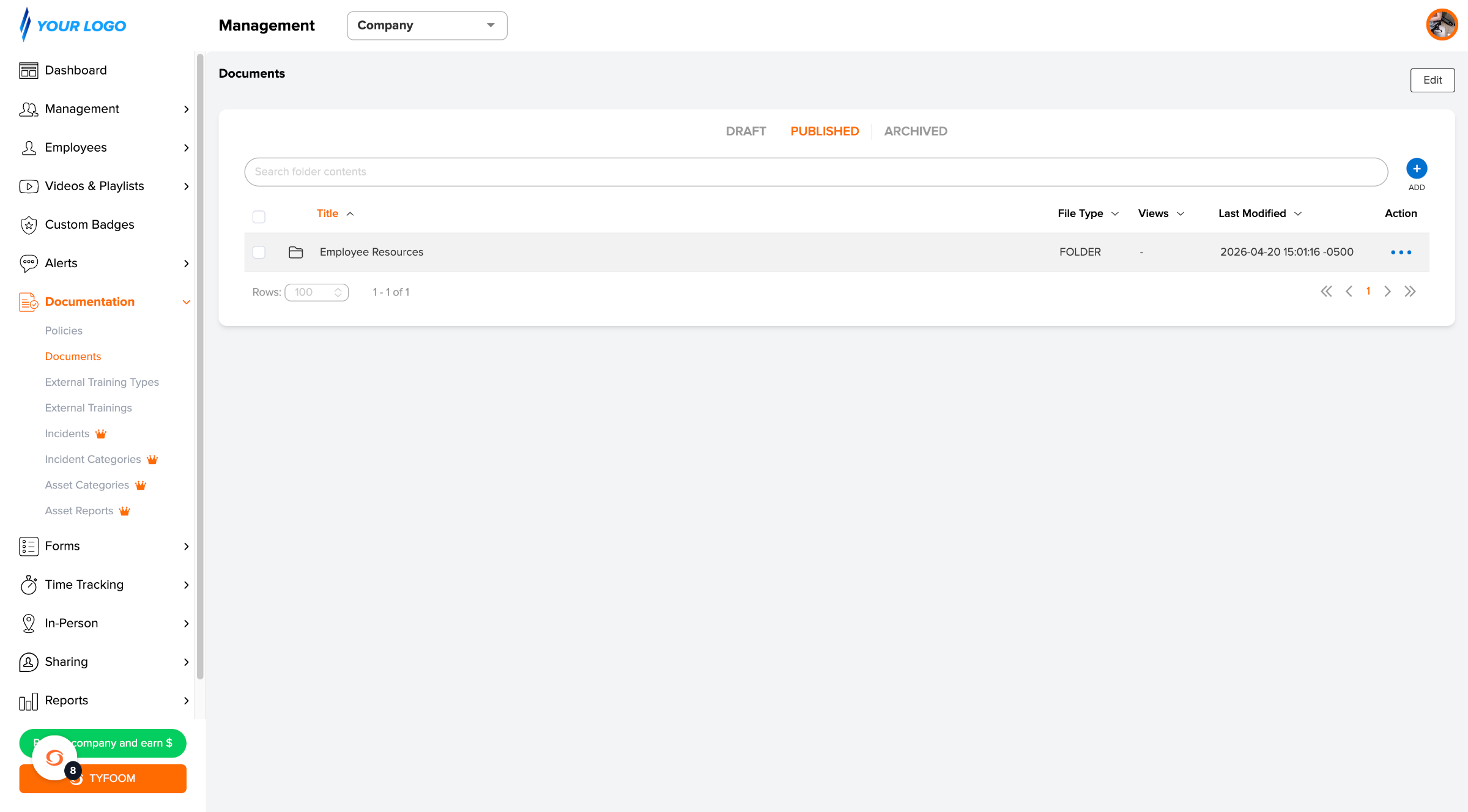
Your folder is now created. Click the folder's name in the list to go inside it.
7. View Breadcrumbs
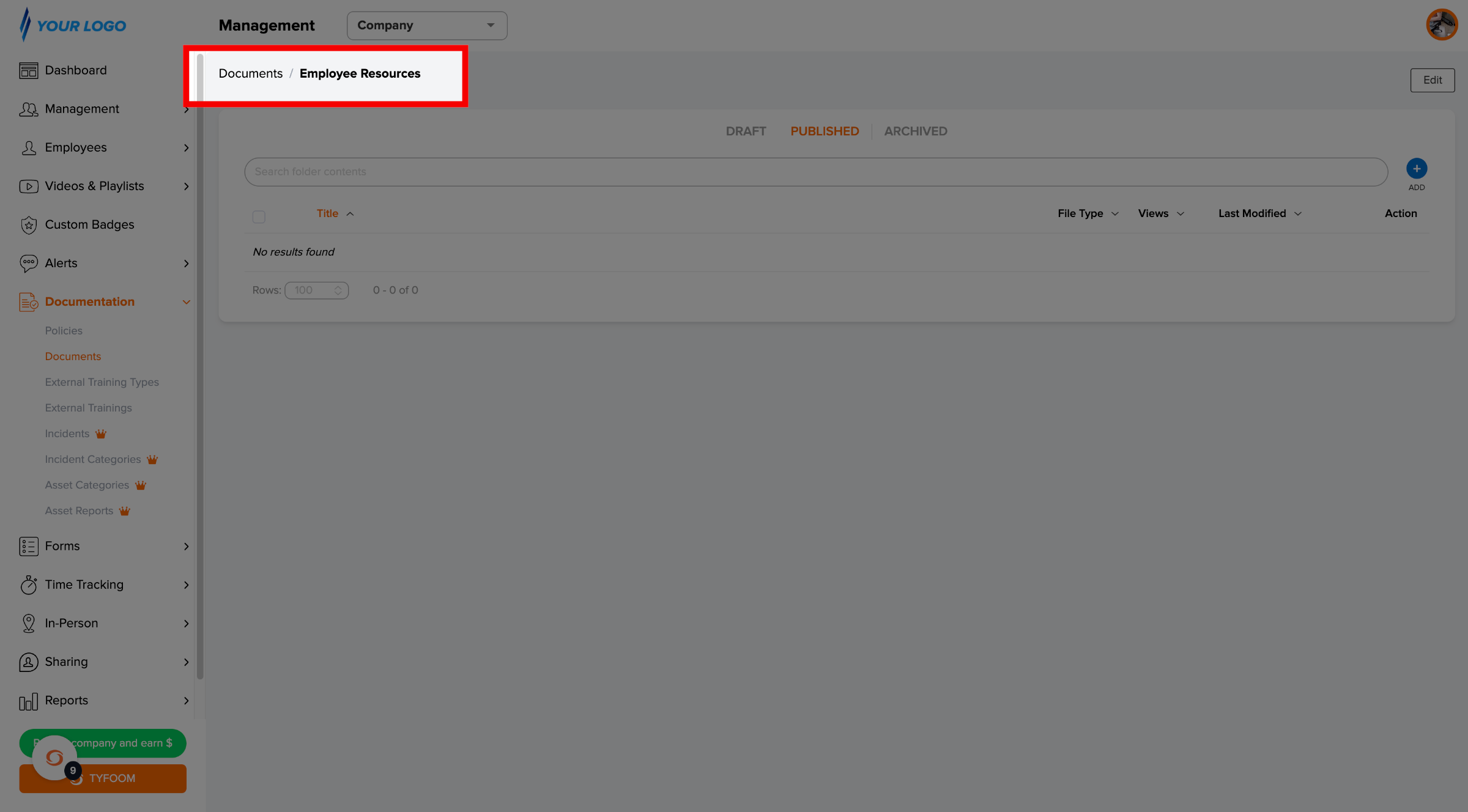
The breadcrumb at the top updates to show where you are, like "Documents / Employee Resources."
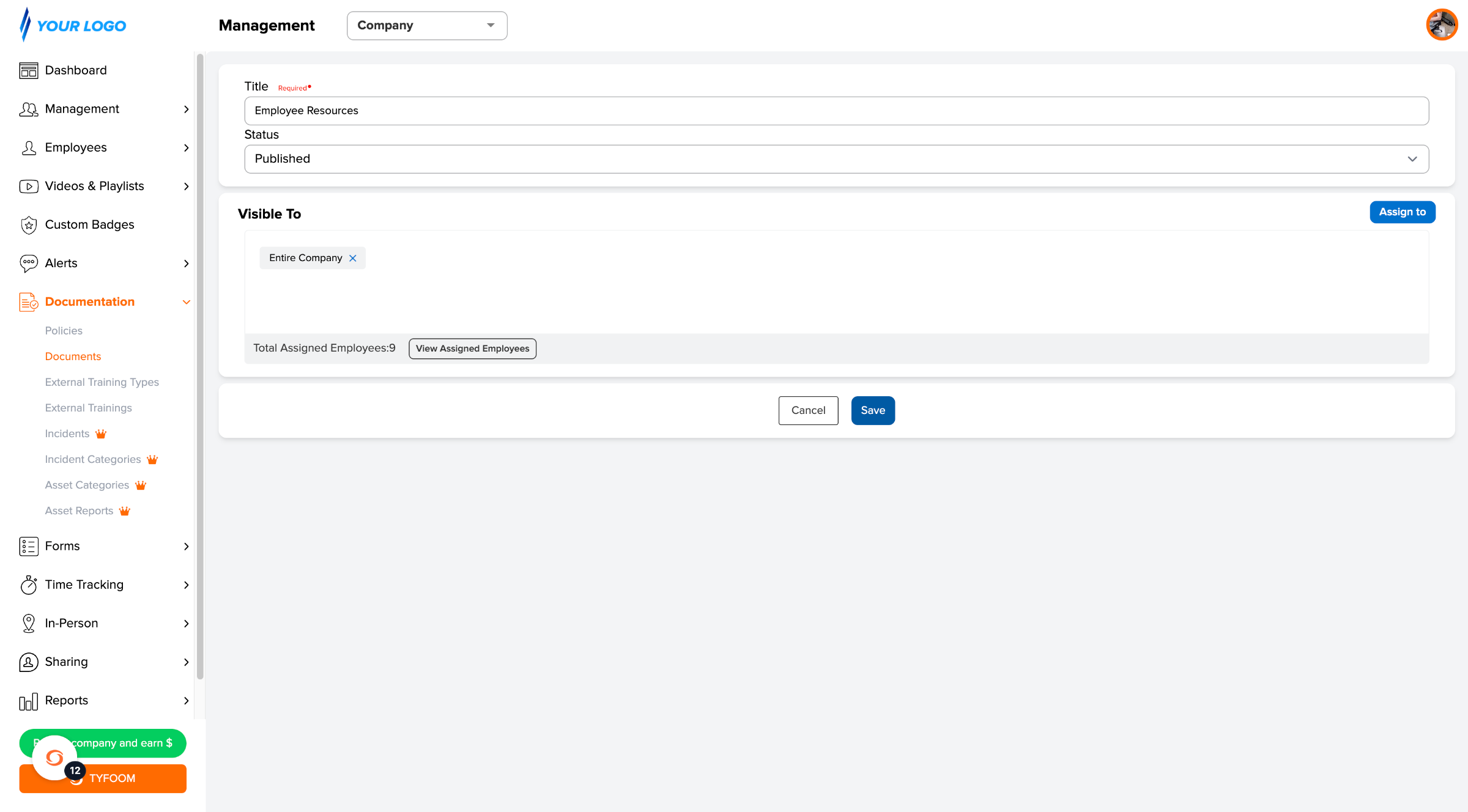
8. Set Who Can See the Folder
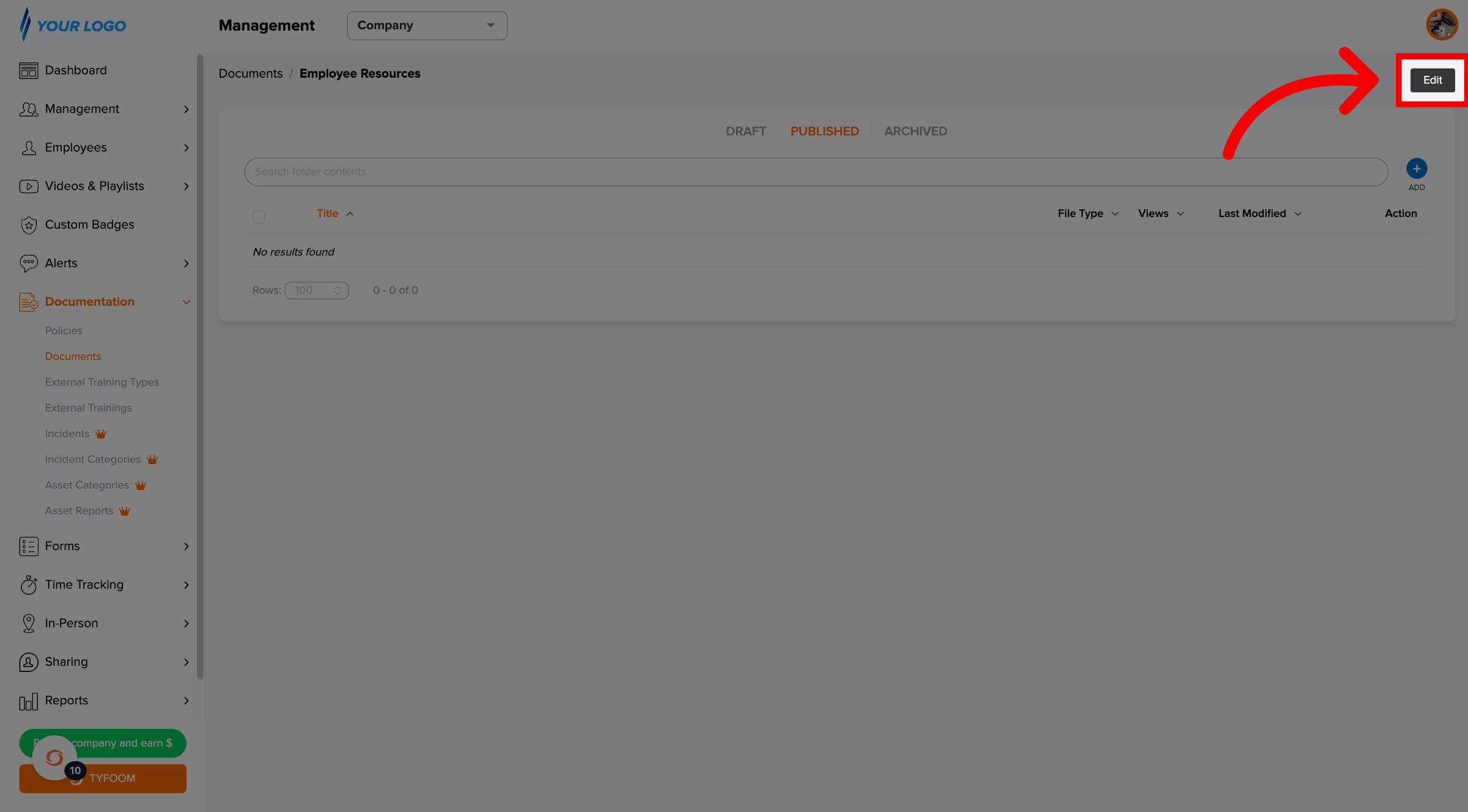
To set who has access to the folder, click "edit" in the top right corner of the folder.
9. Save Folder Setting
Select which employees, then click save. Employees assigned to a folder can see everything inside it, including any sub-folders.
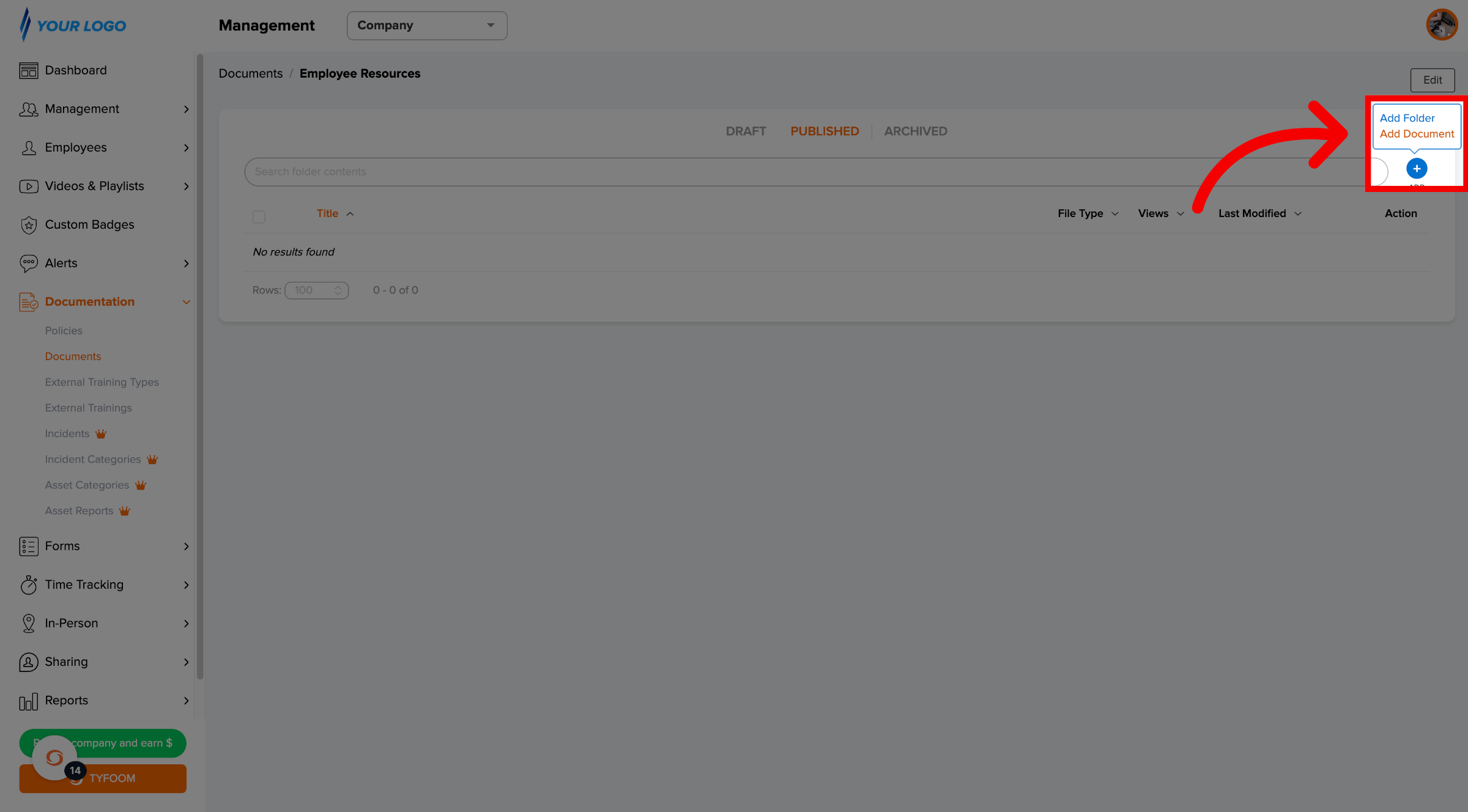
10. Add New Document in Folder
Inside your folder, click add and then choose add document.
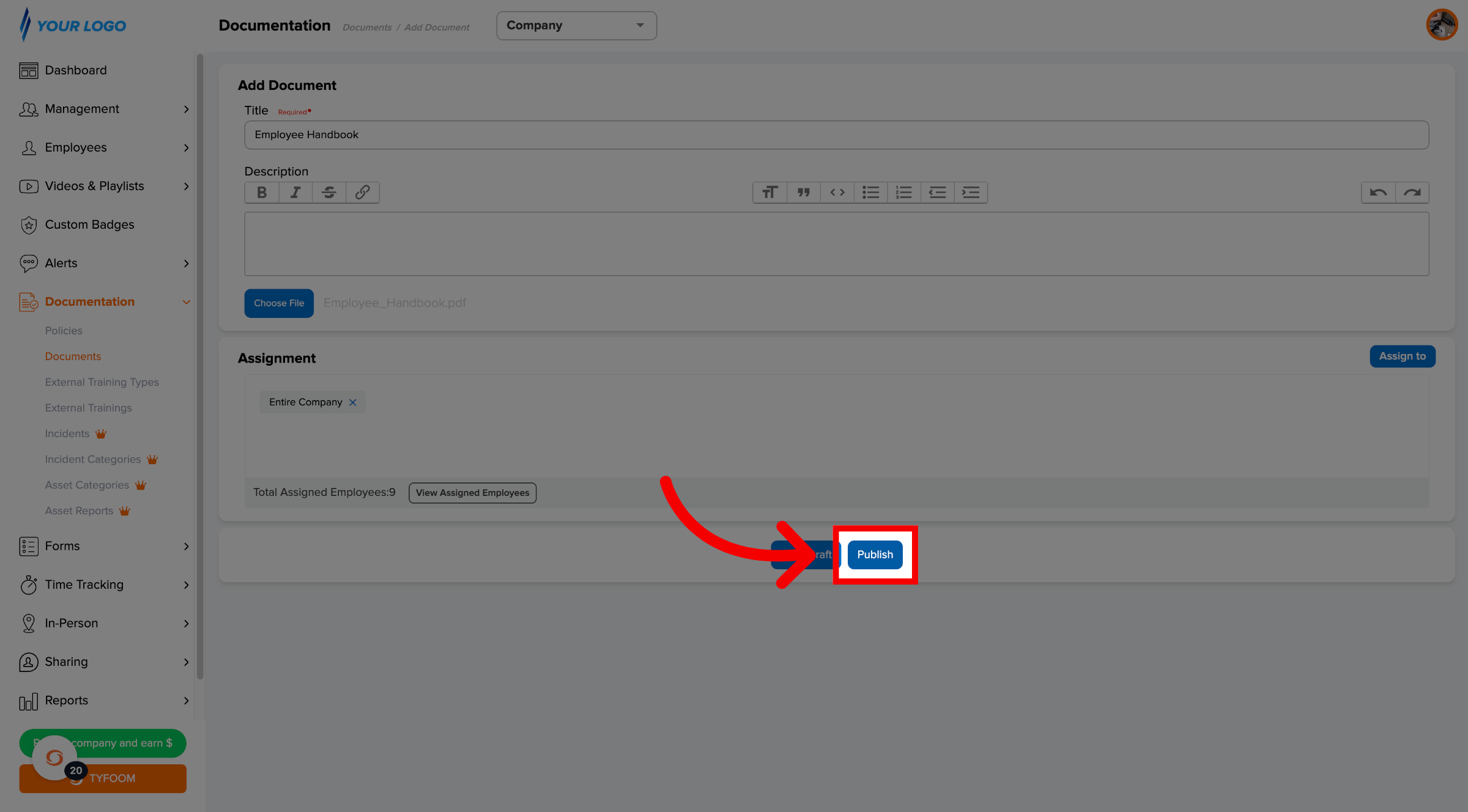
11. Publish Document
Give it a clear title like "2026 Benefits Summary" — this is exactly what employees will see in their Library.
Add your document details, including a title and the file, and then click Publish. Note: if an employee already has access to the folder, they have access to all documents inside the folder.
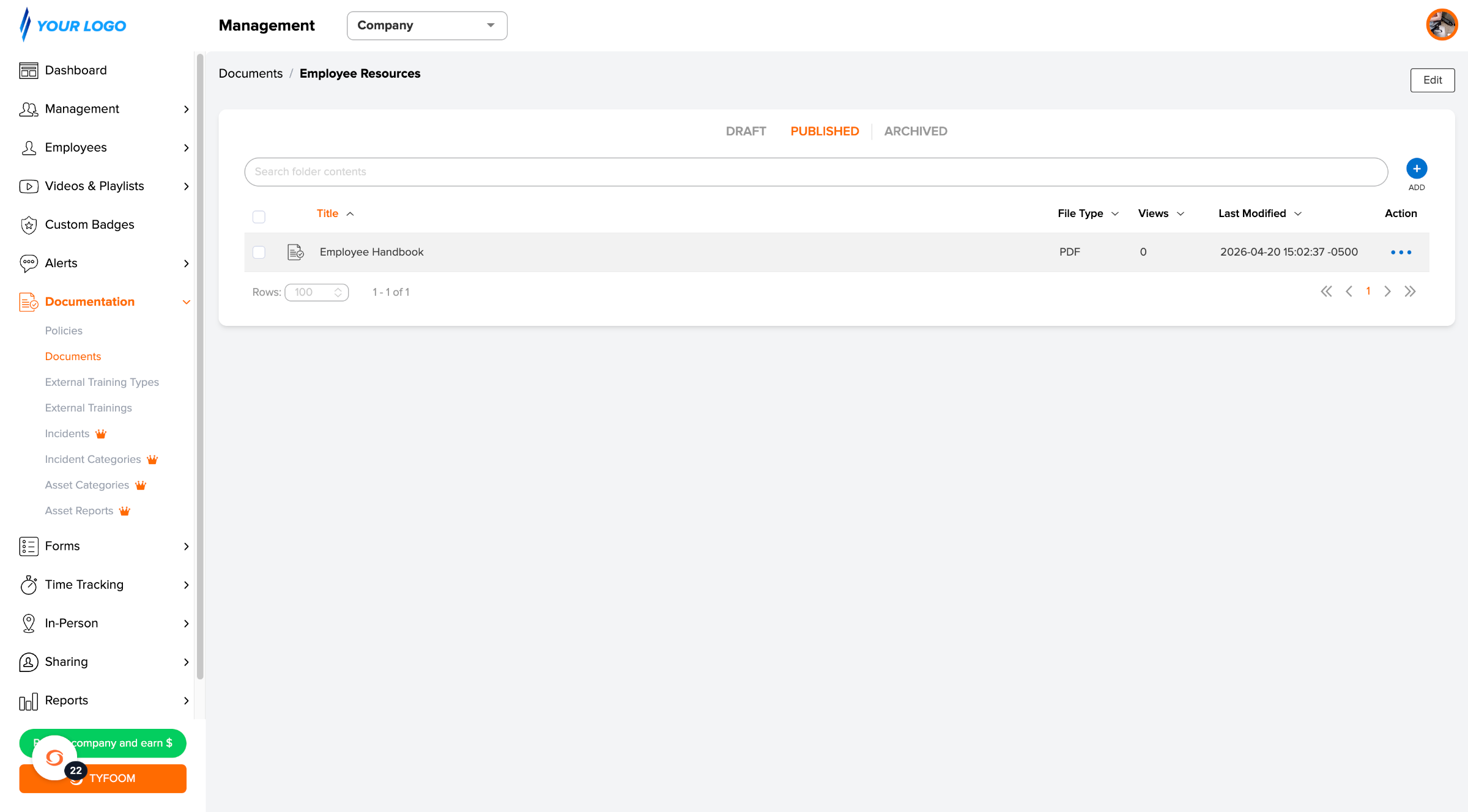
12. View Documents Within Folder
Published documents appear for selected employees right away in their Library.
13. Move, Edit, or Archive Anytime
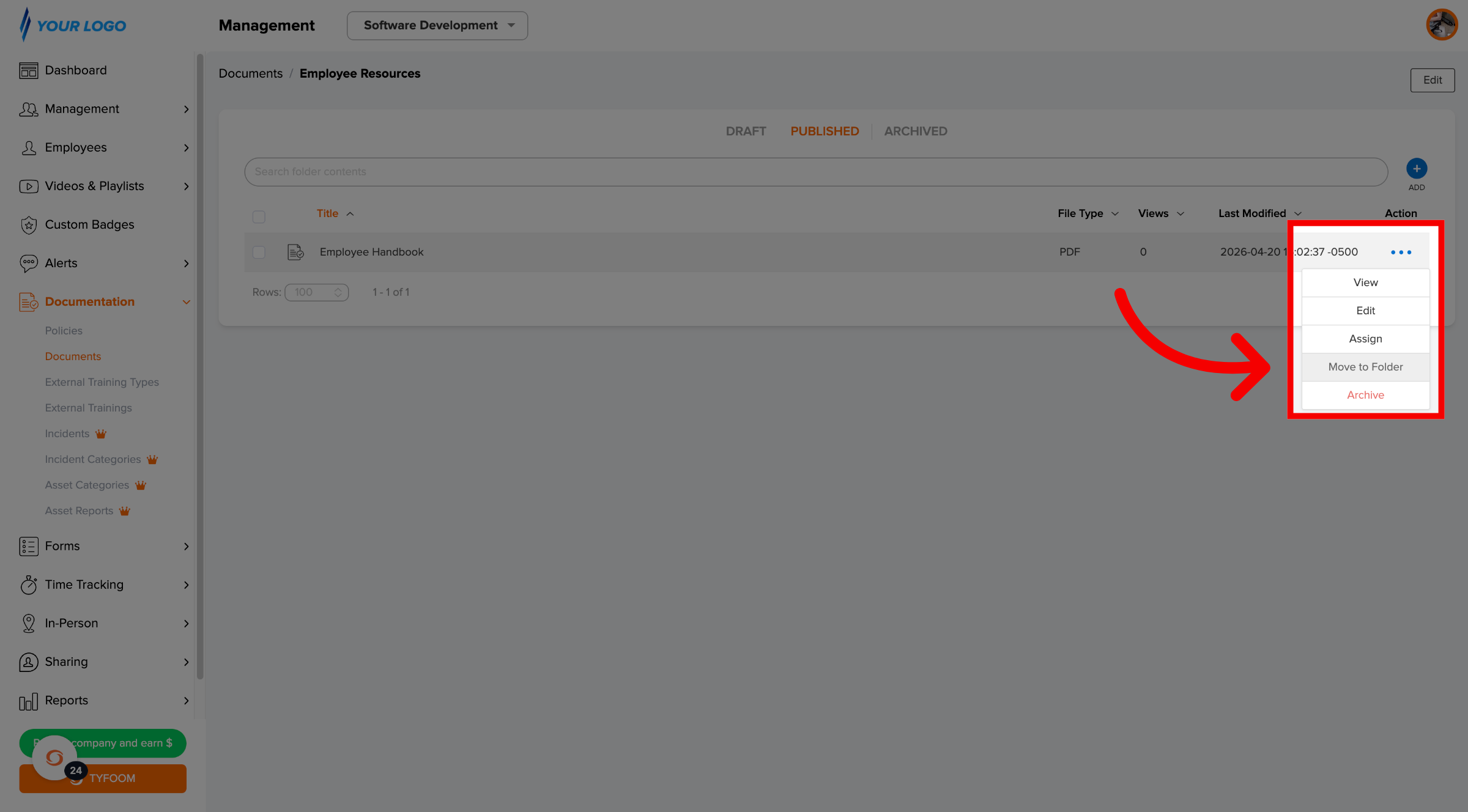
To move a document or folder to another folder, click the three-dot action menu and select Move to Folder.
14. Bulk Move and Archive
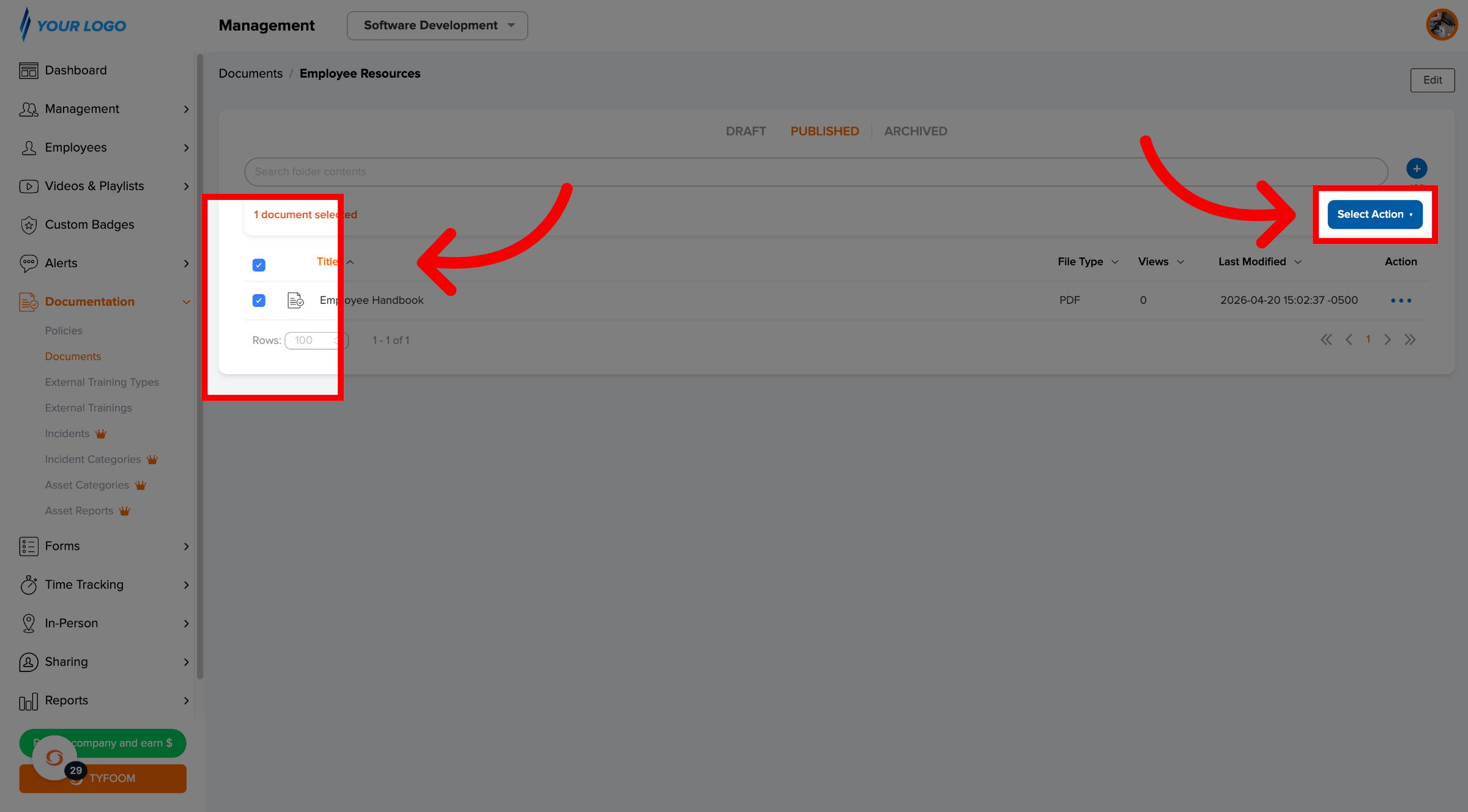
To move or archive multiple items at once, check the box on the left of any you want to select, then click Action to choose what to do.
If you have any questions, please contact us at customercare@tyfoom.com.