Prioritized Badges in Tyfoom
A prioritized badge ensures employees complete required training by automatically placing all videos from that badge into their video queue until the badge is earned. In this video, we’ll walk you through how to set it up.
1. Go to Custom Badges
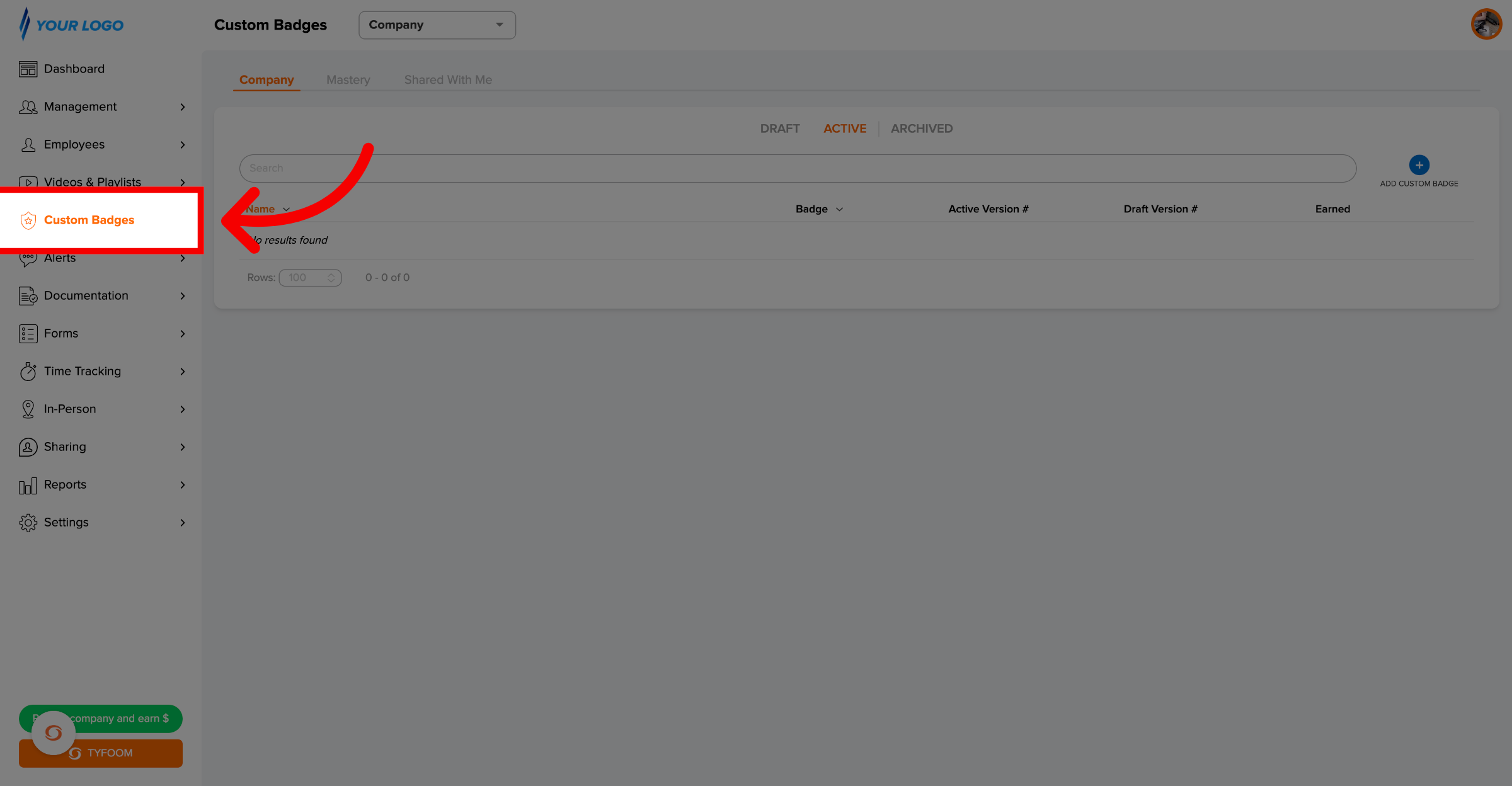
Open Tyfoom and click "Custom Badges" in the left sidebar.
2. Access Company Custom Badges
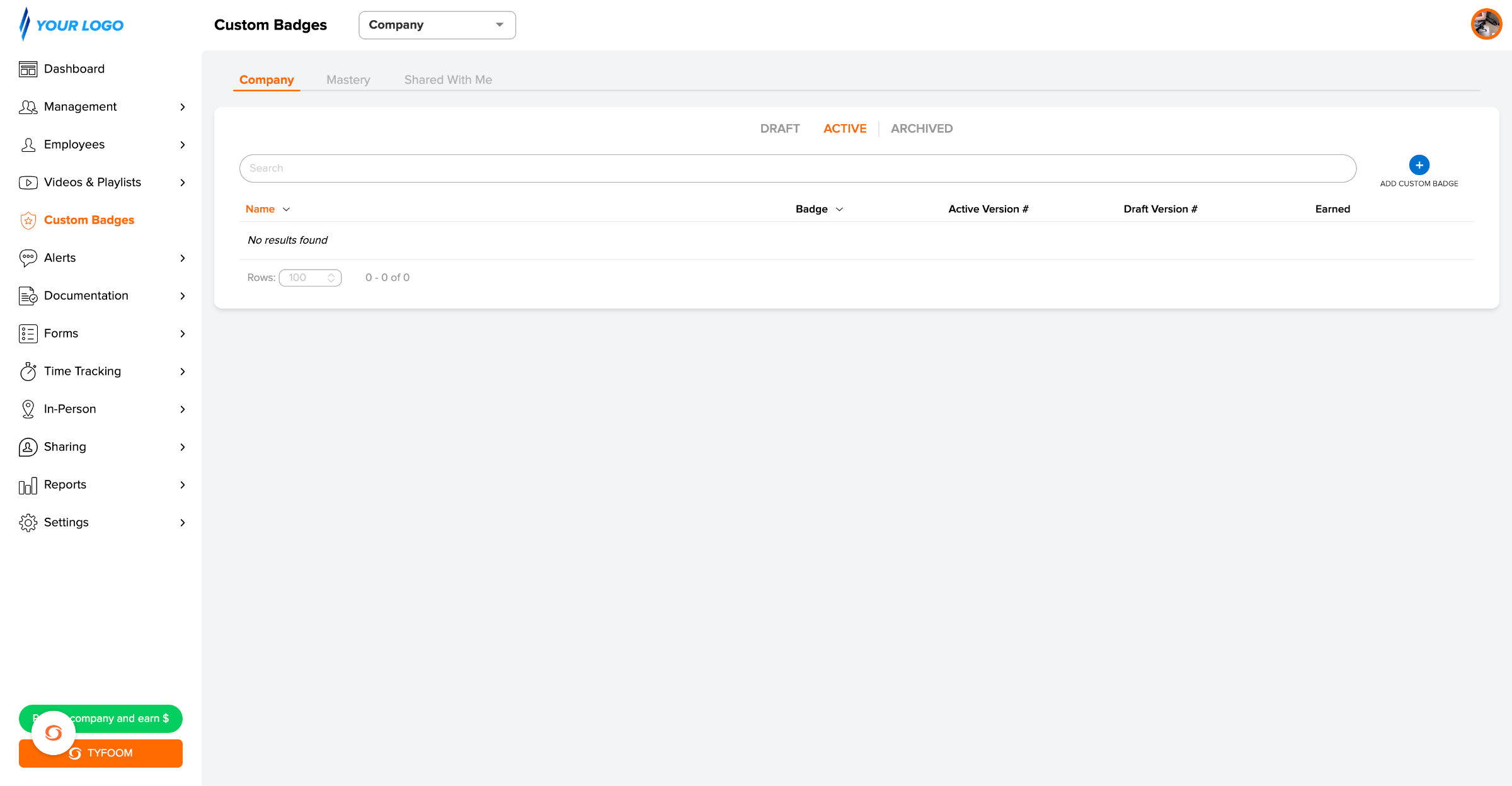
You'll be on the Company tab by default. This is where all badges your organization has created live, organized by status: Draft, Active, and Archived.
3. Add a New Badge
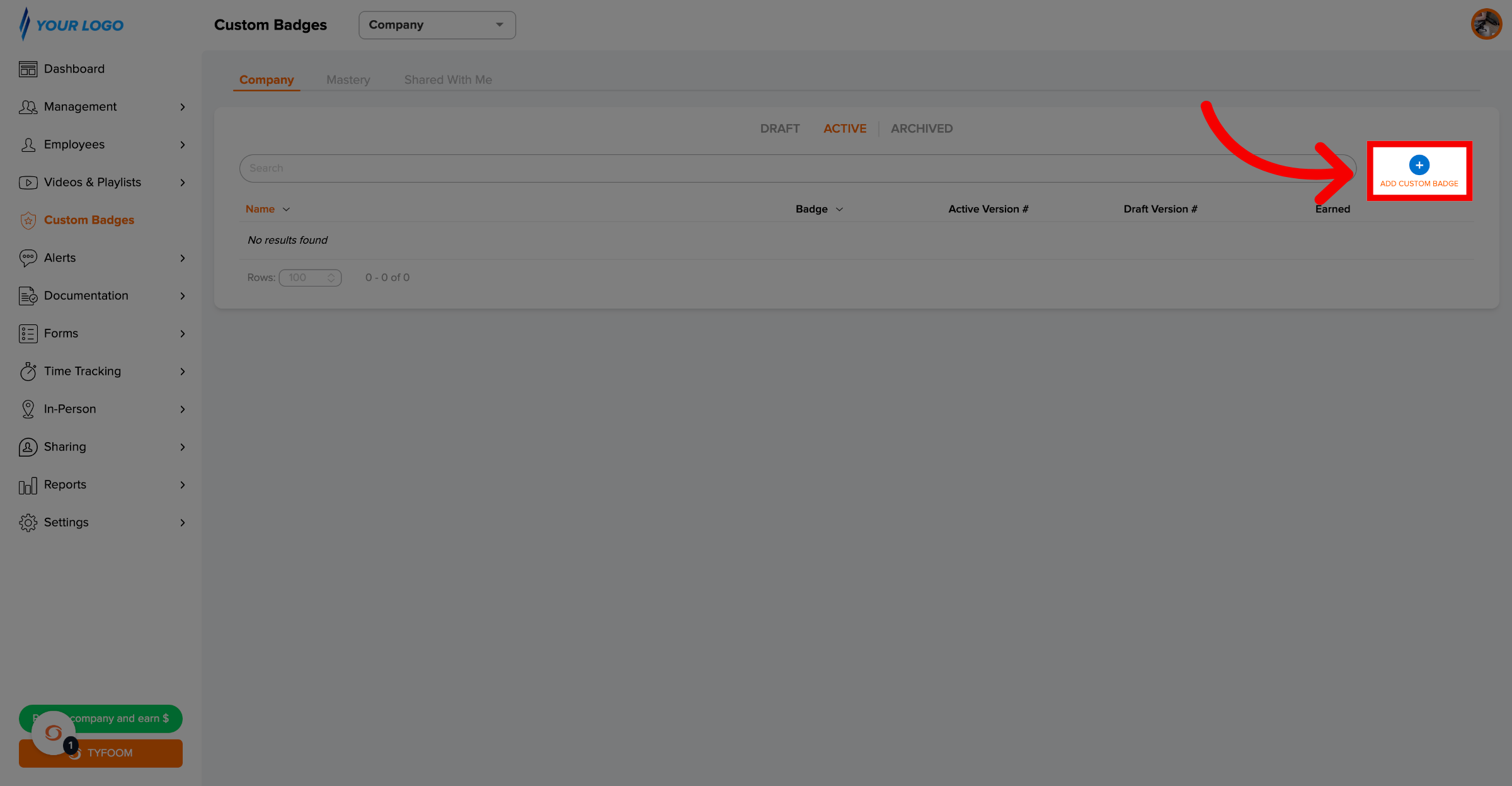
Click the blue + "ADD CUSTOM BADGE" button in the top-right corner of the list.
4. Edit Badge Details
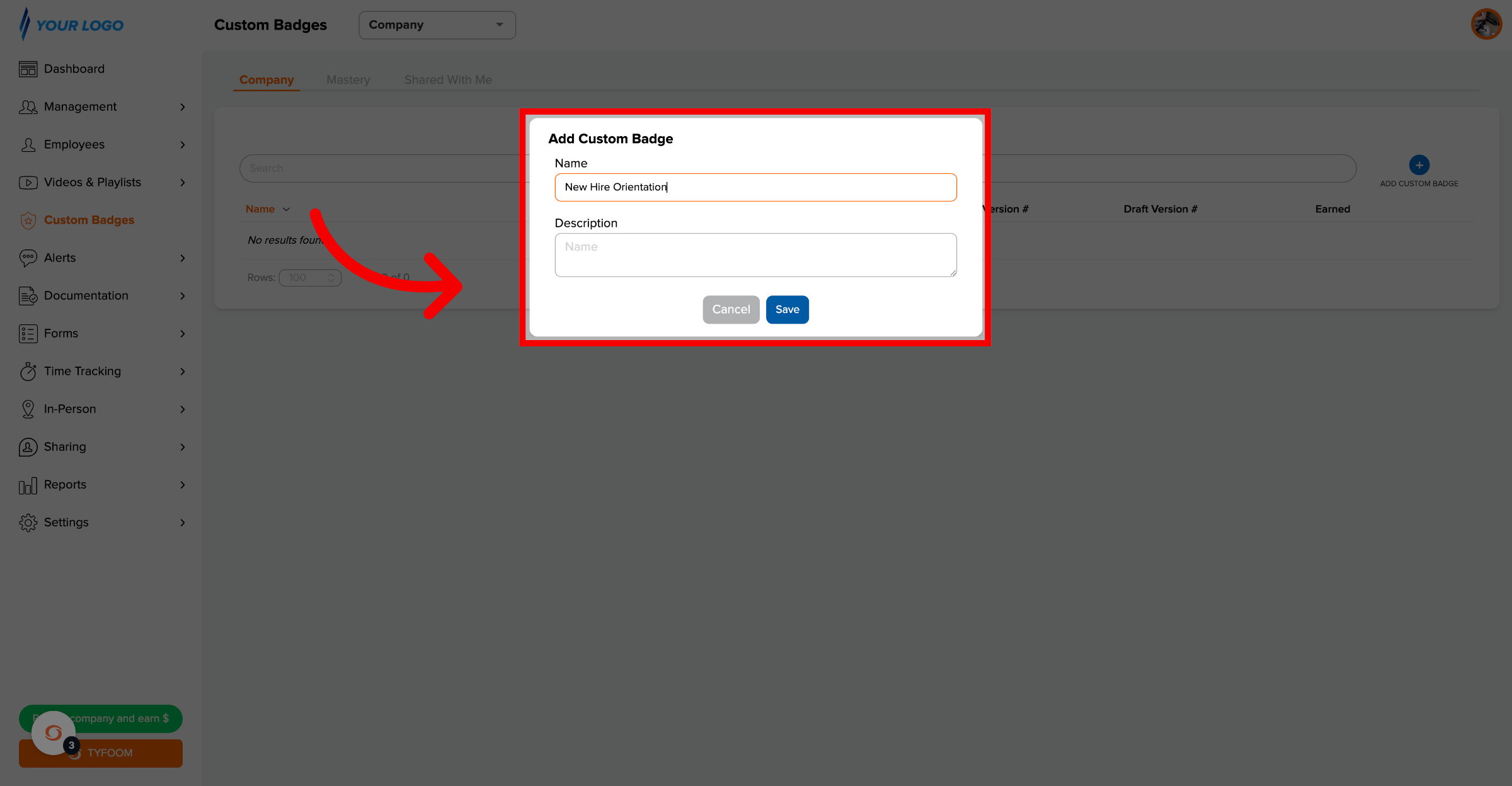
In the popup that appears, enter a name for your badge. You can also add an optional description. When you're ready, click Save.
5. Customize Your Badge Details
This takes you into the badge editor. Adjust the badge image by either using our create tool, or uploading an image of your own.
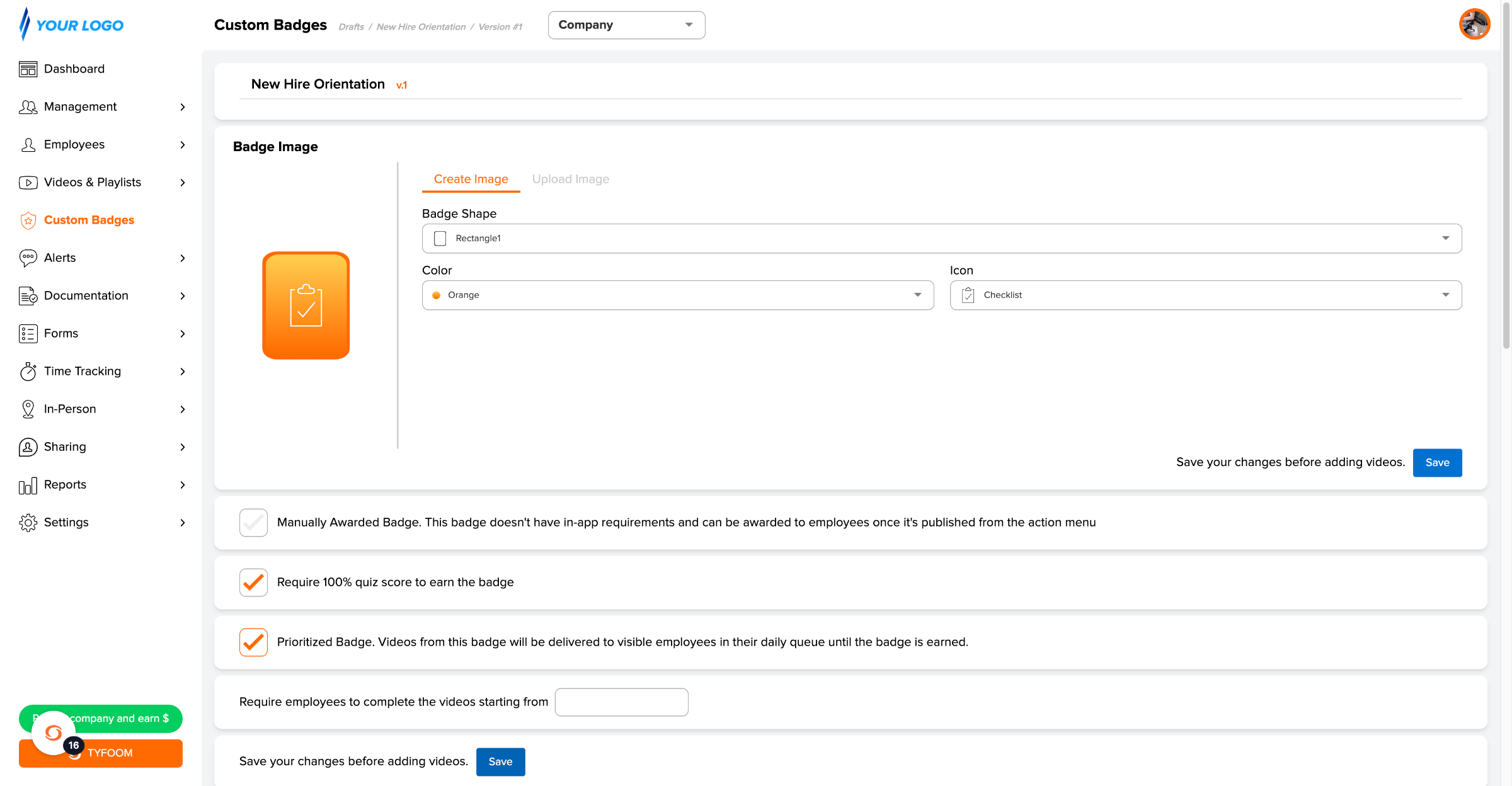
6. Check the Prioritized Badge Box
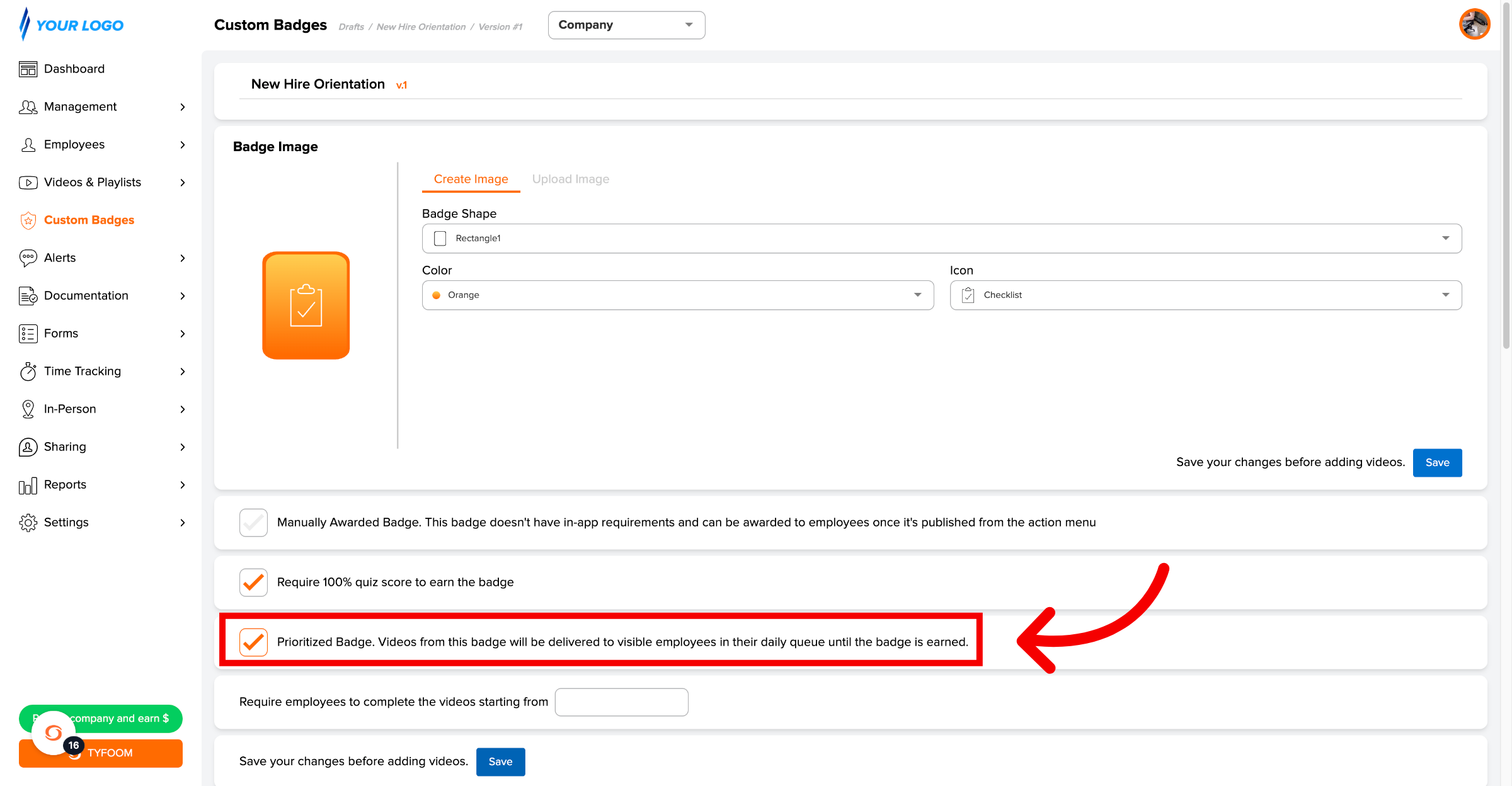
Scroll down past the Badge Image section. You'll see a group of checkboxes. Check the box next to Prioritized Badge. The checkbox turns orange to confirm it's active.
This tells Tyfoom to push this badge's videos to the front of the queue for every employee the badge is made visible to until the badge is earned.
Once you're done, click "Save", and you have successfully prioritized your custom badge in Tyfoom. If you have any questions, please contact us at customercare@tyfoom.co
Related Articles
Manually Awarded Badges
This guide will go over how to manually award custom badges to employees. Go to app.tyfoom.com 1. Go to "Custom Badges" To get started. Go to the custom badges tab. 2. Click "Add Custom Badge" 3. Enter Badge Details Give the badge name and ...Generating a Badge Report
Badges Report You can use the Badges report to know which employees have earned Custom and Mastery Badges. This information can also be exported and downloaded as a CSV. Generating Report Step 1: Access Report Go to the Reports tab Click on Badges ...Report Video in Tyfoom
In this guide we will go over how to report a video in the Tyfoom app. 1. Open the Library Tab in the Tyfoom app. 2. Then open your Video Library. 3. Select the video you want to report. 4. Tap "Report Video". 5. Choose the appropriate reason for the ...Tyfoom + Procore Integration
Integration Overview This integration allows you to automatically upload form responses as PDF files to a Procore project. Adding Tyfoom to Procore In this guide, we’re going to go over how to add Tyfoom to your Procore account. Go to procore.com 1. ...Company Rewards in Tyfoom
<br> In this guide, we're going over company rewards in Tyfoom. Go to app.tyfoom.com 1. Company Rewards Company rewards let you create your own point-based incentive program to recognize and drive Employee Engagement. 2. Open Company Rewards To ...