Required External Trainings
Required external trainings allow you to designate which employees need specific trainings, and then monitor compliance in one place.
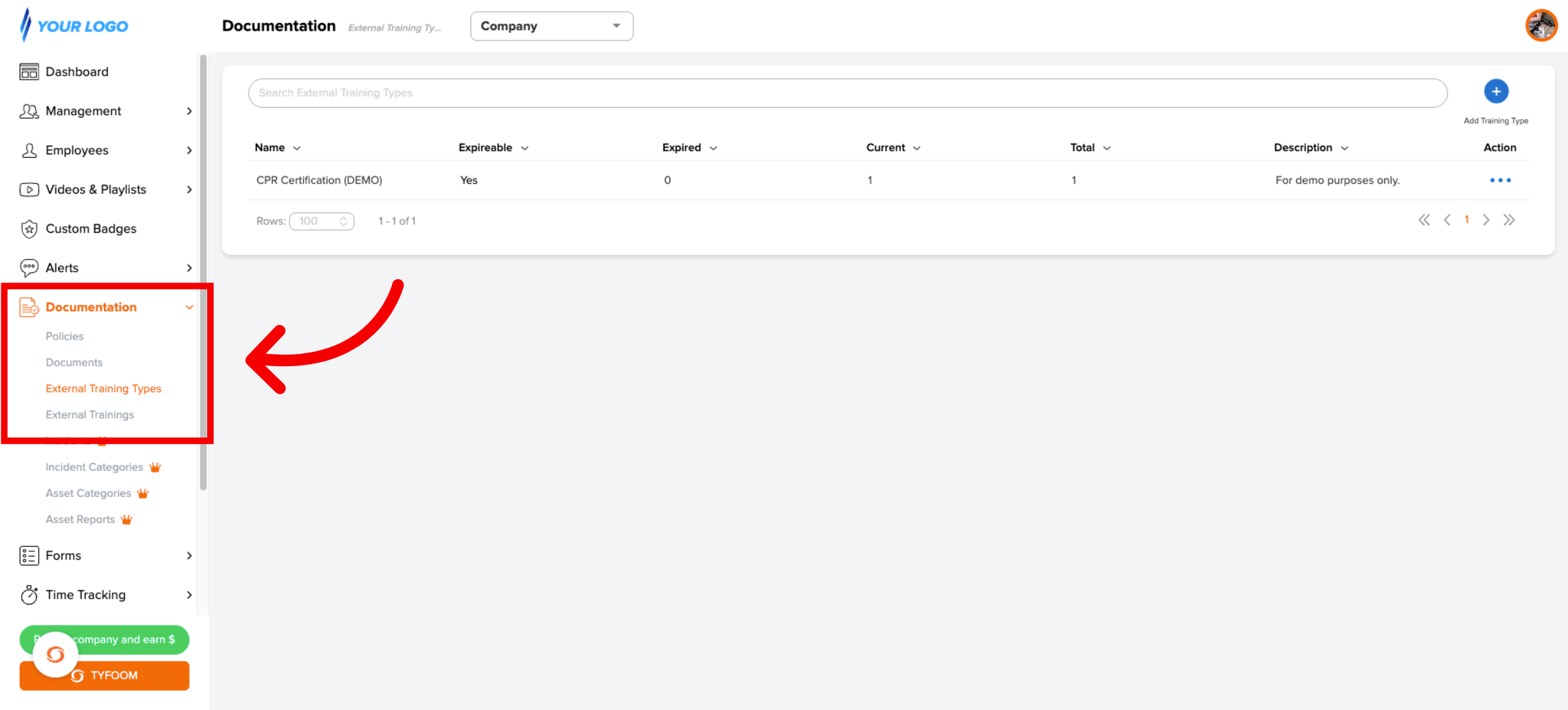
1. Go to Documentation > External Training Types
To get started, head over to the Documentation section in the left sidebar and click on External Training Types.
2. Select Training Type
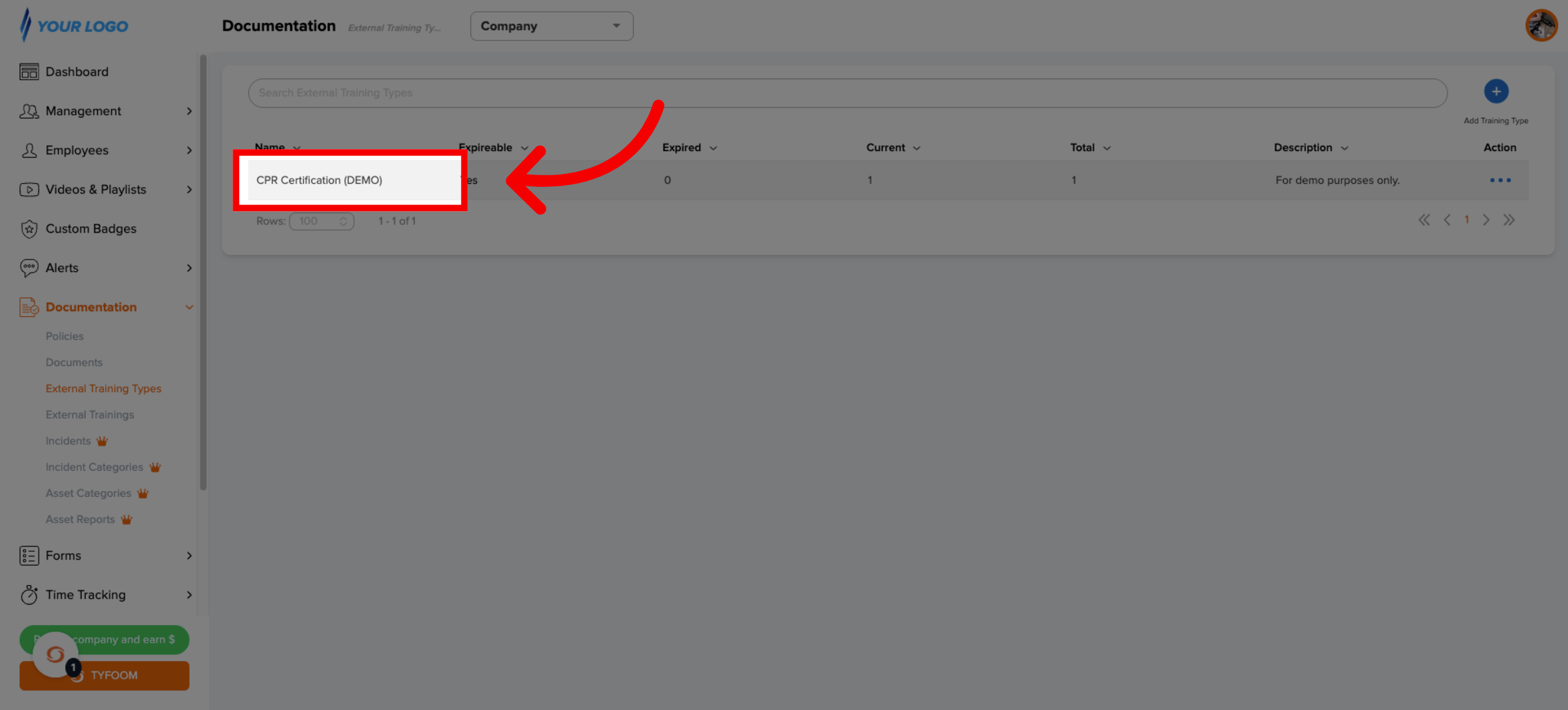
Find the training type you want to make required and click on it to open the detail page.
3. Scroll to Assign Required Training
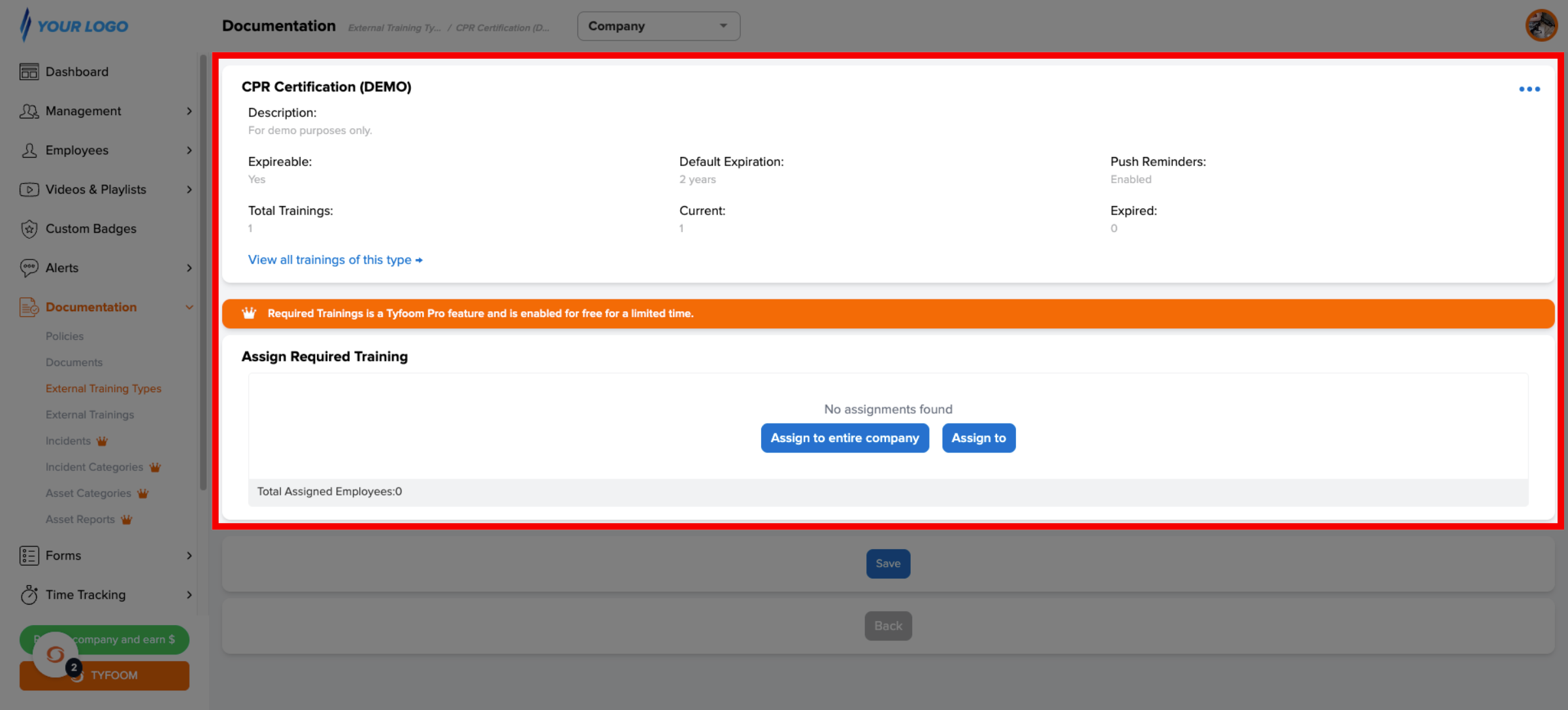
Once you're on the training type page, scroll down toward the bottom. You'll see a section called Assign Required Training. This is where you control who in your organization is required to have this training on file.
4. Assign to Entire Company or Specific Employees
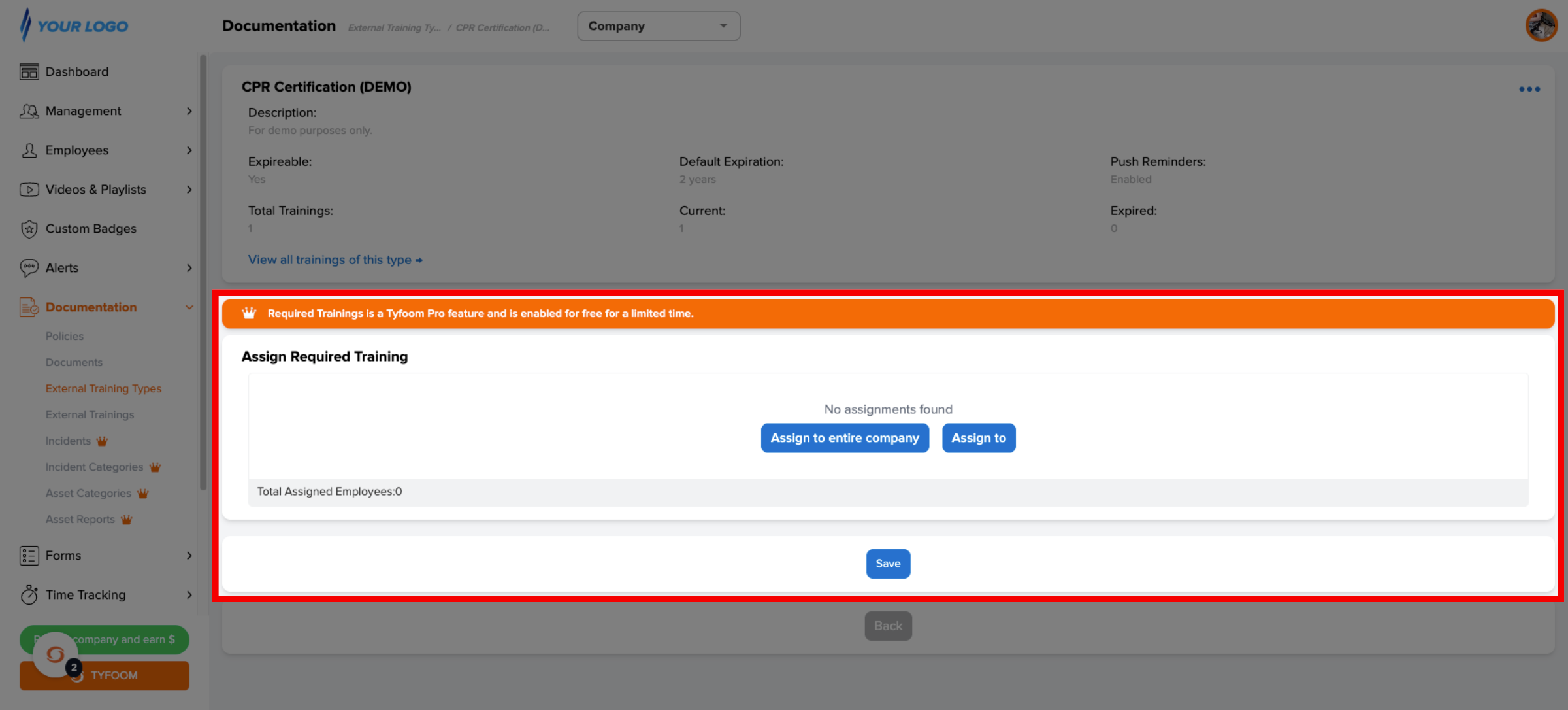
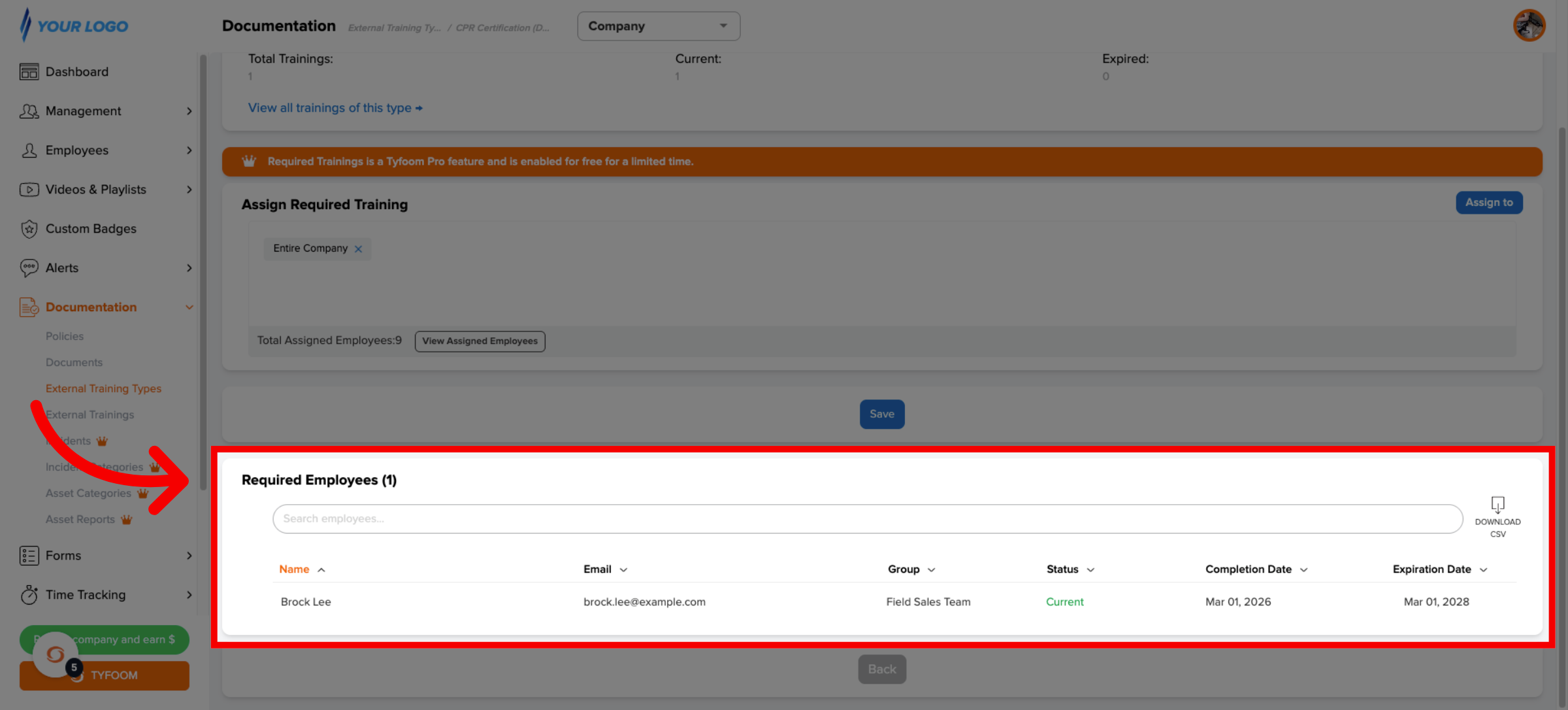
You have two options here. Click "Assign to entire company" to require it for everyone, or click "Assign to" to target specific groups, divisions, tags, or individual employees. Once you've made your selection, click Save.
5. View Required Employees List
After saving, the page updates to show a Required Employees table right below the assignment section. You can see each person's name, their current status, completion date, and expiration date all in one place.
6. Check an Employee's Required Training Status
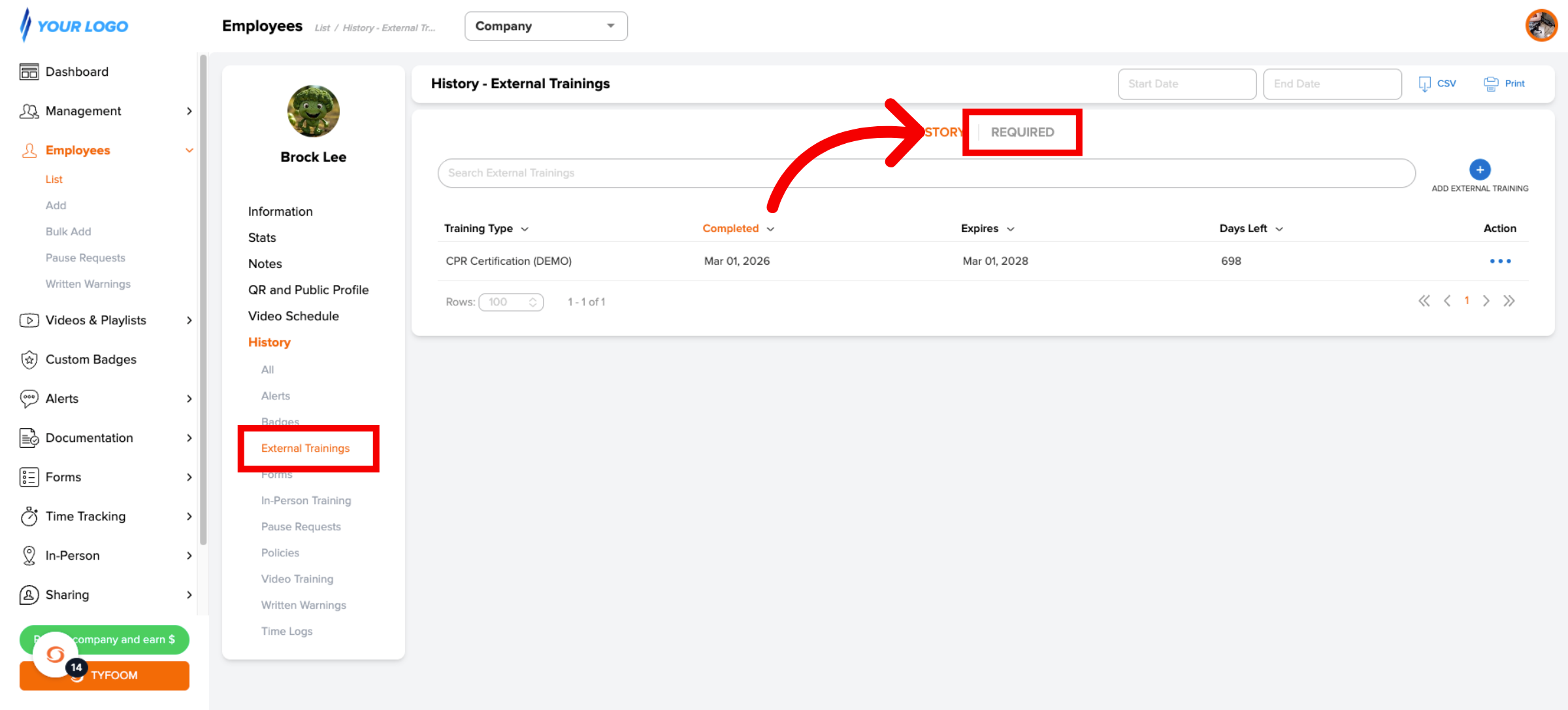
You can also check compliance at the individual level. From any employee's profile, go to History, then External Trainings, and click the Required tab.
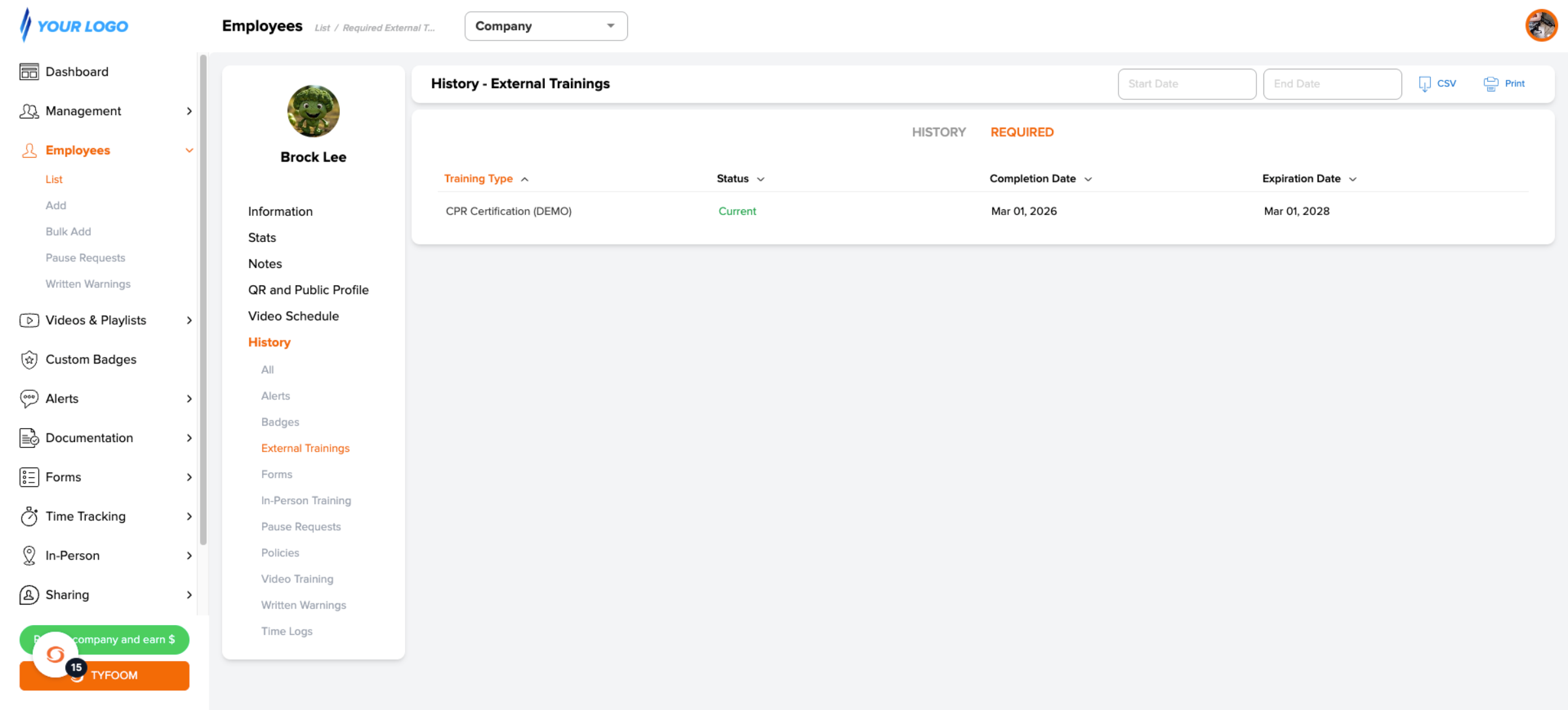
7. View Required Training
You'll see every training that employee is required to have and whether each one is current, missing, or expired.
8. Run the Required External Trainings Report
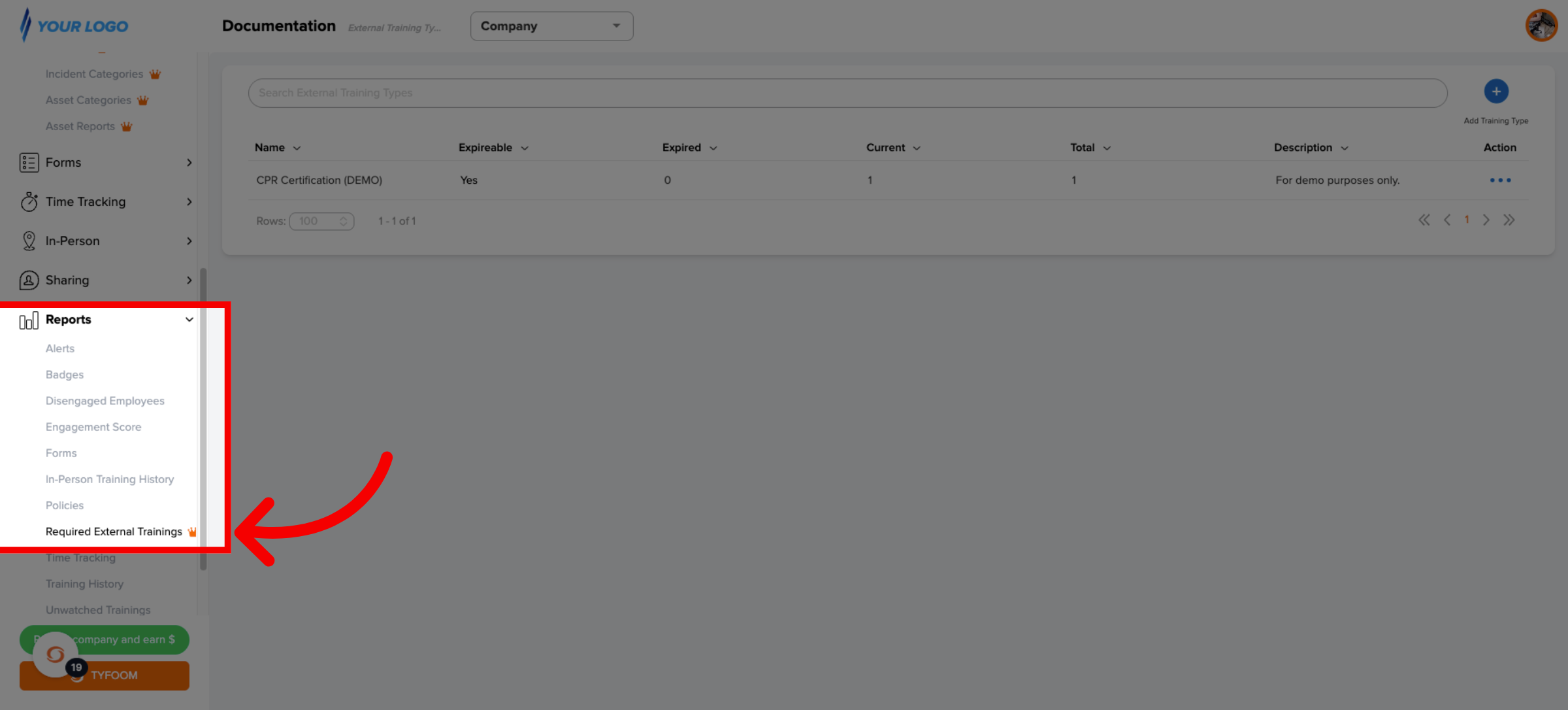
For a company-wide view go to reports and select the required external trainings report.
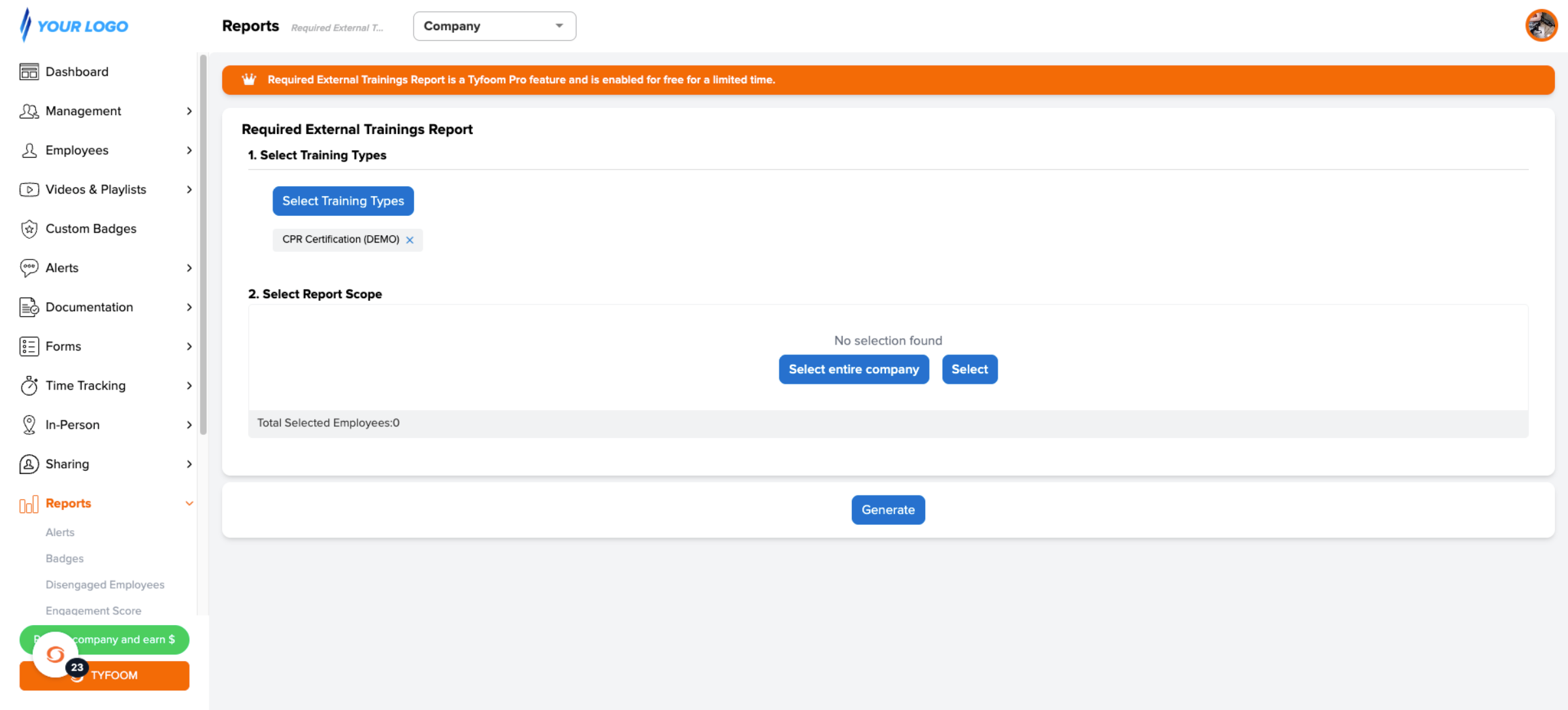
9. Select Training Types and Employee Scope
Step 1 is where you choose the training types you want to check. Step 2 is where you set your employee scope.
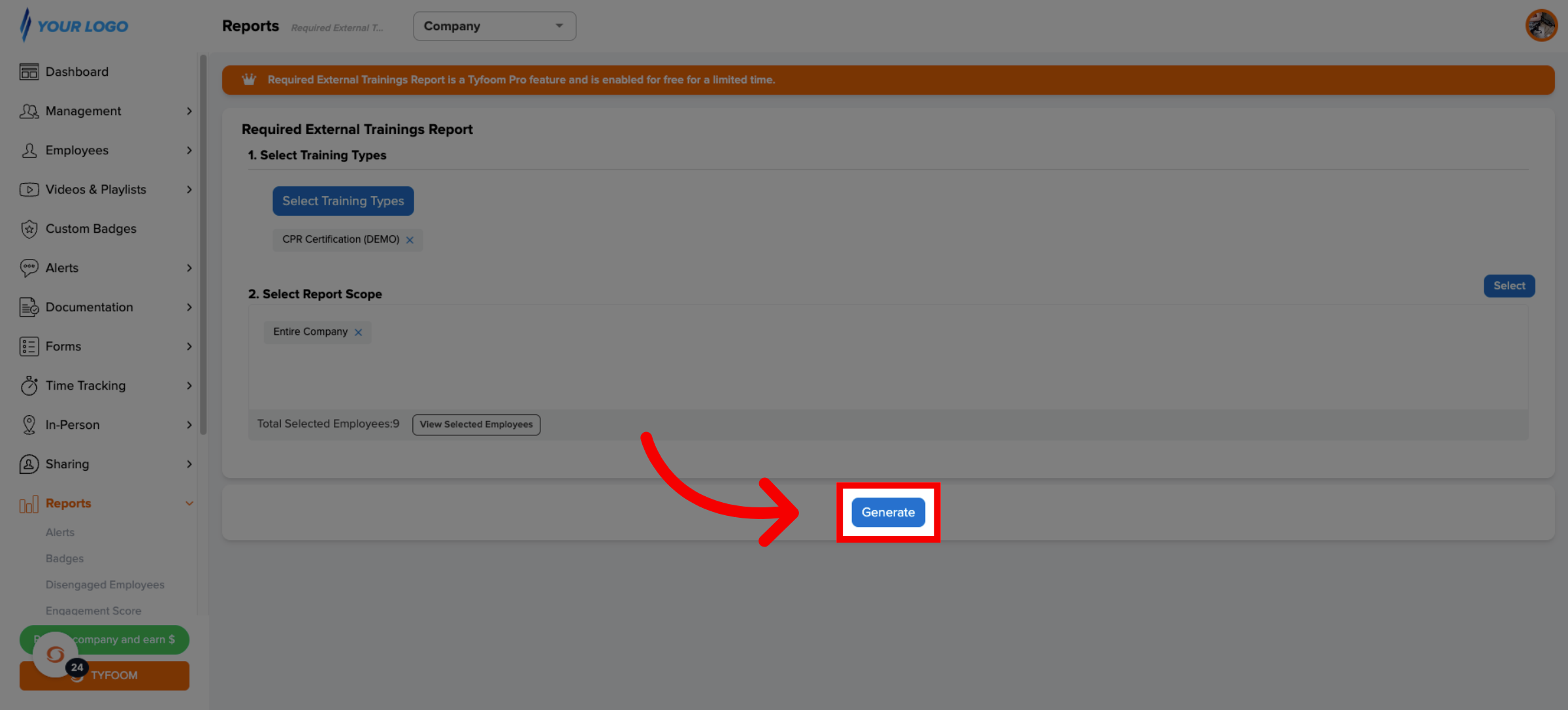
10. Generate Report
Once completing both steps, click generate.
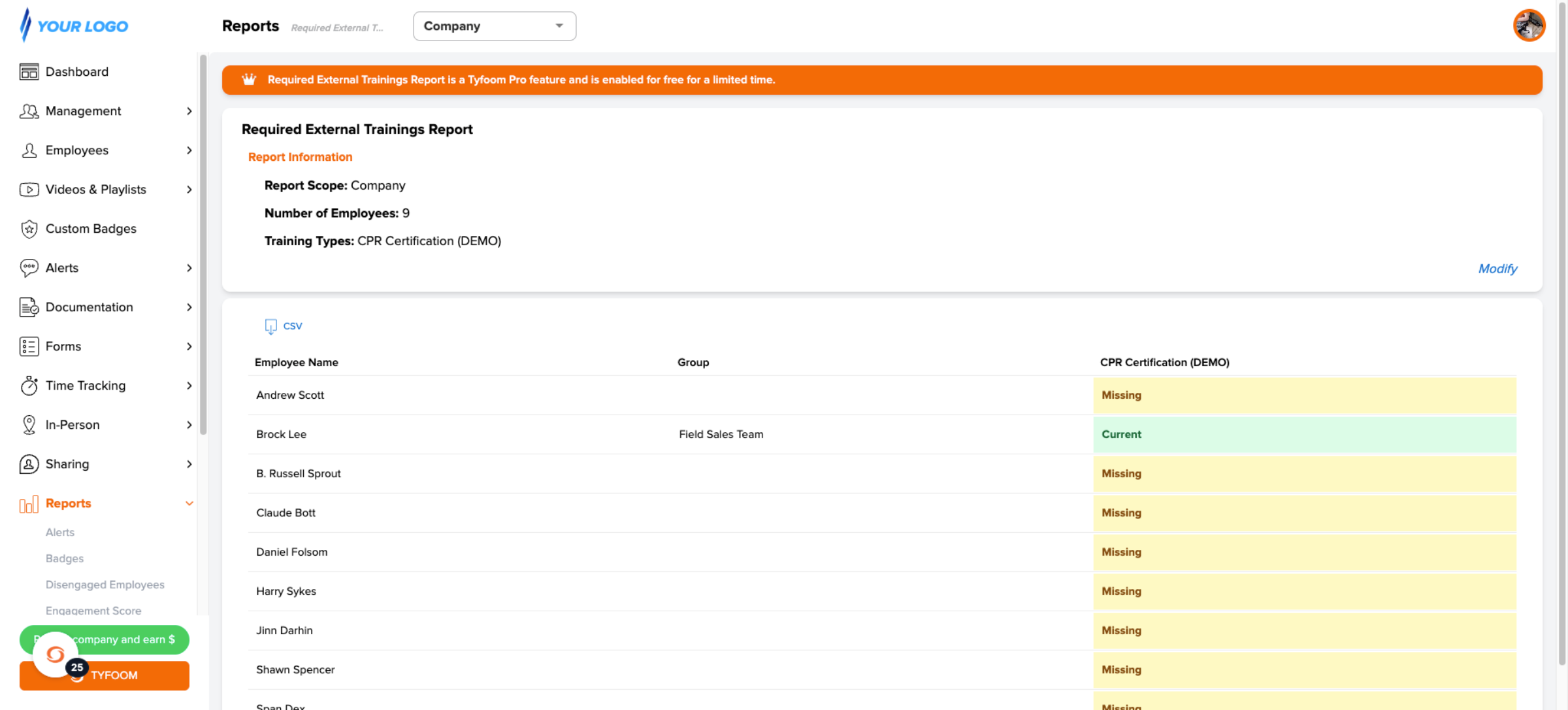
11. View Generated Report
The report loads with one row per employee and one column per training type. Each cell shows a status: Current, Missing, Expired, or Not Required. So you can see exactly where any gaps are.
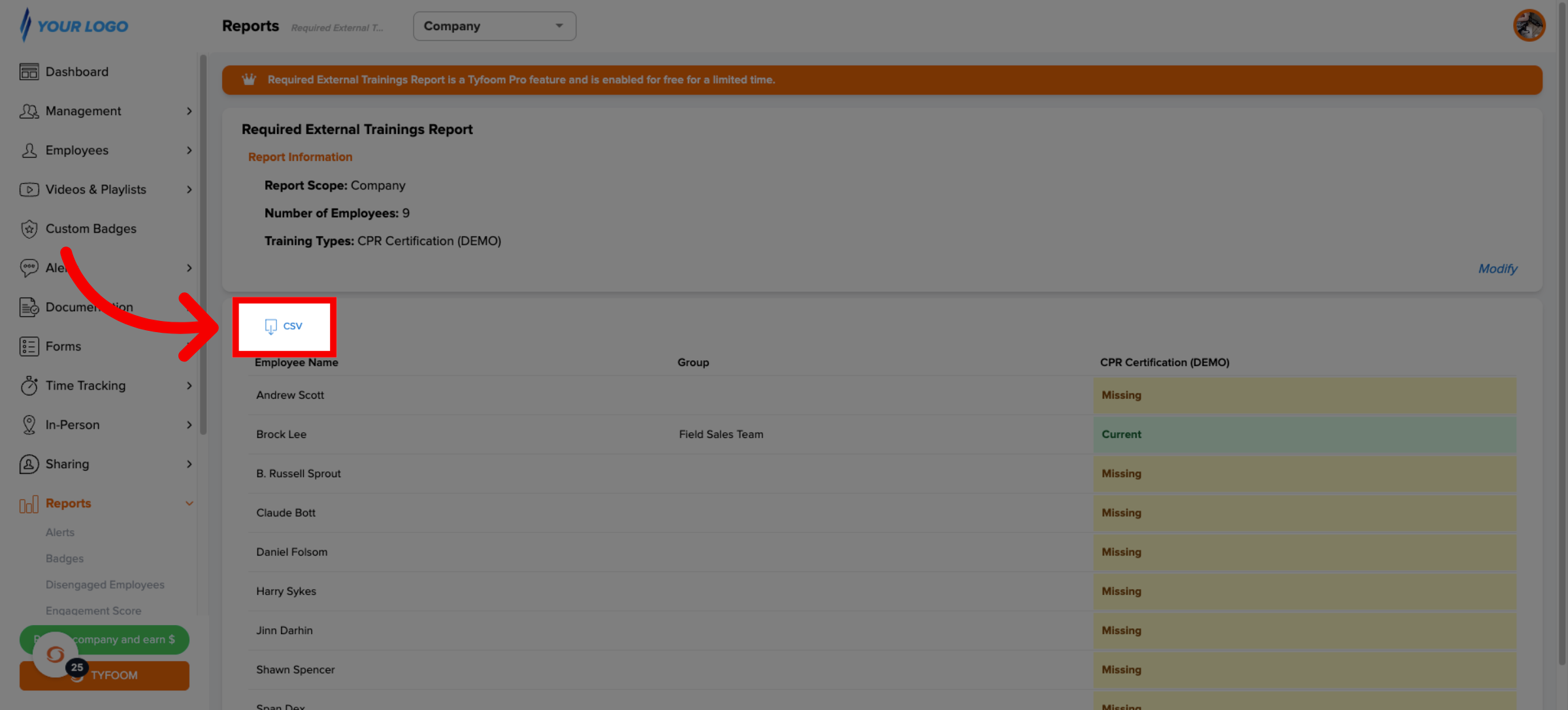
12. View Generated Report
When you're ready to share or save the results, click CSV to download the report. You can send it to managers or keep it for your records outside of Tyfoom.
If you have any questions, please contact us at customercare@tyfoom.com.
Related Articles
External Trainings in Tyfoom
&; External trainings let you record and track certifications, licenses, and any training your employees complete outside of Tyfoom. Common examples include CPR, OSHA courses, or forklift licenses. 1. Go to the Documentation tab Setup starts with ...Sales Tax Info Page
Sales Tax and your TYFOOM Subscription You may be required to pay state sales tax on your TYFOOM subscription. Your billing address is used to determine if your subscription is subject to sales tax. If you think you are exempt from sales tax, please ...FAQs - Admin
General Questions What is the TSR score? The TSR Score (Tyfoom Success Rating), is a performance indicator that offers a quick snapshot of a user's success and progress in Tyfoom. It includes watching assigned videos, getting good scores on quizzes, ...Tyfoom Microsoft OAuth Setup Guide
Tyfoom supports OAuth2 and OpenID Connect. To enable Microsoft SSO for your organization, please complete the steps below and provide the required credentials. 1. Create an Azure App for Authentication Set up an Azure application that Tyfoom will use ...Tyfoom Forms: Conditional Questions
This guide will walk you through the steps to Conditional Questions using Tyfoom. <br> 1. Existing and New Forms You can add conditional questions to an already existing form or a brand new form. You need to be editing the draft version ...