External Trainings in Tyfoom
External trainings let you record and track certifications, licenses, and any training your employees complete outside of Tyfoom. Common examples include CPR, OSHA courses, or forklift licenses.
1. Go to the Documentation tab
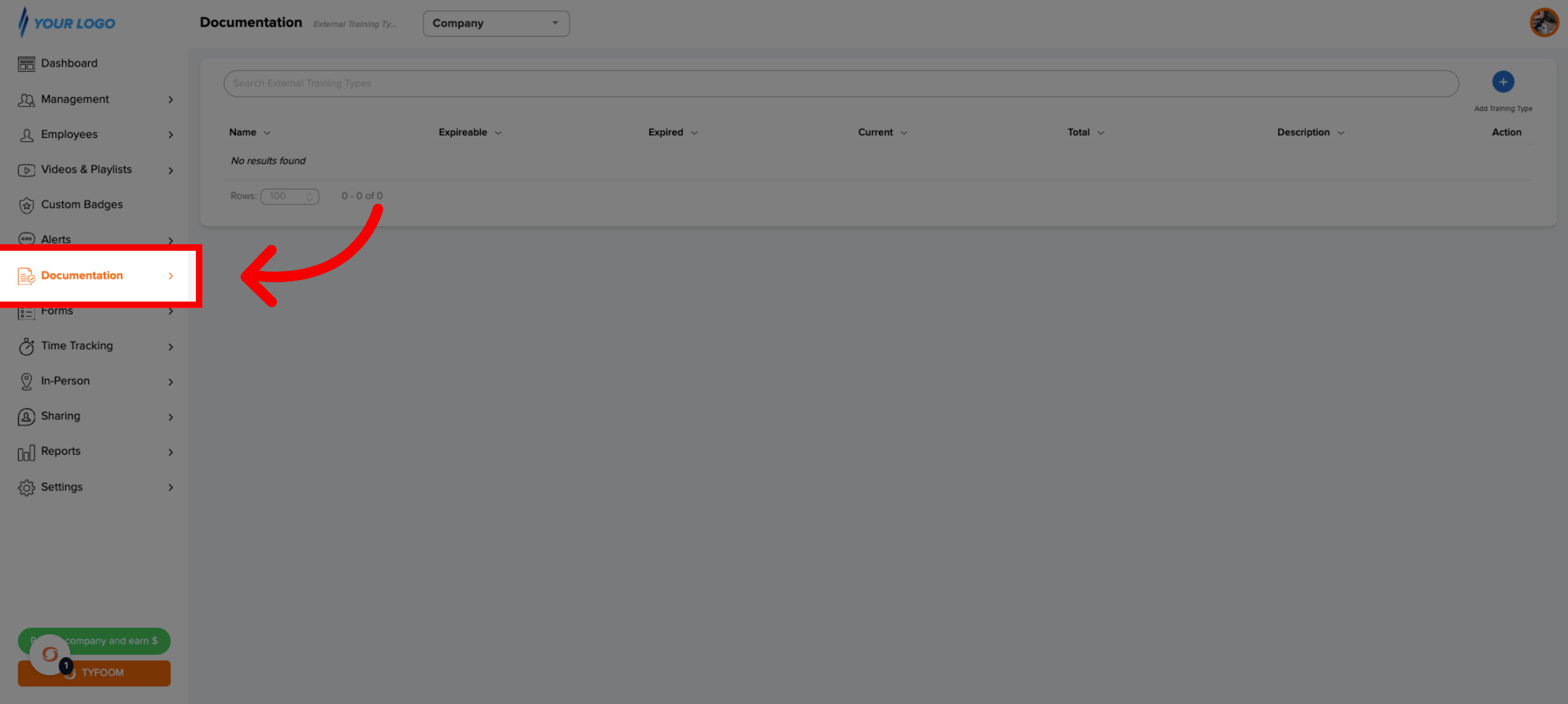
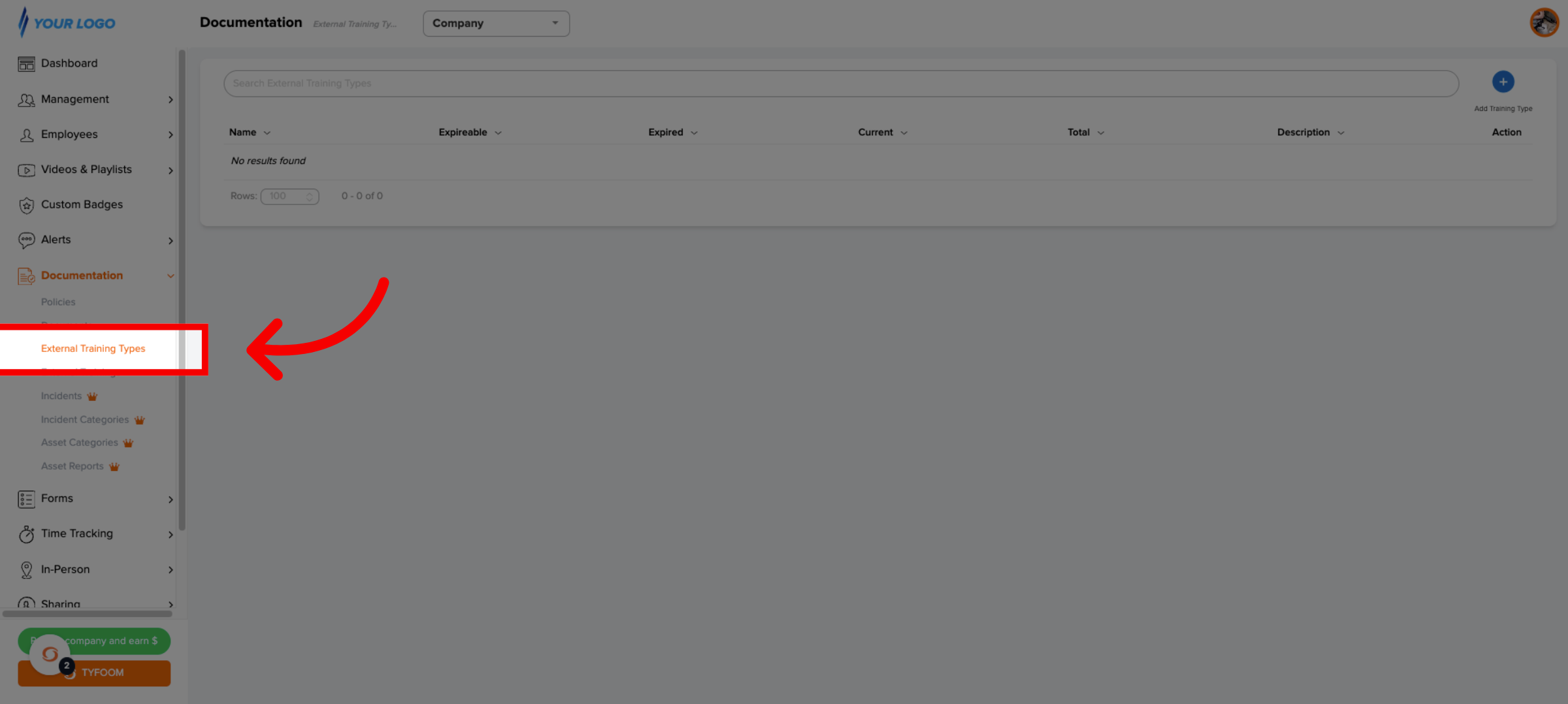
2. Select External Training Types
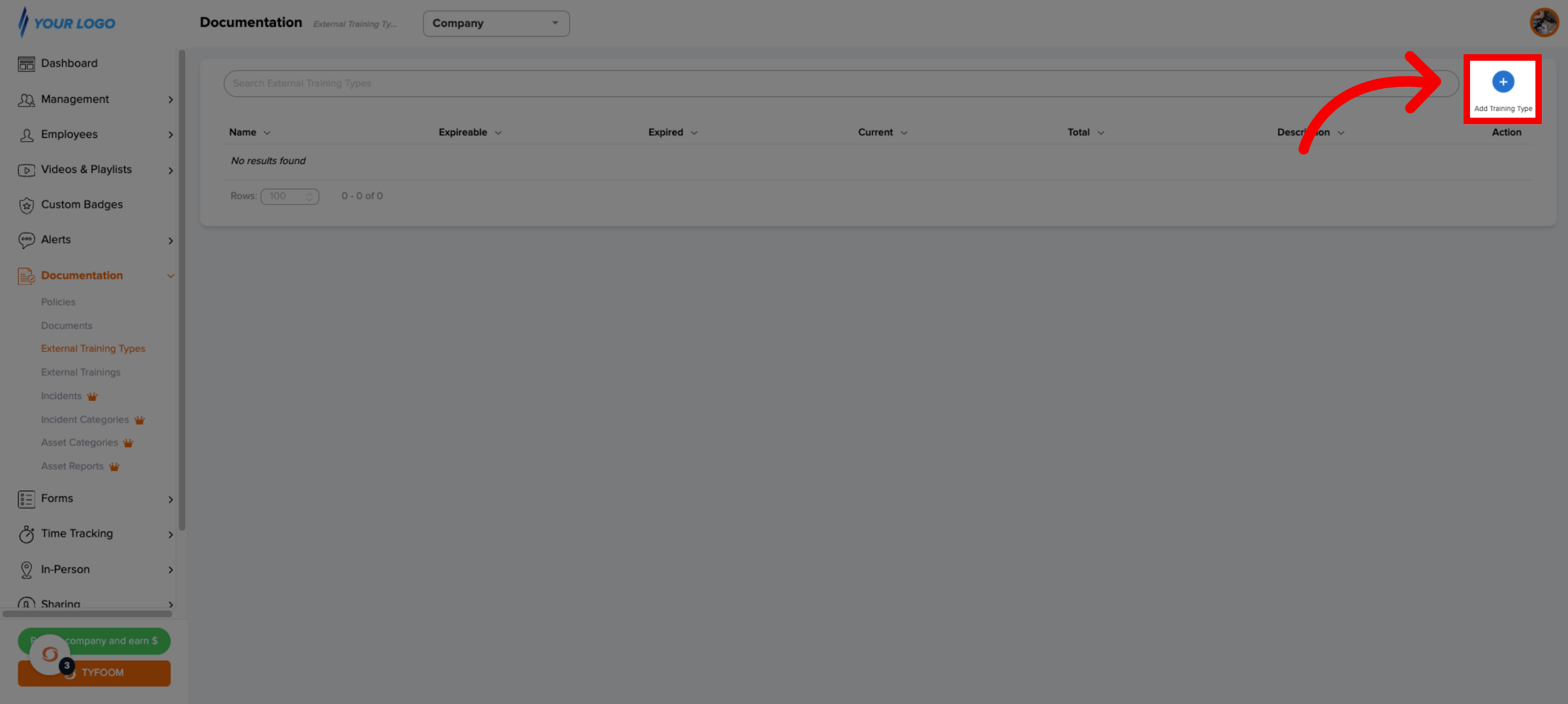
3. Add New Training Type
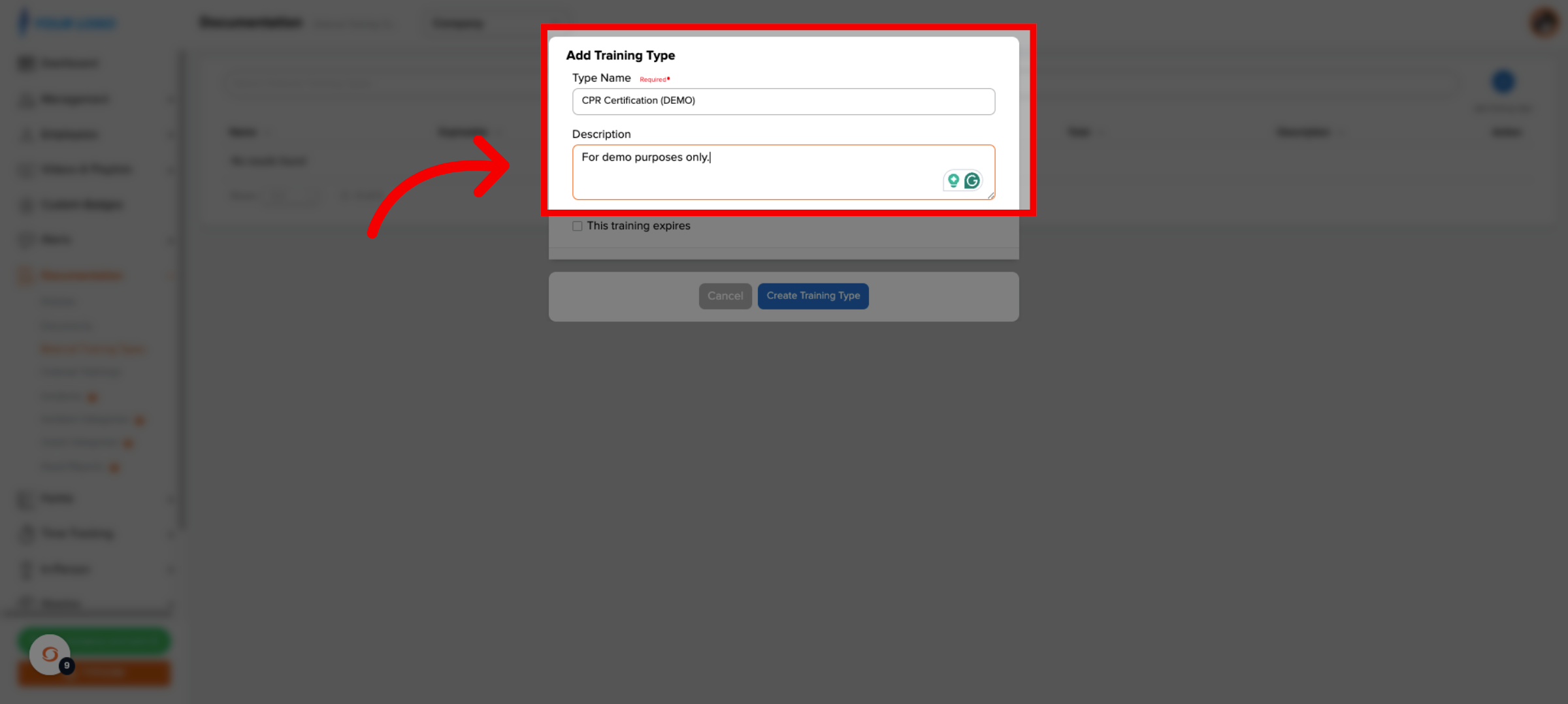
4. Add Type Details
5. Enable Expiration Setting
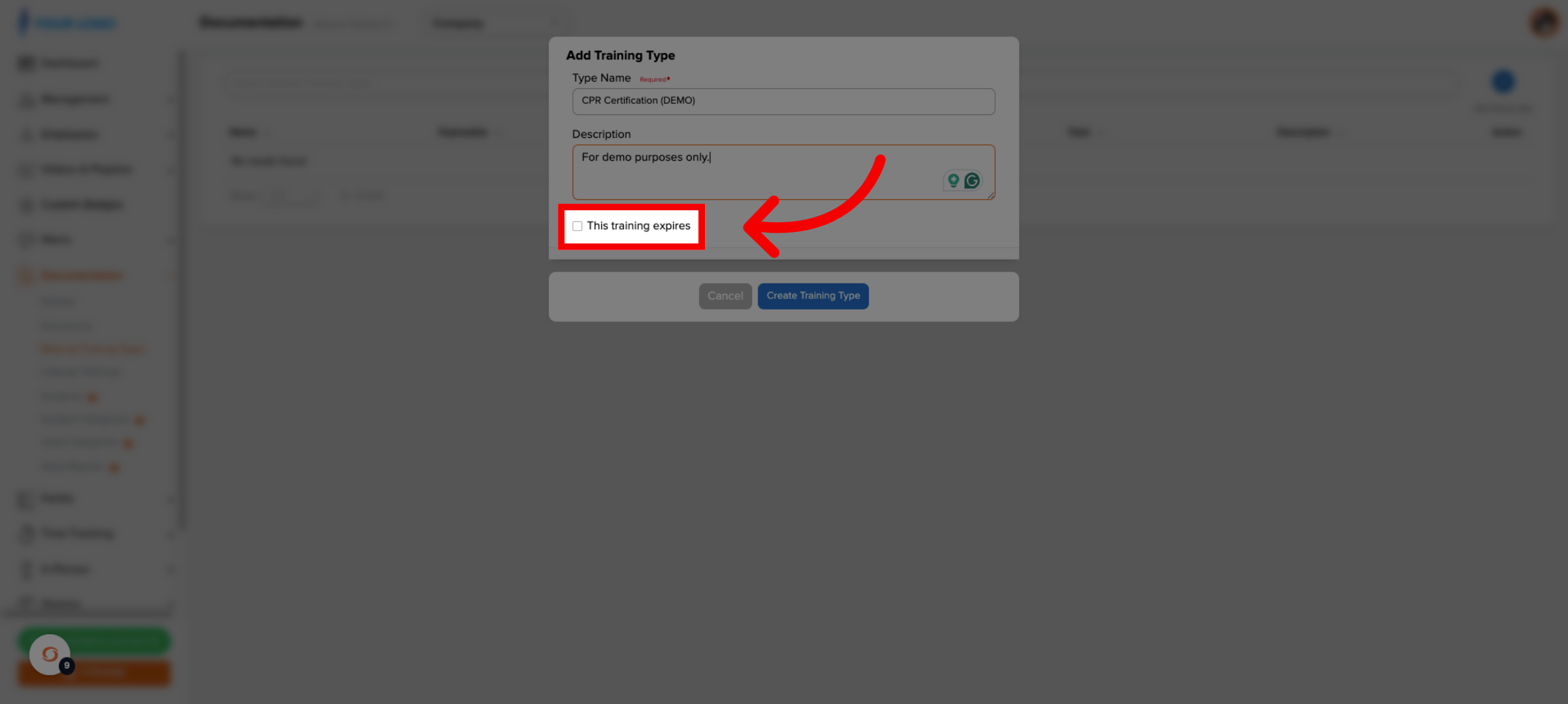
Next, decide if this training expires. If it doesn't, leave it unchecked and you're done. Since CPR certifications do expire, we'll check the box.
6. Set Expiration Period
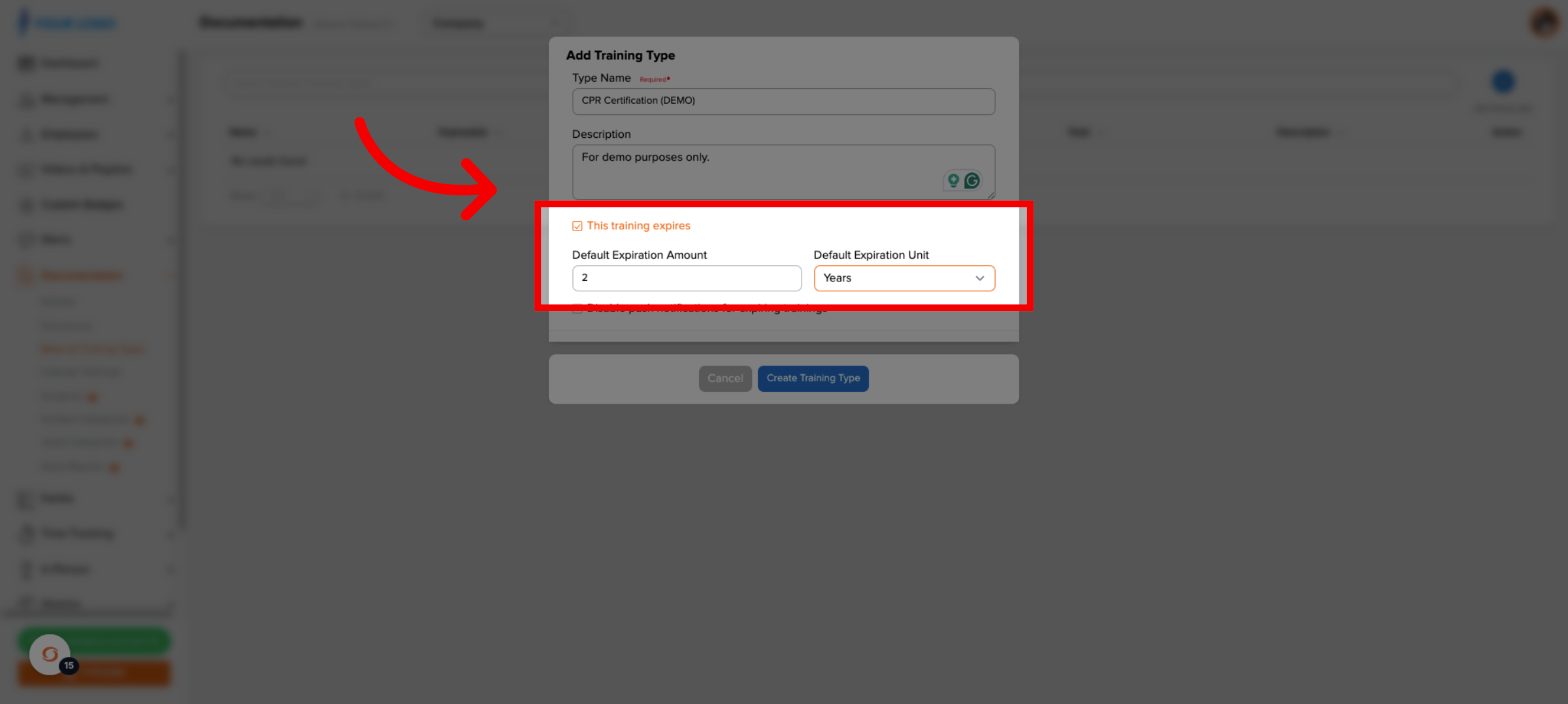
Now we set a default expiration window. In this case, two years.
7. Optional: Disable Push Notifications
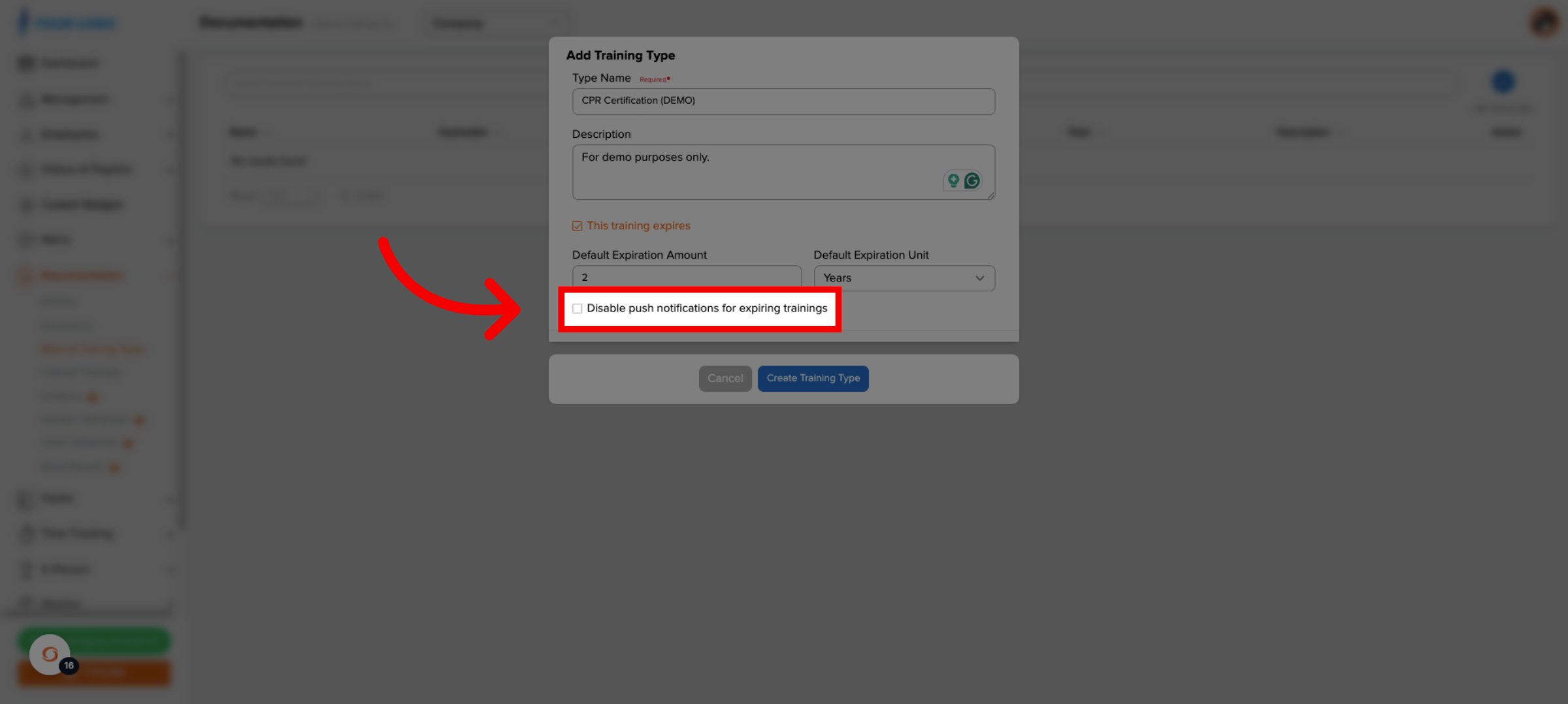
If push reminders stay enabled, employees are notified automatically before their training expires at 90, 60, 30, and 7 days prior, unless it is renewed before then.
8. Create Training Type
9. Access External Trainings
Now, we'll log a training record for an employee. Go to external trainings.
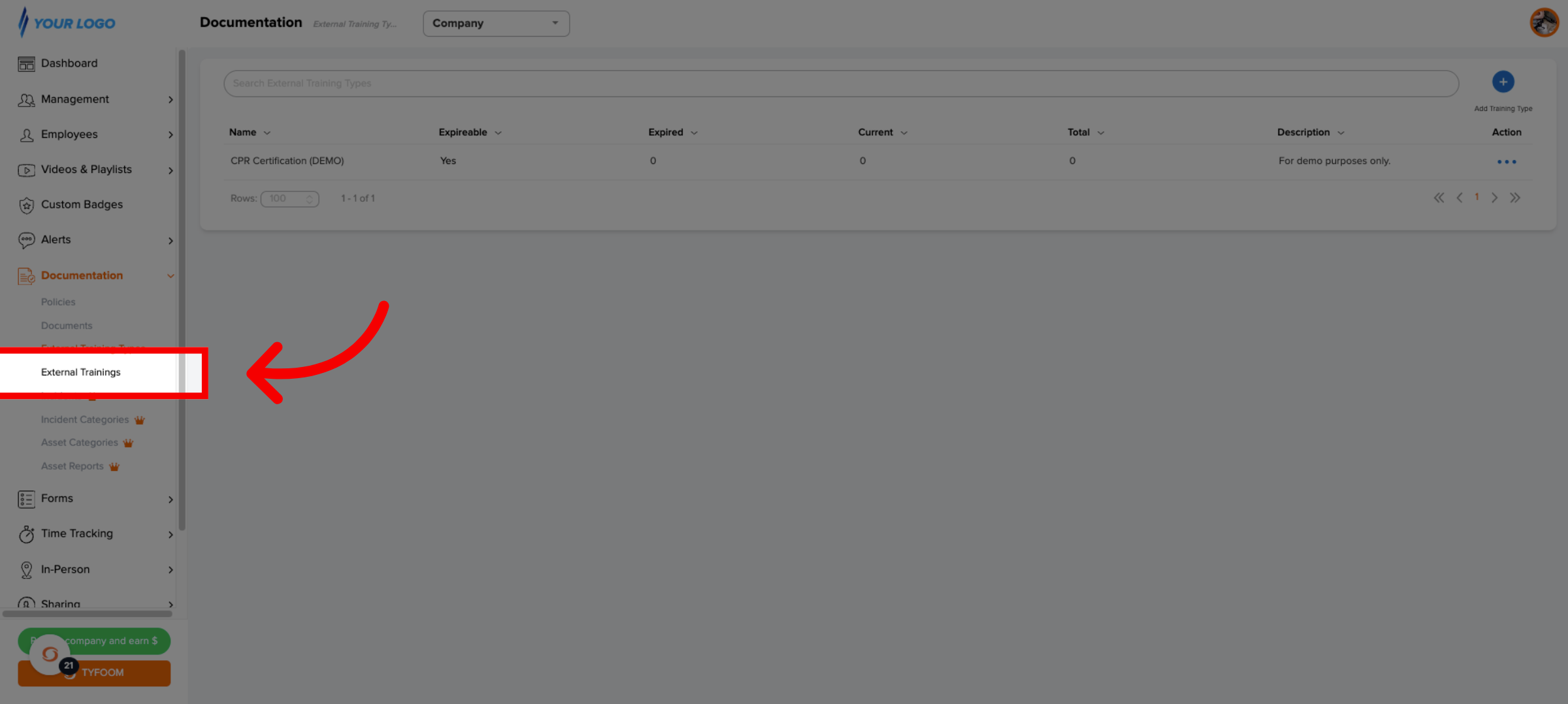
10. Download, Import or One-by-one
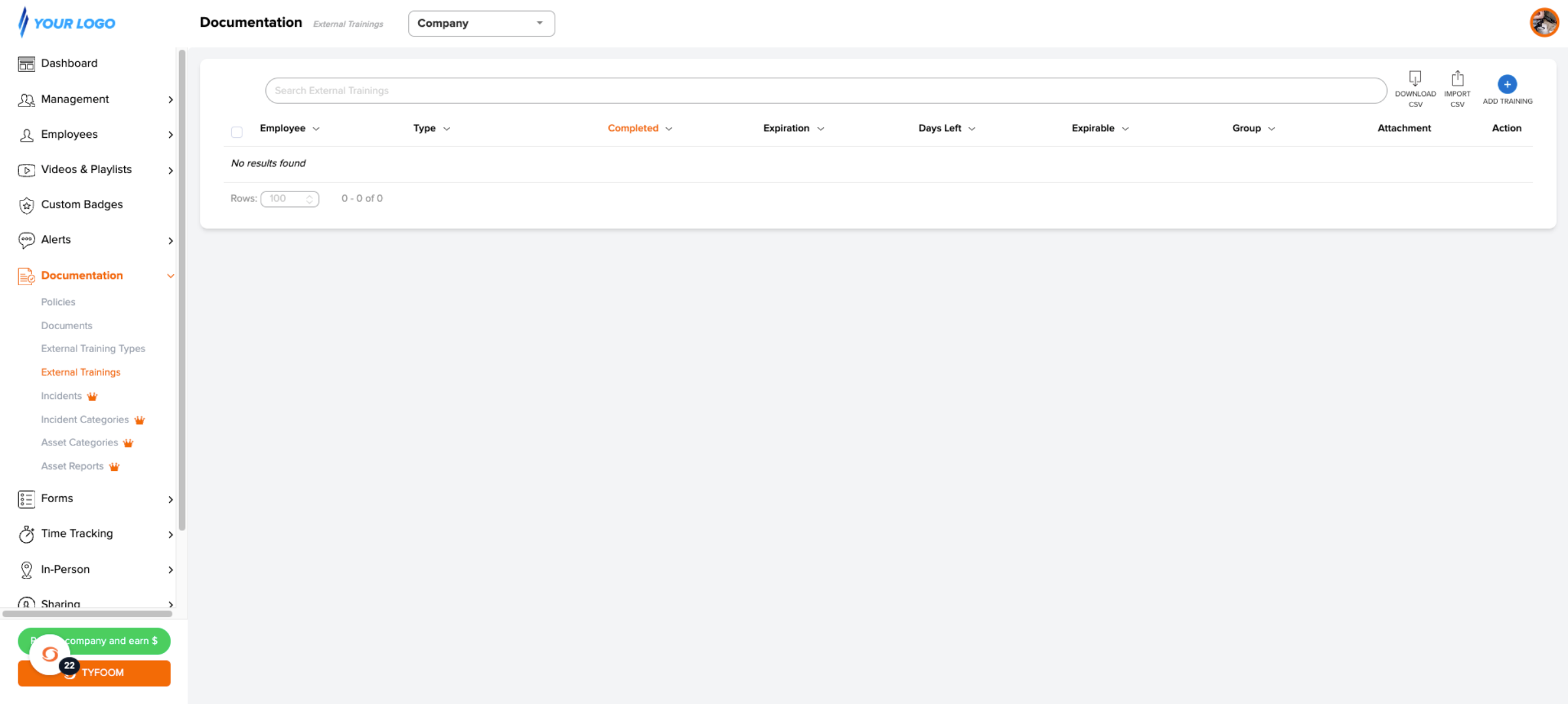
11. Add External Training Record
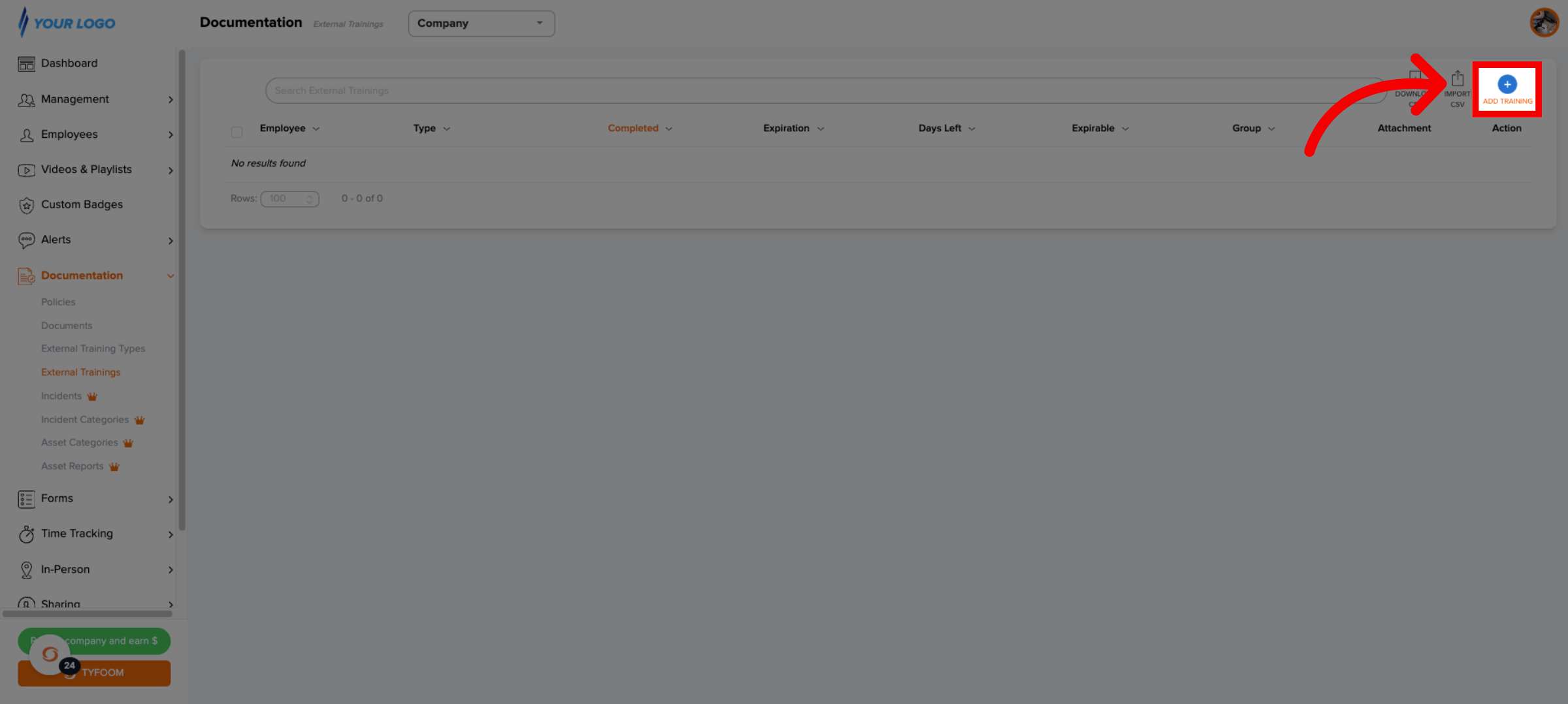
12. Enter Training Record Details
Add your record details, including optional notes and an attachment. The attachment could be the image of the certificate if you have one.
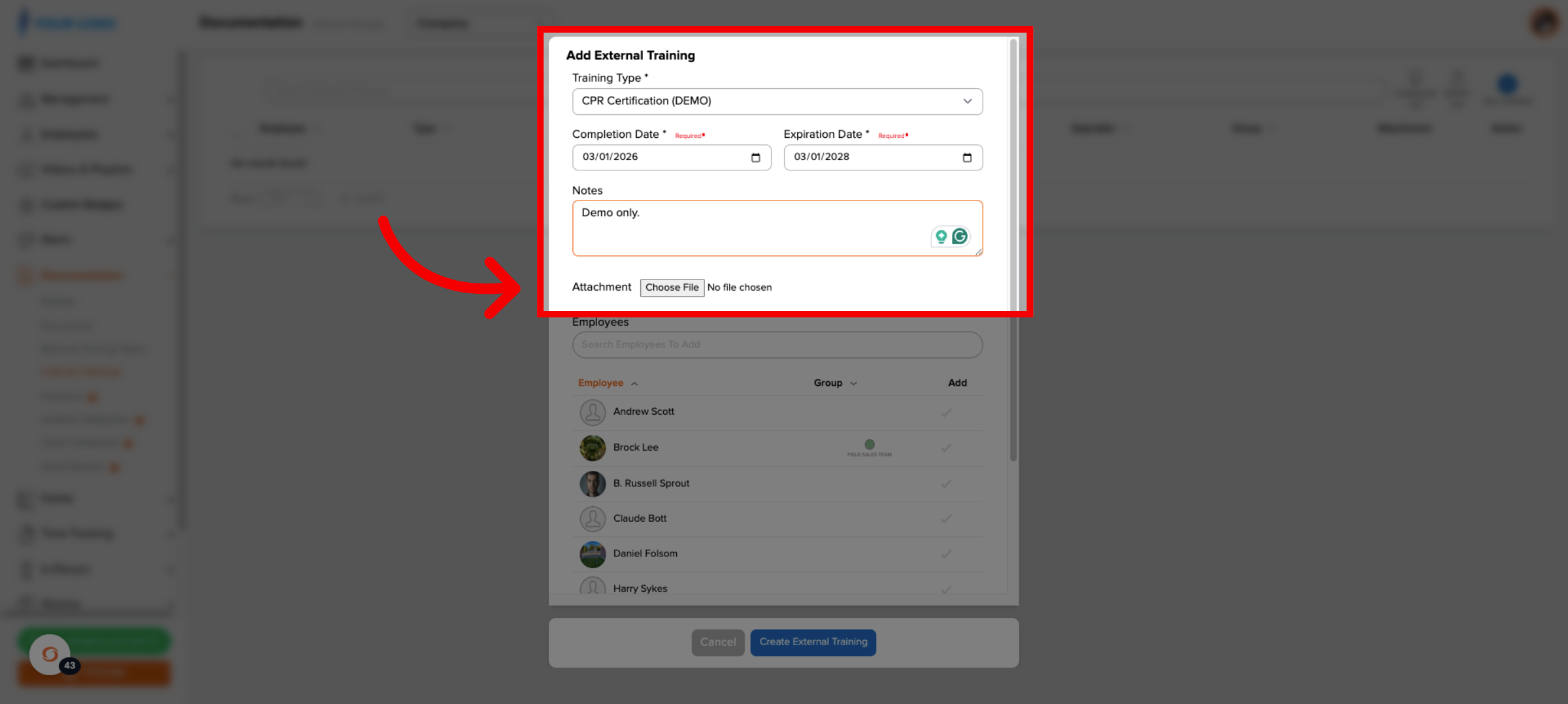
13. Select Applicable Employee
Select which employee you're adding this record to.
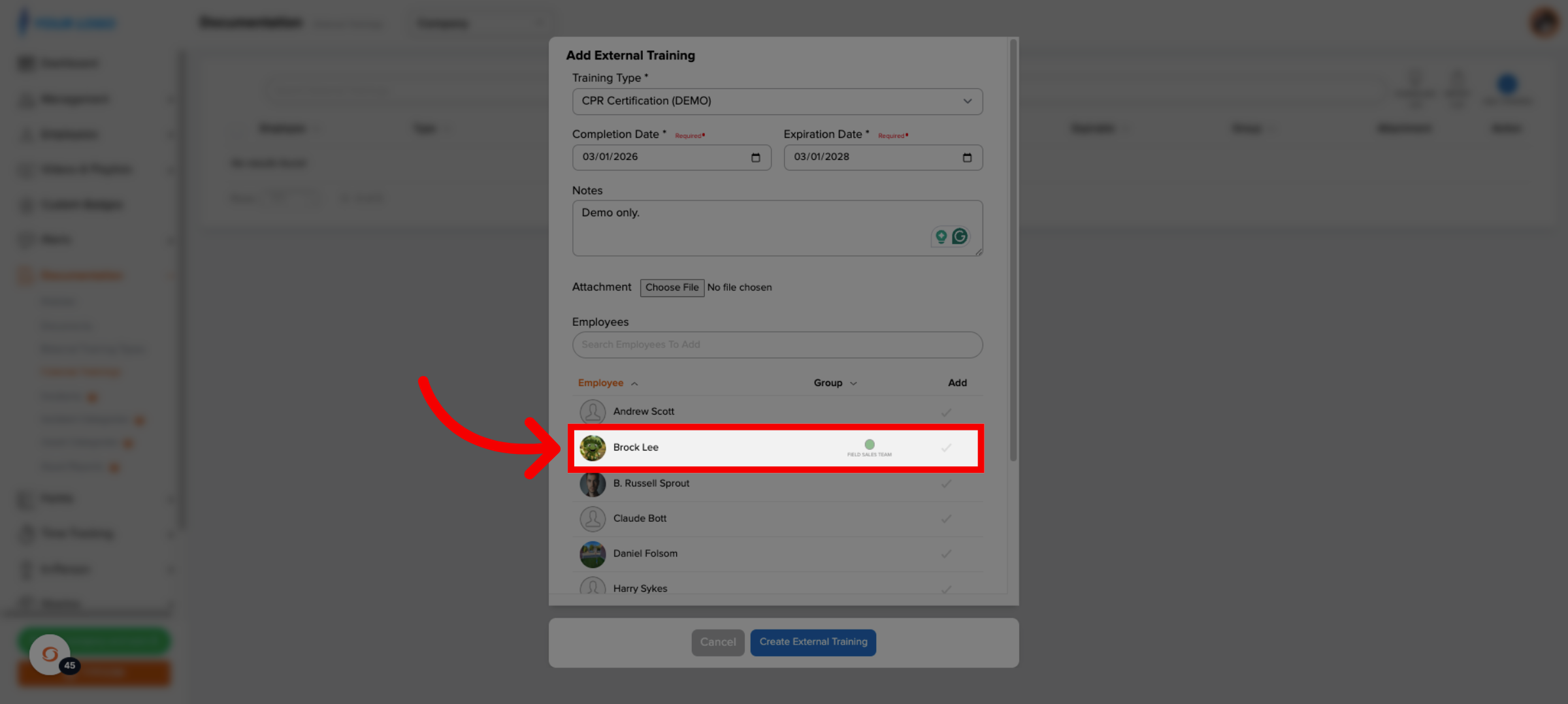
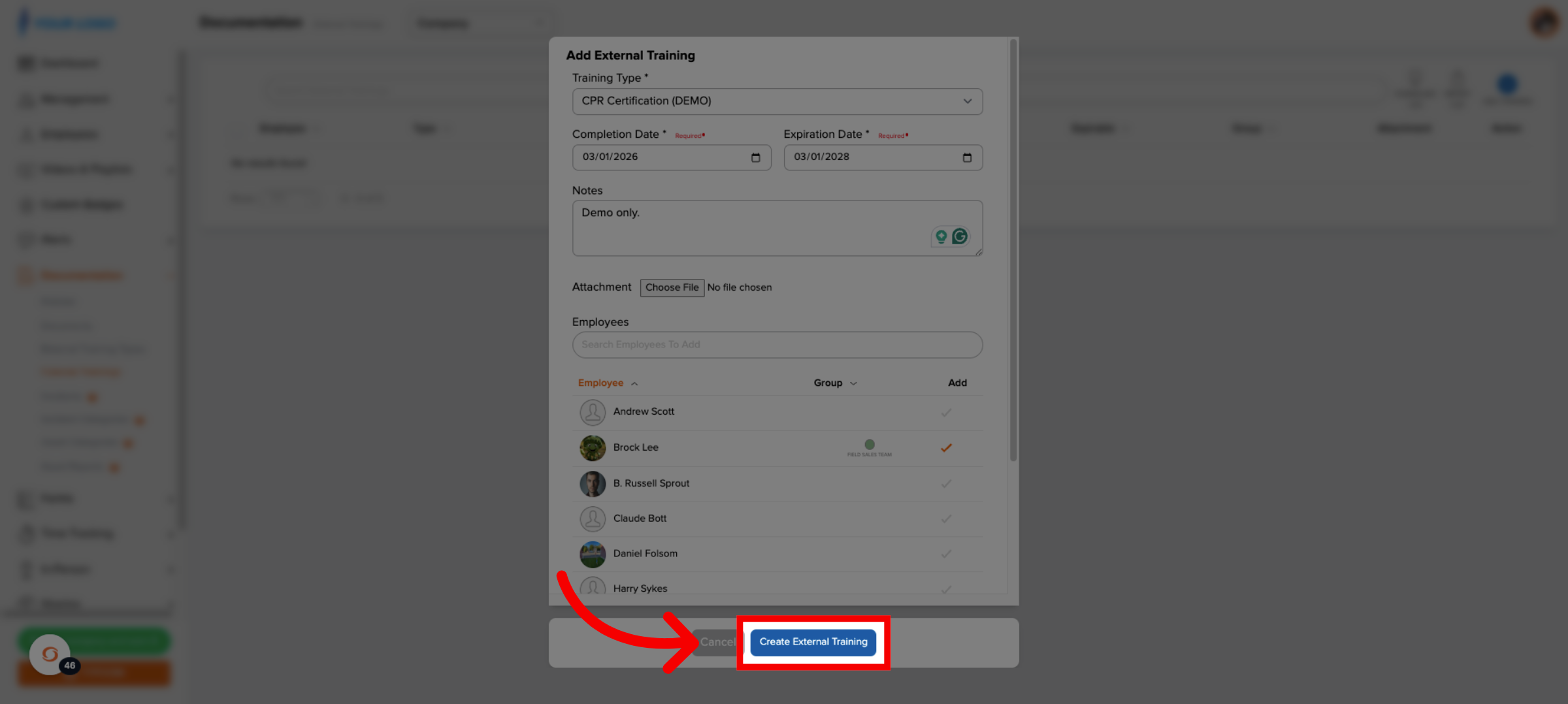
14. Create External Training
When you're done click create external training.
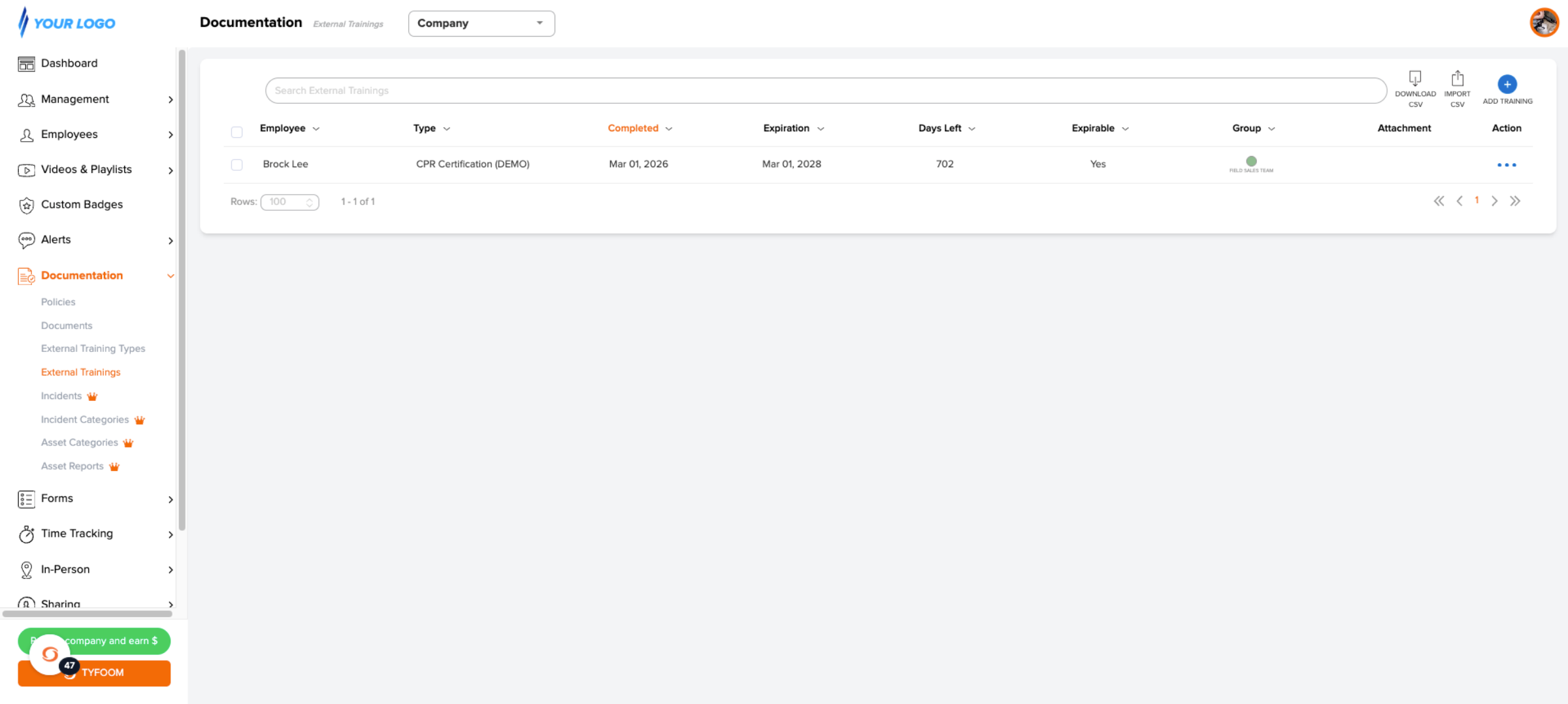
15. Access Documentation Section
This page will give you a quick view of all your most recent external training records.
If you have any questions, please contact us at customercare@tyfoom.com.
Related Articles
Required External Trainings
Required external trainings allow you to designate which employees need specific trainings, and then monitor compliance in one place. <br> 1. Go to Documentation > External Training Types To get started, head over to the Documentation section ...How to Upload Bulk Certifications into Tyfoom
Certifications are a way to track any type of training that expires. Certificates are all the employees that have earned specific "Certifications". All certifications should be added into Tyfoom before uploading the list. Go to app.tyfoom.com 1. ...Report Video in Tyfoom
In this guide we will go over how to report a video in the Tyfoom app. 1. Open the Library Tab in the Tyfoom app. 2. Then open your Video Library. 3. Select the video you want to report. 4. Tap "Report Video". 5. Choose the appropriate reason for the ...FAQs - Admin
General Questions What is the TSR score? The TSR Score (Tyfoom Success Rating), is a performance indicator that offers a quick snapshot of a user's success and progress in Tyfoom. It includes watching assigned videos, getting good scores on quizzes, ...Tyfoom + Procore Integration
Integration Overview This integration allows you to automatically upload form responses as PDF files to a Procore project. Adding Tyfoom to Procore In this guide, we’re going to go over how to add Tyfoom to your Procore account. Go to procore.com 1. ...