How to Submit a Pause Request for an Employee
This guide walks you through how to submit a pause request for an employee in Tyfoom.
Go to app.tyfoom.com
1. View Pause Request Statuses
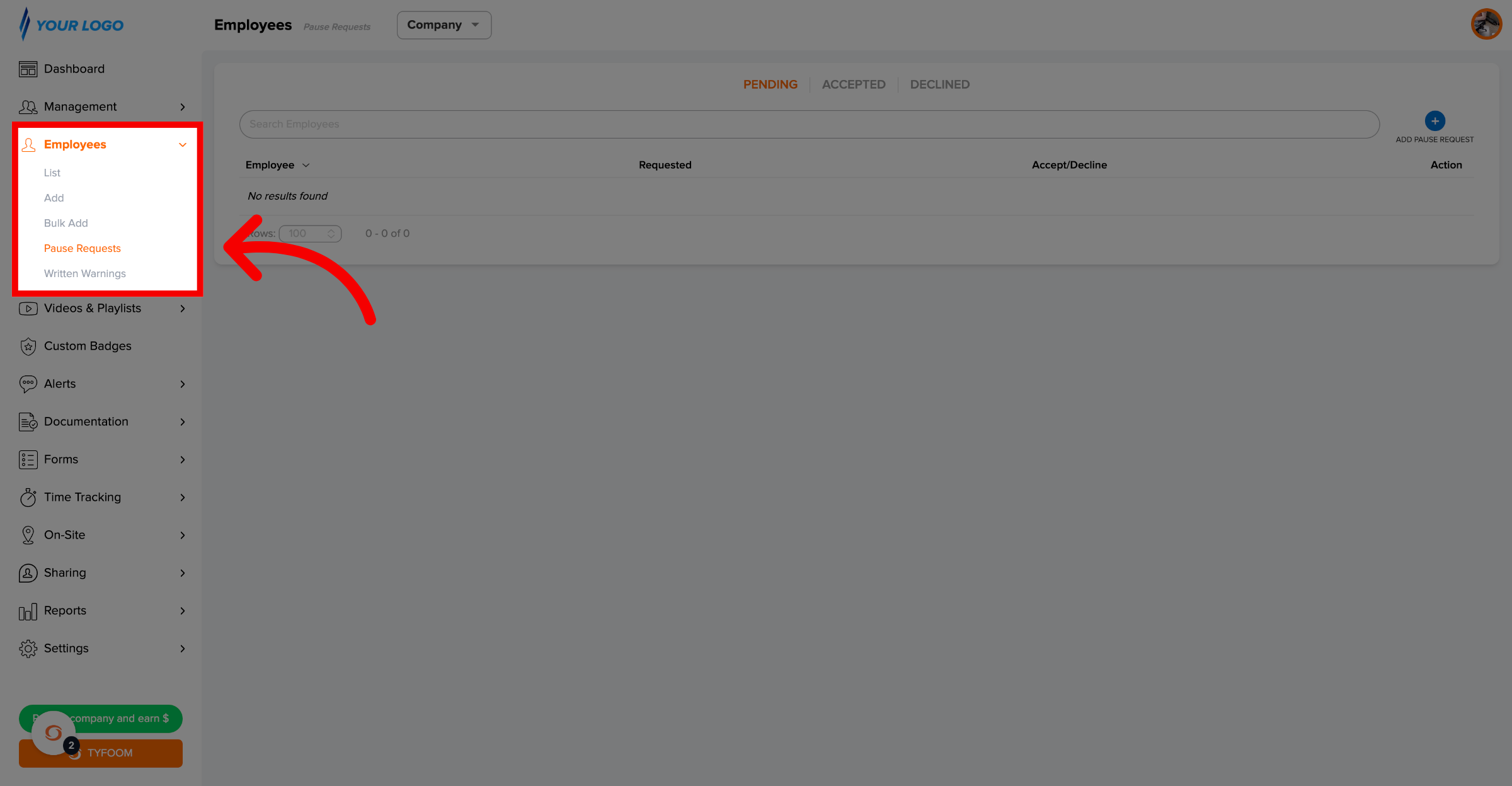
To get started, go to the pause requests page.
2. Create New Pause Request
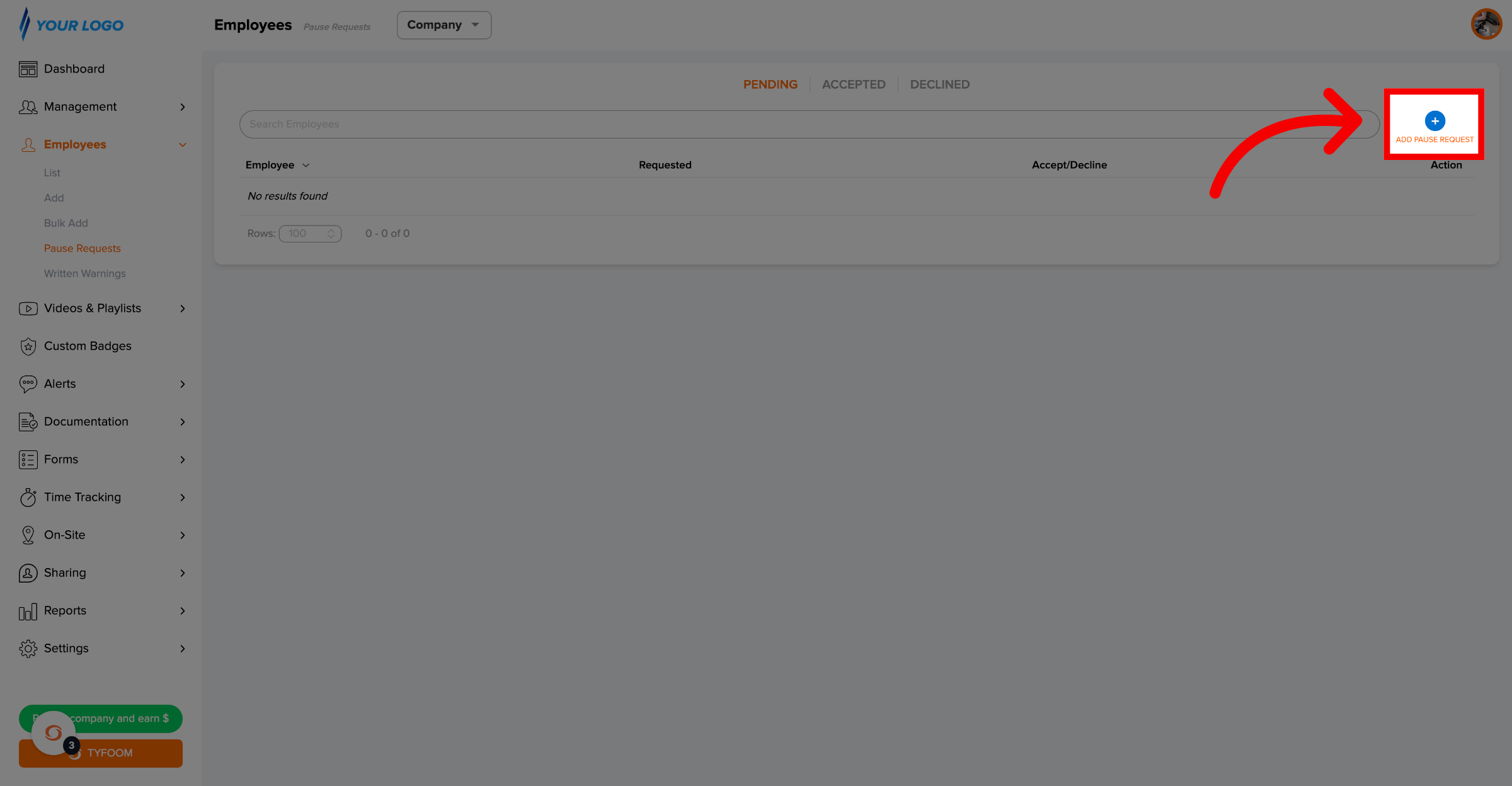
Click "Add Pause Request" to create a new one.
3. Enter Pause Details
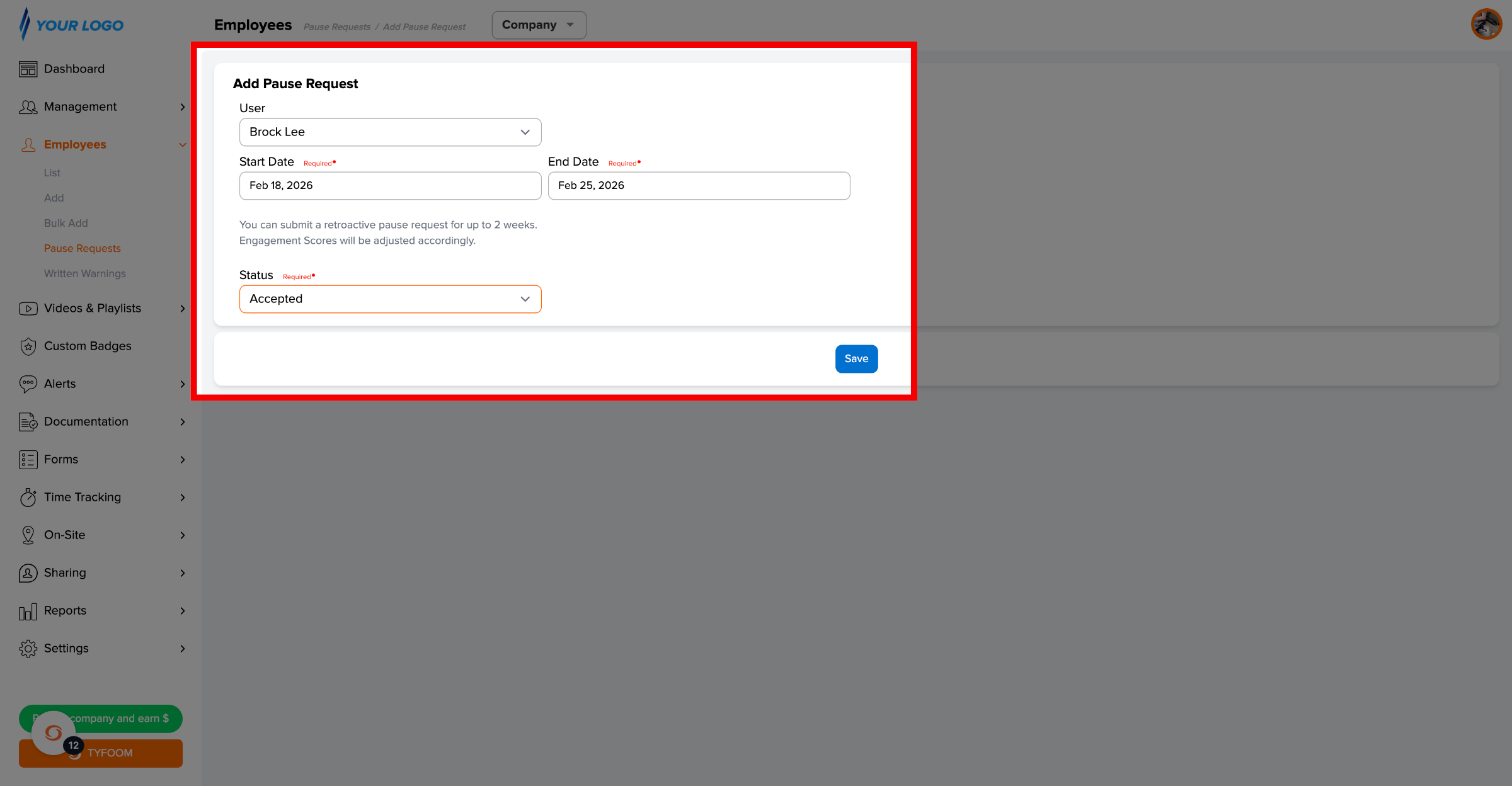
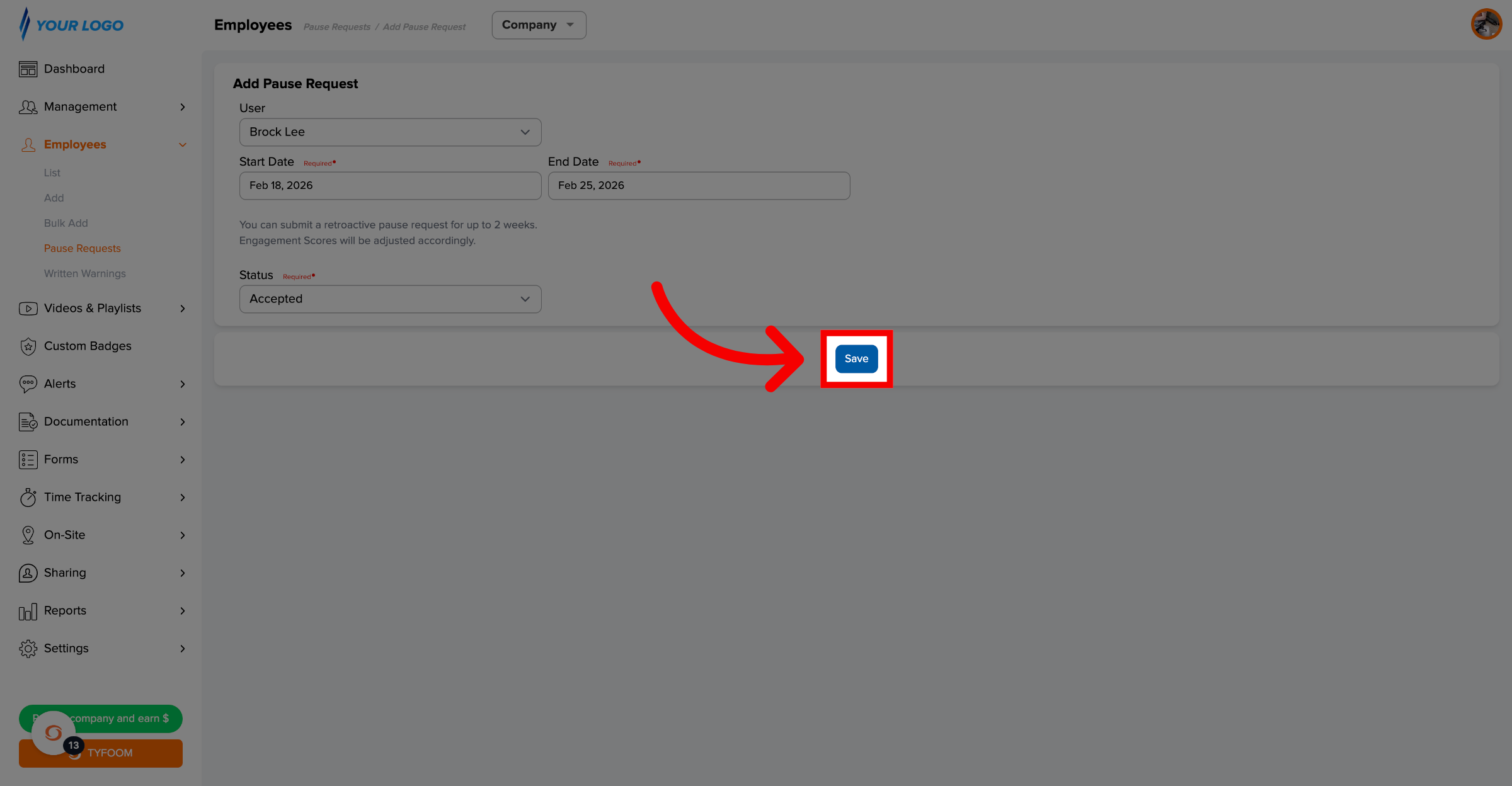
Select the employee, and the start and end date of the pause request.
4. Retroactive Pause Requests
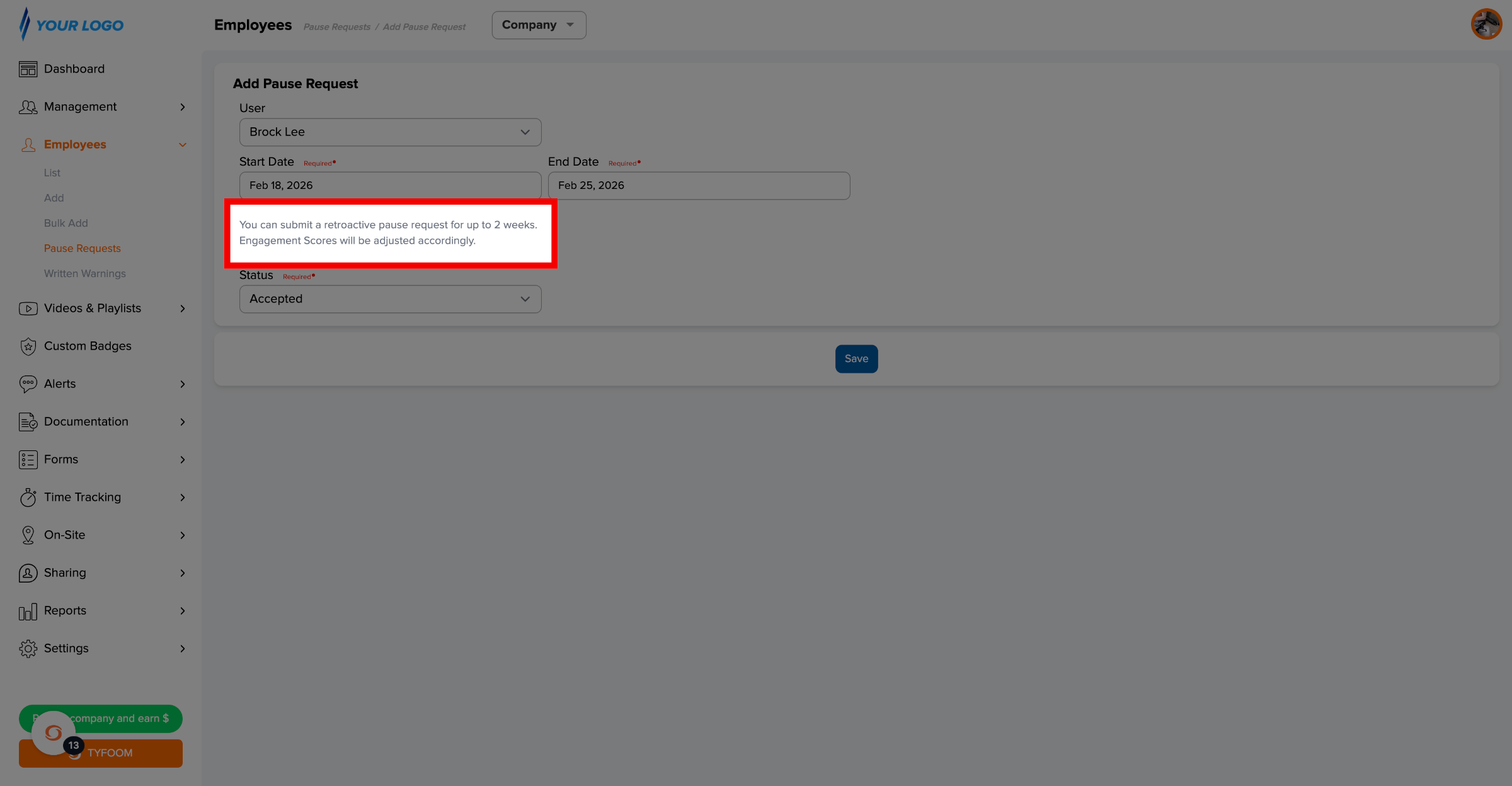
You can apply a pause request retroactively. Admins can apply a pause for an employee for up to two weeks in the past. This is helpful when an employee is off work, and a pause request was not submitted beforehand. When applied retroactively, any incomplete assignments sent during the paused period are removed, and the employee’s score is adjusted accordingly.
5. Save Pause Request
Once you're ready, click "Save" to submit the pause request.
6. Confirm Request Submission
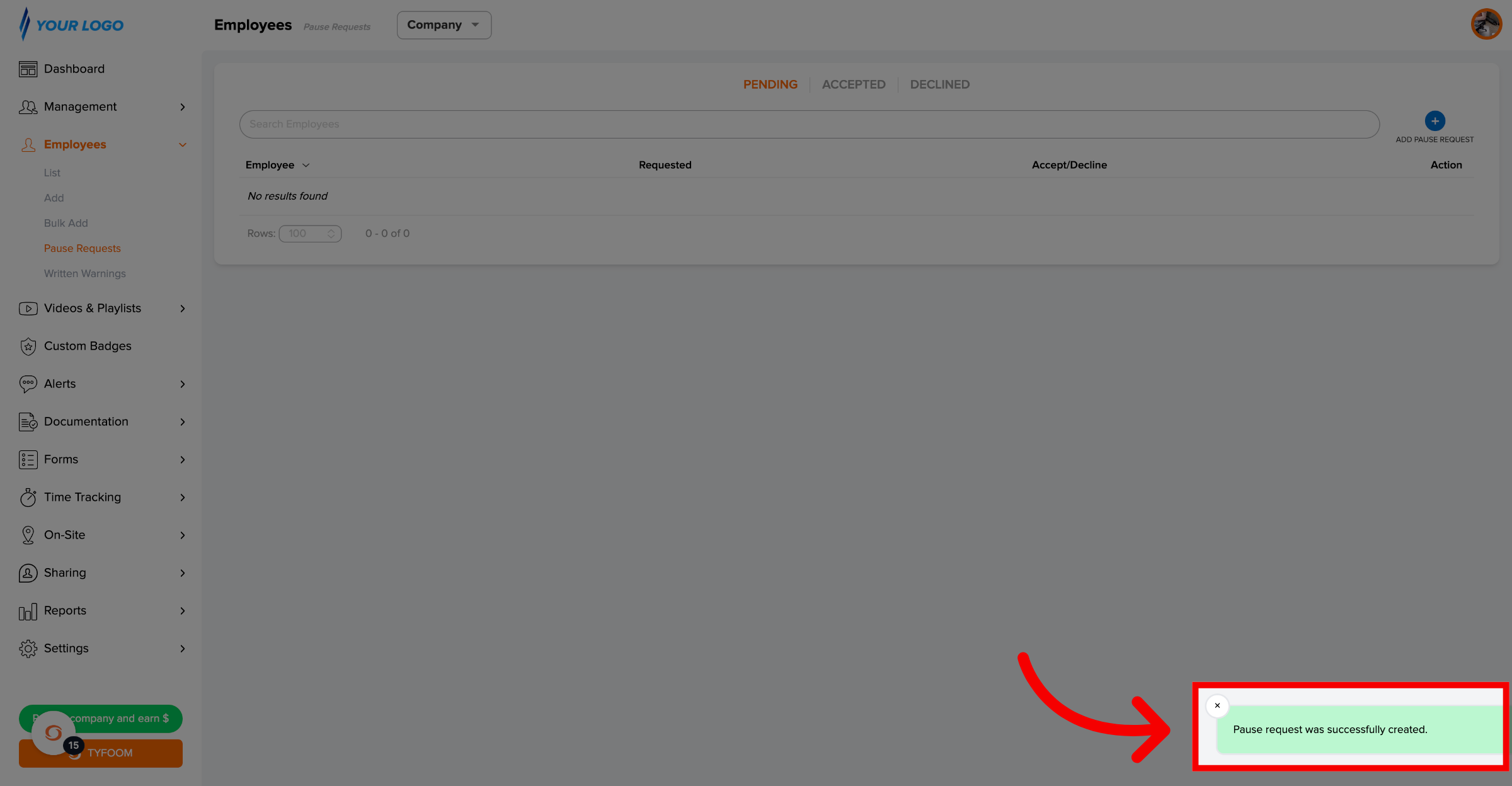
Once complete, you'll see a message confirming it was successfully created.
If you have any questions, please contact us at customercare@tyfoom.com.
Related Articles
Accept/Decline Pause Request
Accept/Decline Pause Request <br> In this video, we'll go over how to accept or decline a pause request. Go to app.tyfoom.com 1. Click "Employees" To get started, click on the employees table. 2. Click "Pause Requests" Then ...Employee QR Codes Overview
This guide will show you how to create a QR code tied to your employee. Go to app.tyfoom.com 1. Log into Tyfoom 2. Employees Tab To get started. Click on employees. 3. Go to Employee List This will show you a list of all your employees. 4. Select ...Tyfoom Forms: Employee Picker Question Type
Overview The new Employee Picker option in Tyfoom Forms allows admins to add dropdown questions that list all employees in your system. This makes it easy for users filling out forms to select one or more employees, streamlining processes like ...Editing a Form Submission - Employee View
Editing a Form Submission - Employee View <br> In this guide, we will go through the process of how an employee can make an edit to previously submitted forms, if an admin has turned on this ability. 1. Go to Forms To get started. Go to the ...Tyfoom Alerts: Employee Reactions & Easier Navigation
Tyfoom Alerts: Employee Reactions & Easier Navigation Tyfoom Alerts now include two enhancements to improve communication and usability: Employee Reactions and Easier Navigation. These updates make Alerts more interactive and efficient for both ...